
Introduction
The App Homepage is the first screen users see, and it sets the tone for their in-app experience. In this guide, you’ll learn how to configure your App Homepage — from selecting layout options and adding key blocks to arranging content and testing the homepage design. A well-configured homepage boosts engagement and guides users to your most important content.
Tutorial Video
Accessing the App Pages Screen
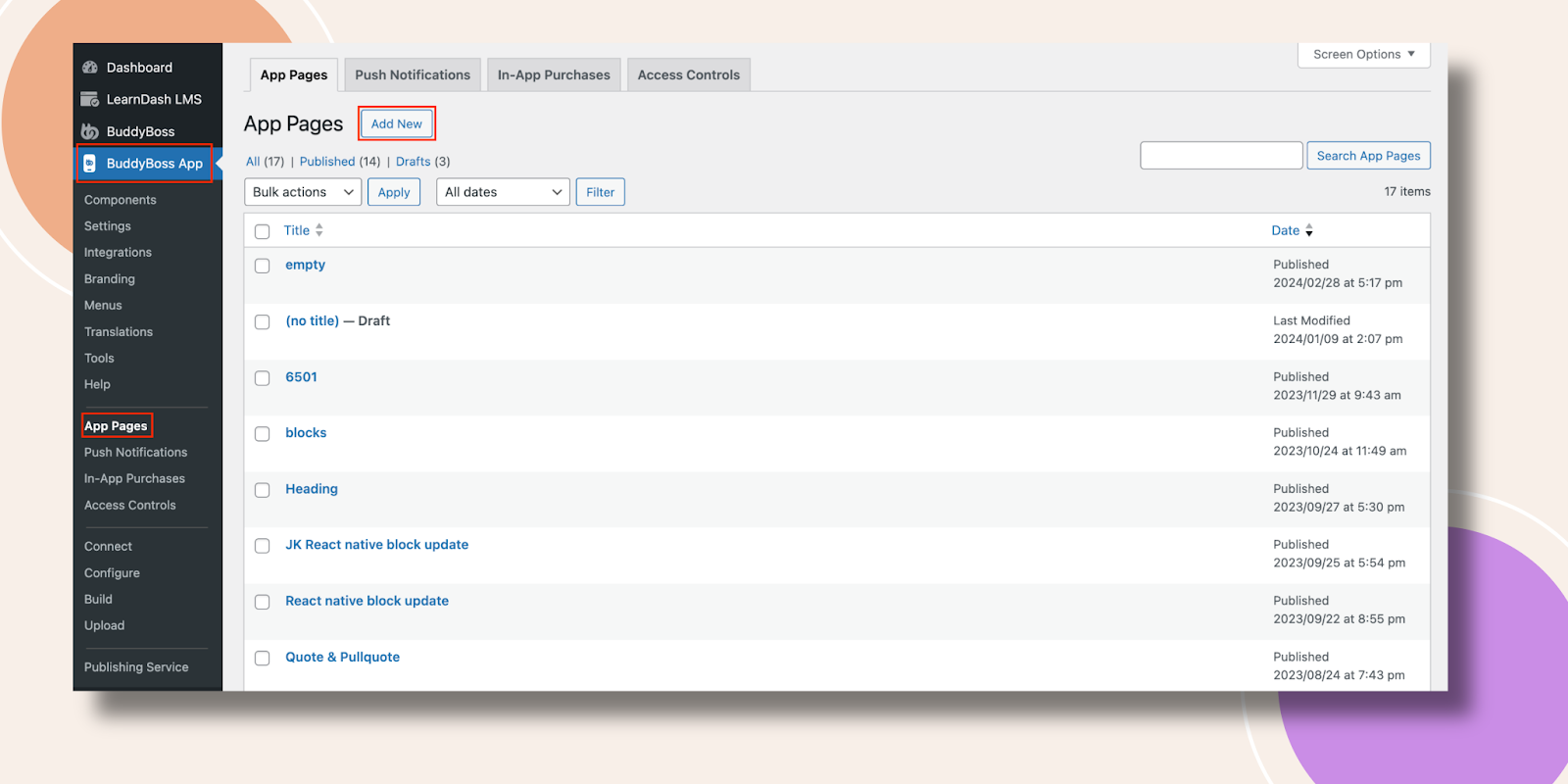
- In your WordPress Dashboard, navigate to BuddyBoss App > App Pages.
- Click Add New to begin creating a new App Page.
Creating a New App Page
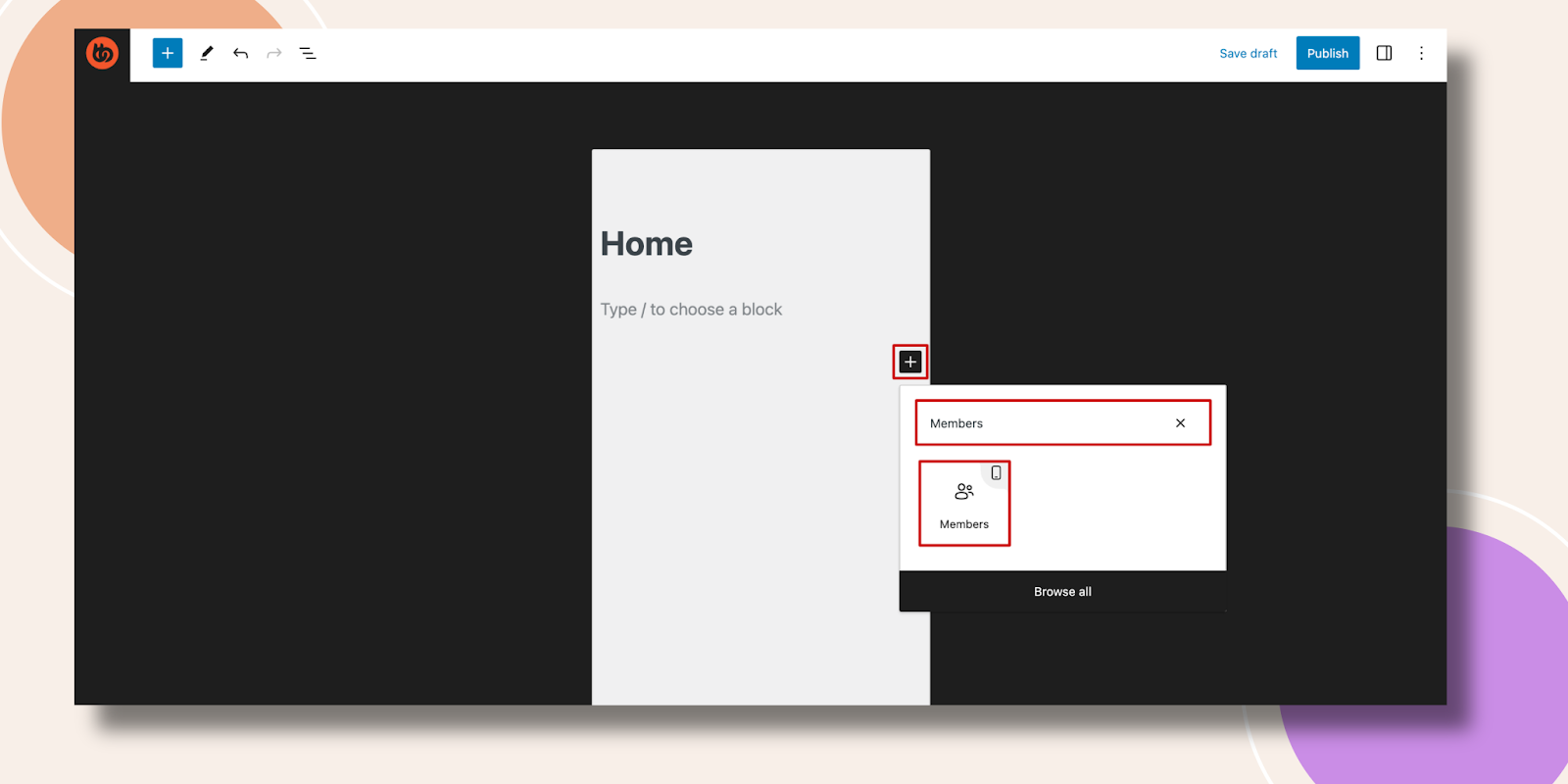
- Enter a Title, such as Home, at the top of the editor.
- Click the + icon to insert blocks into your mobile app interface.
Adding Blocks to Your Homepage
- Click +, search for Members, and add the Members block, this displays member profiles.
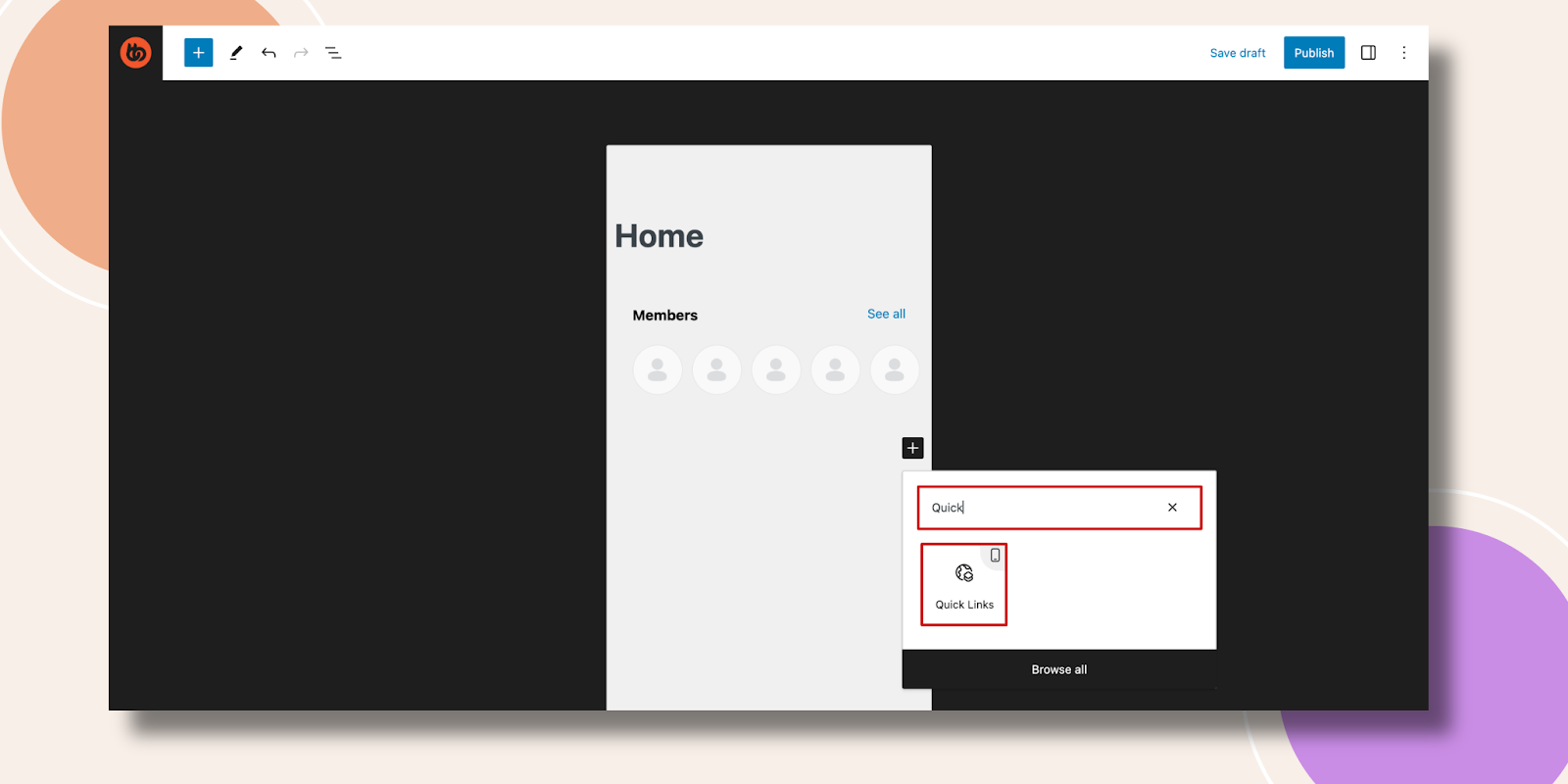
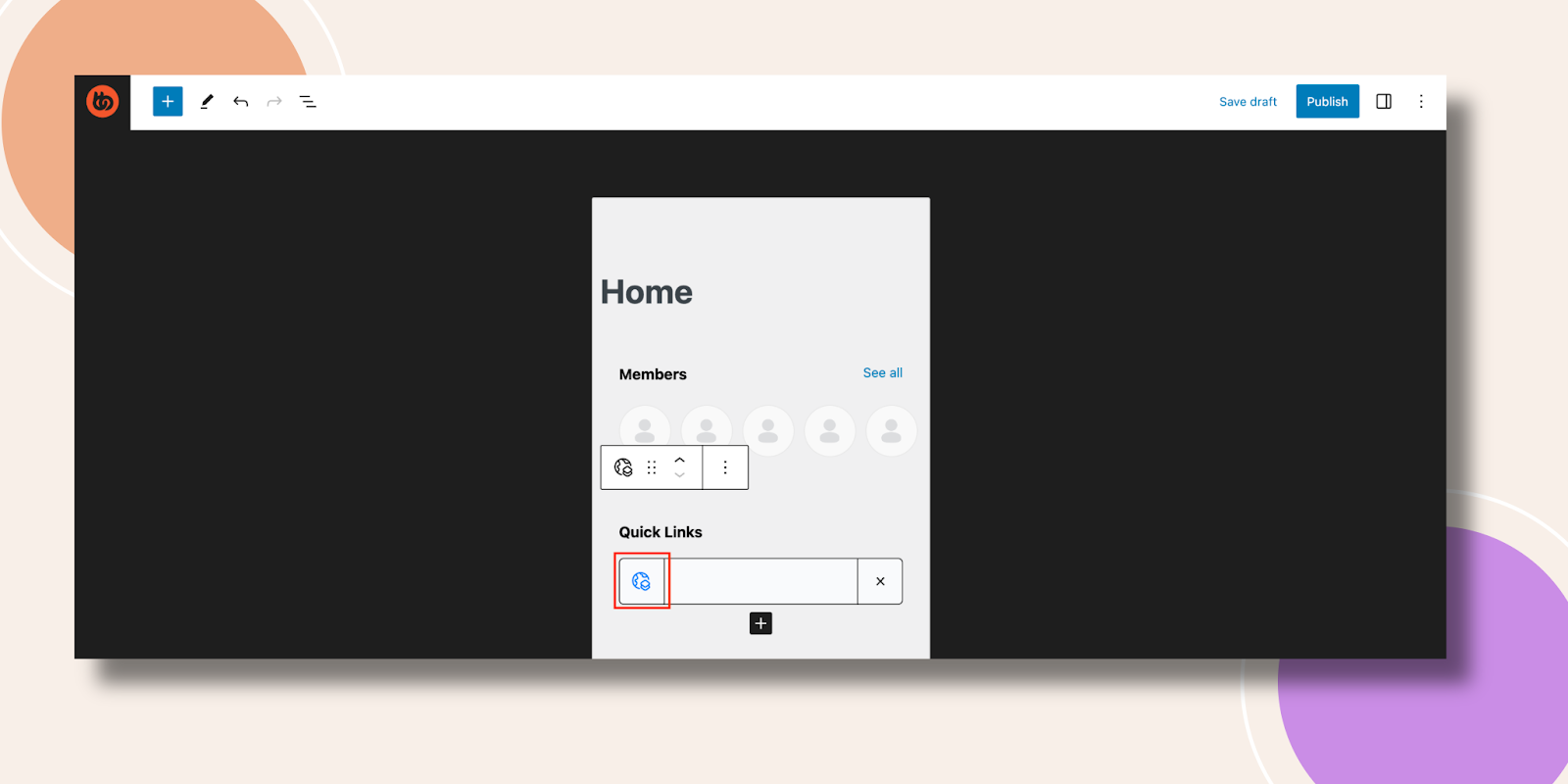
- Click + again, search for Quick Link, and add the Quick Link block for external or internal links.
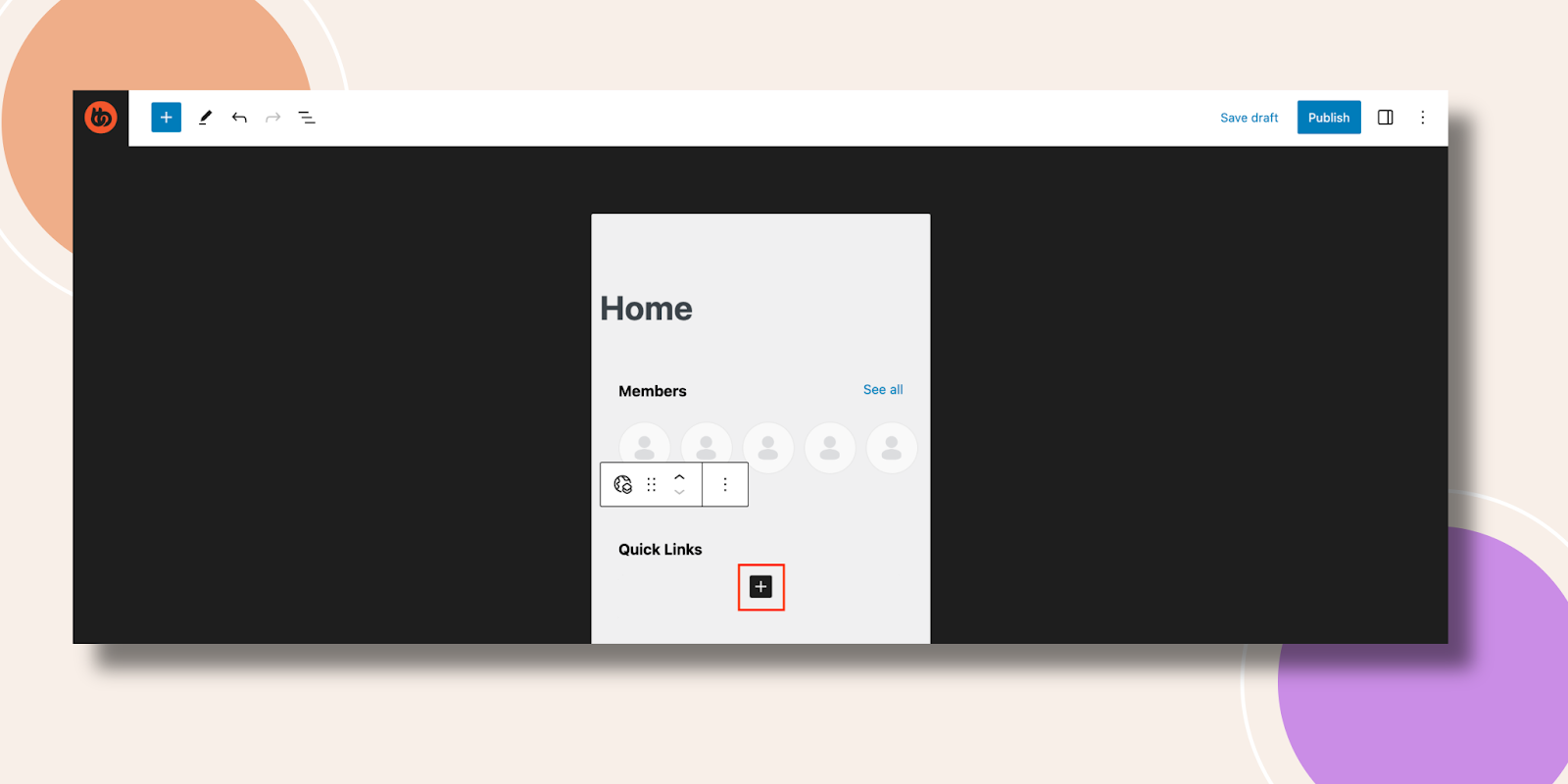
- To add another link, click the block’s + icon.
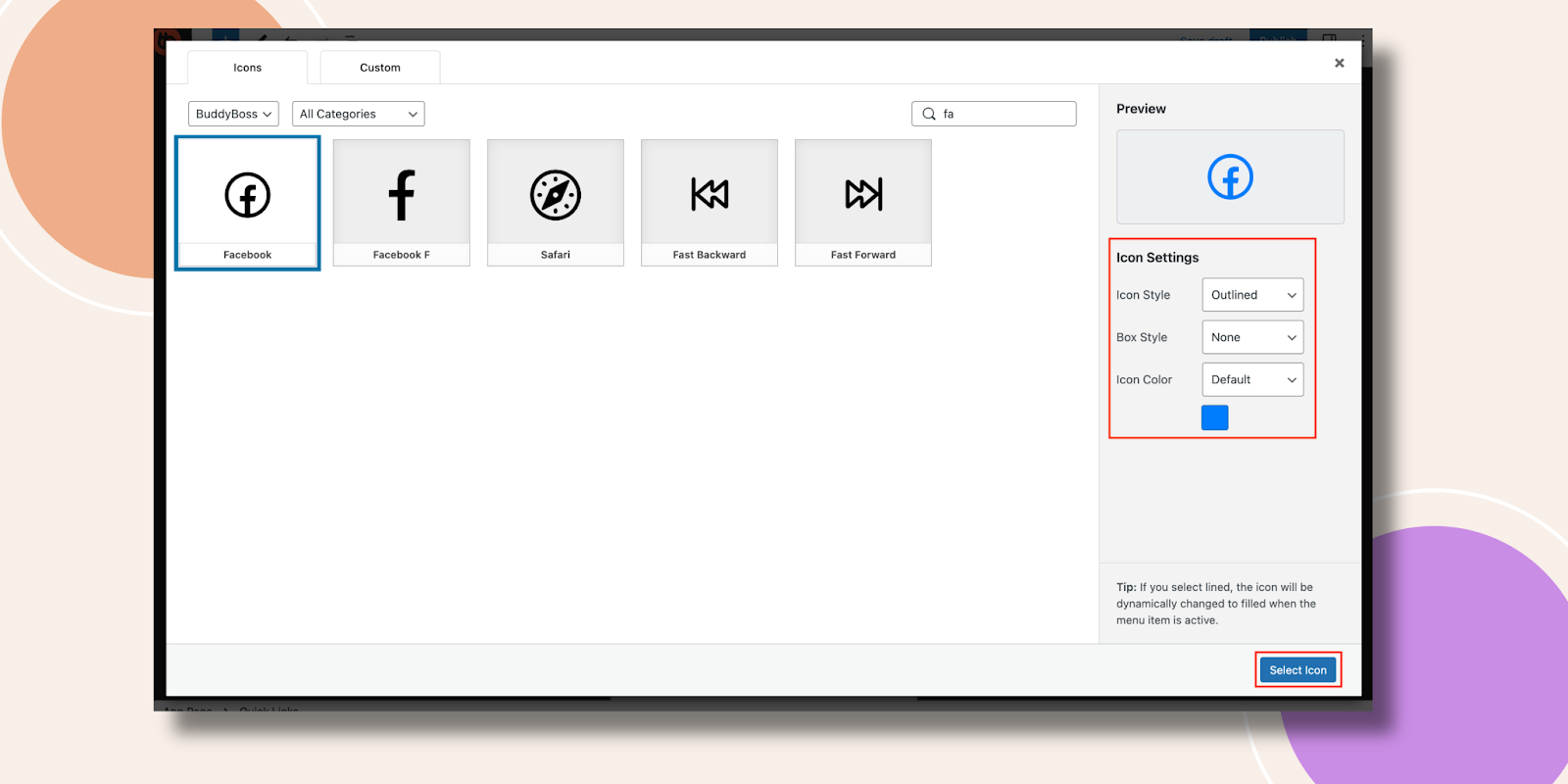
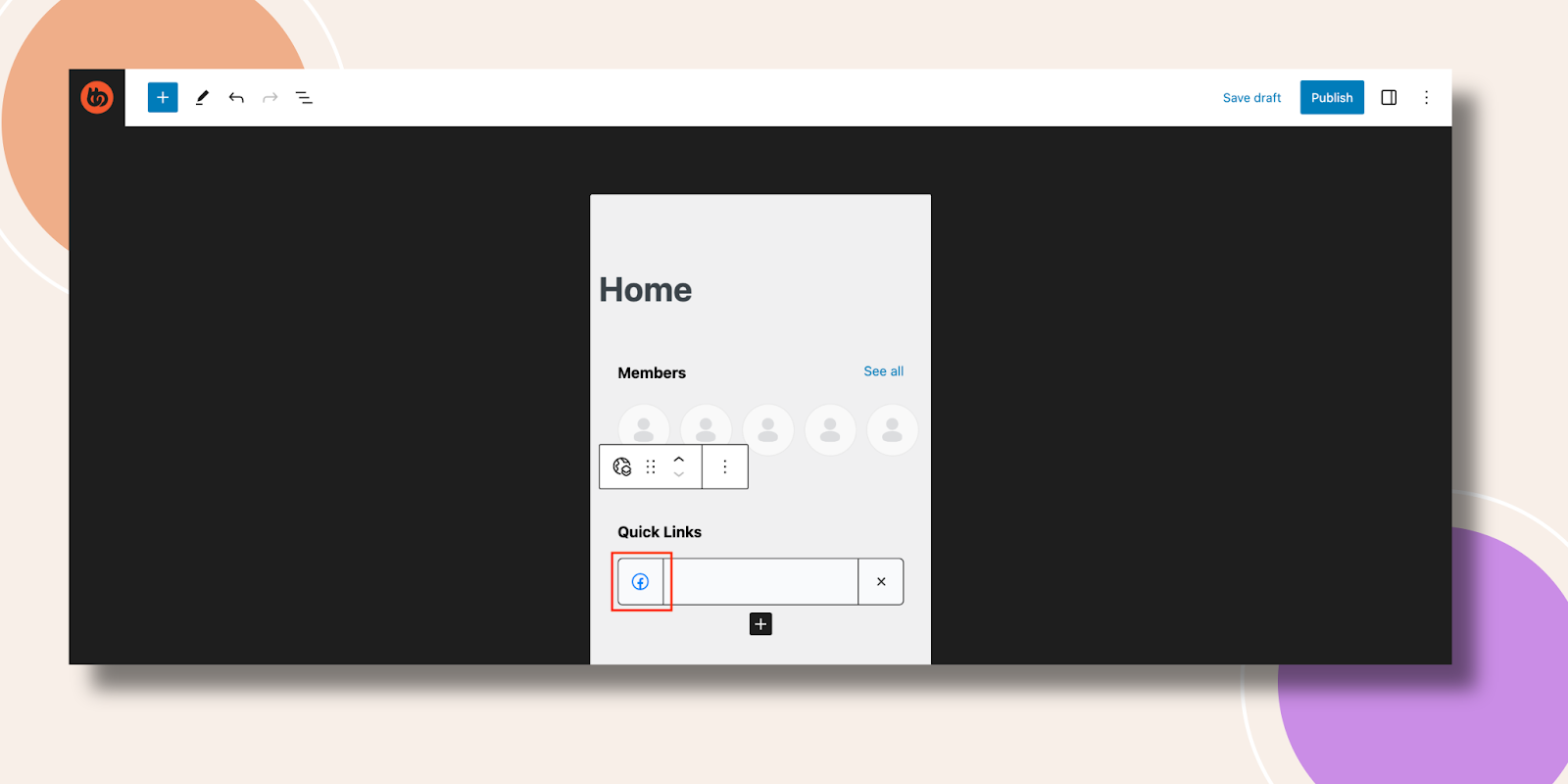
- In Icon Settings, choose an icon (e.g., Facebook), then click Select Icon.
Icon Preview
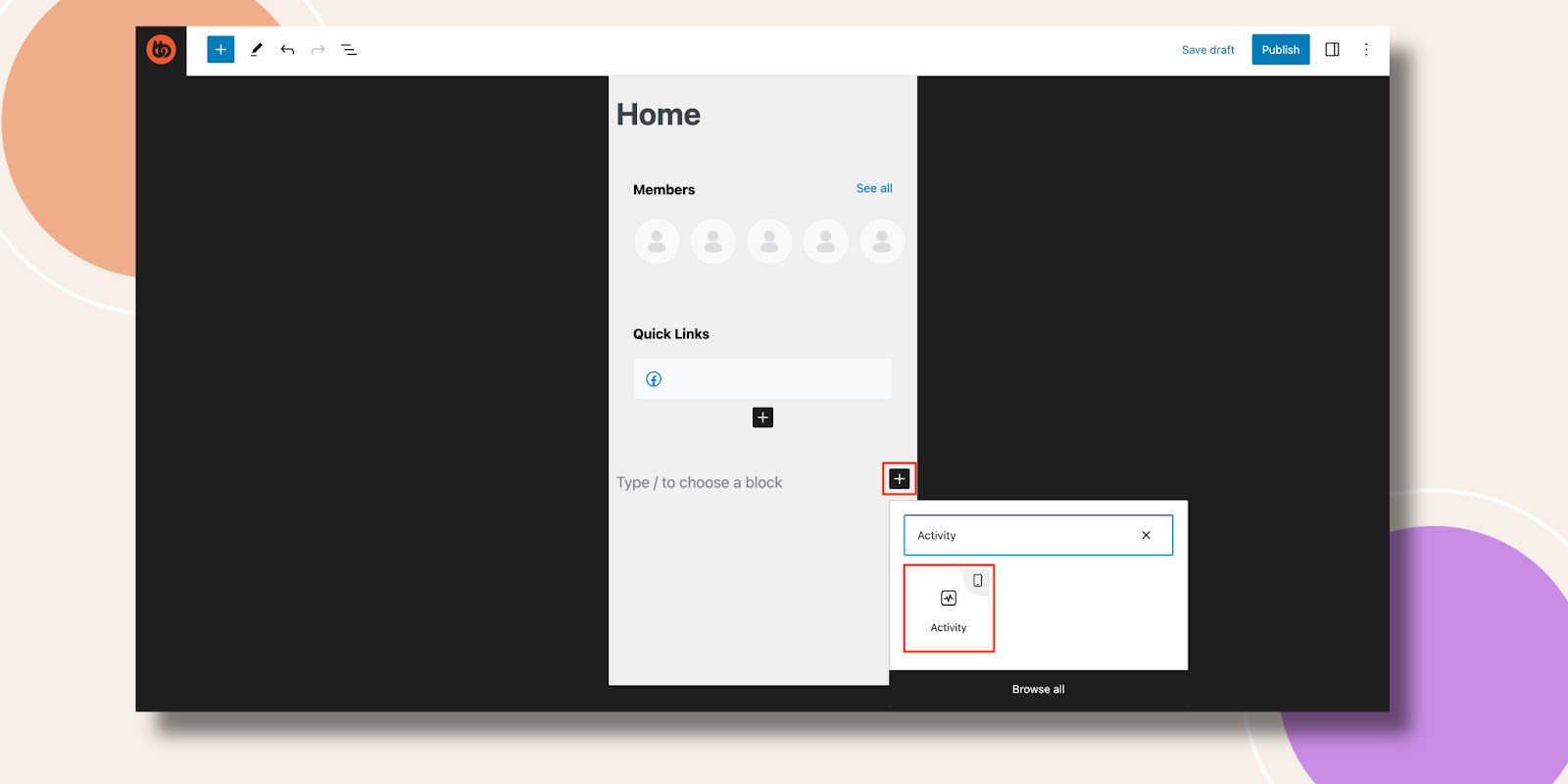
- Click +, search for Activity, and add the Activity block to show recent posts.
.
Integrating Your Homepage into the Tab Bar
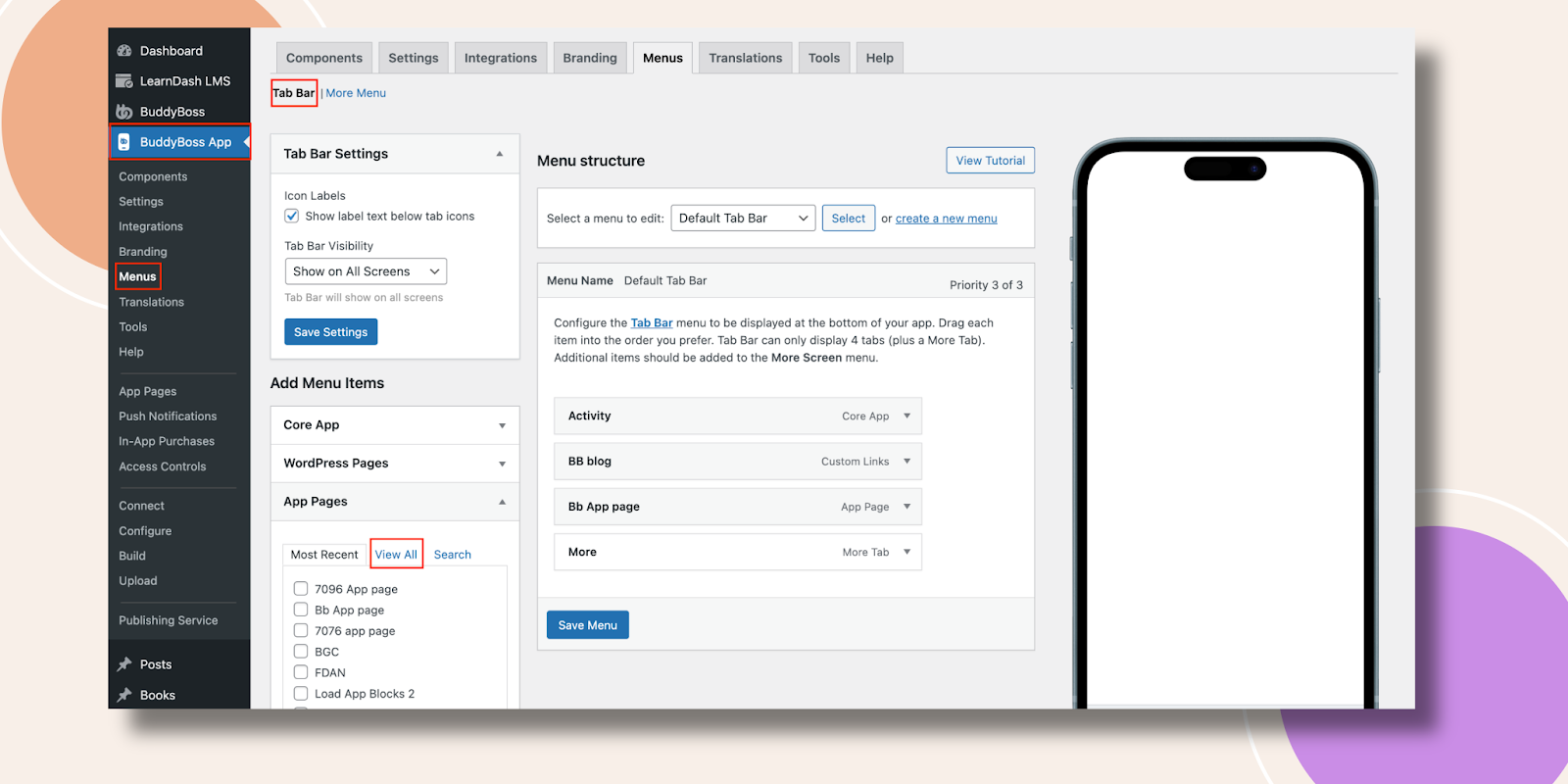
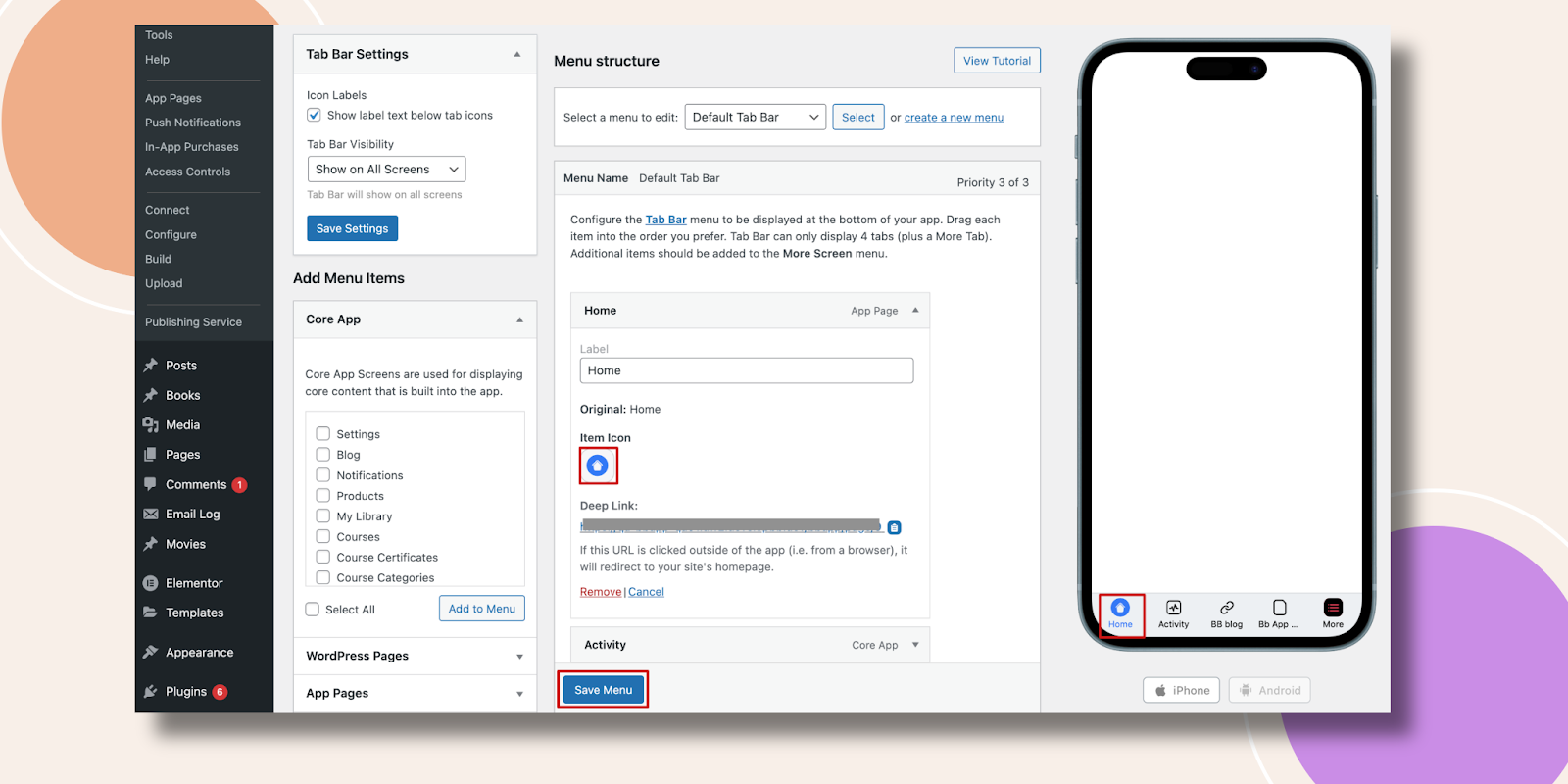
- Go to BuddyBoss App > Menus > Tab Bar Menu.
- Click App Page, then scroll or click View All to locate Home.
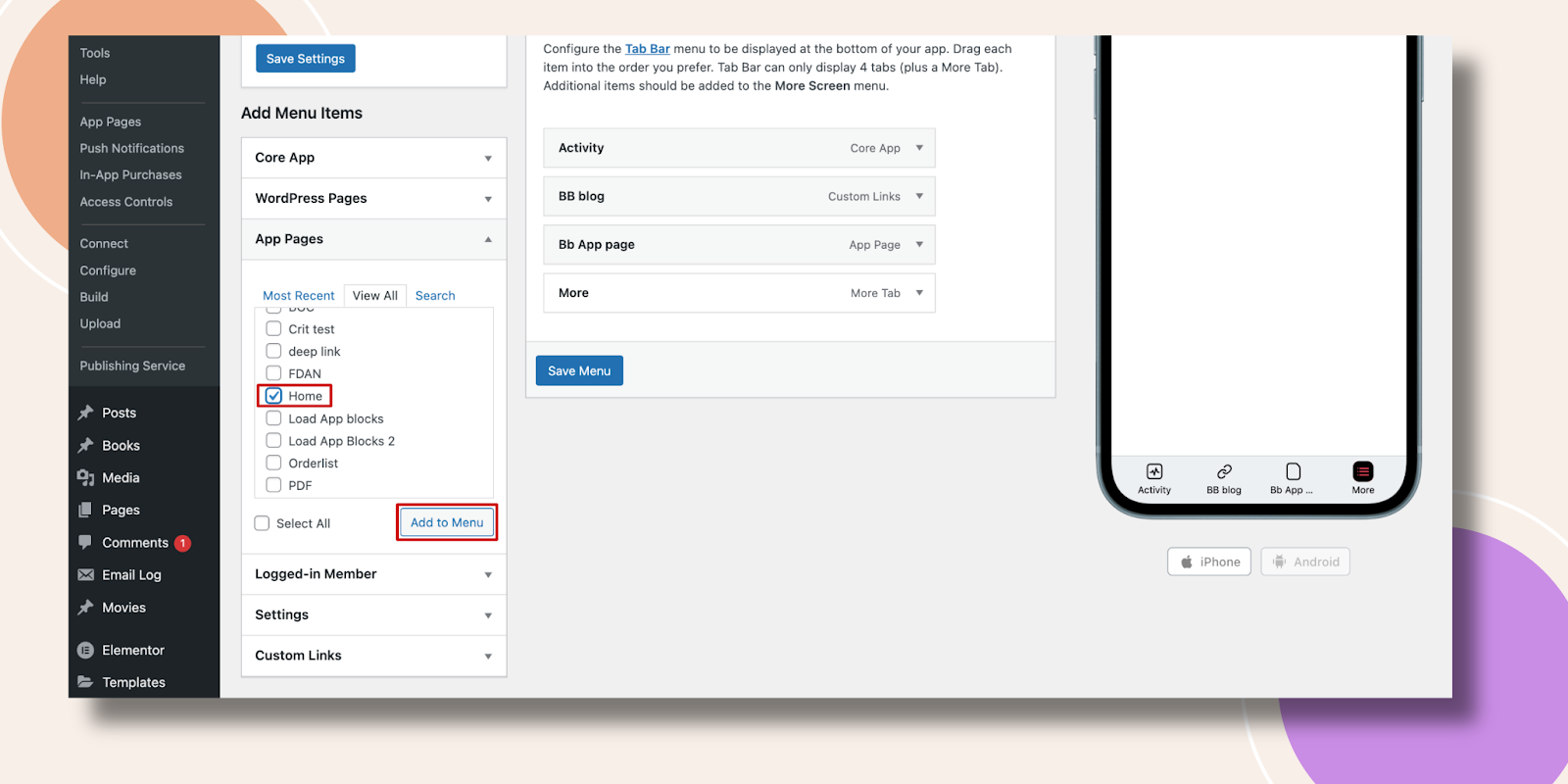
- Select Home and click Add to Menu.
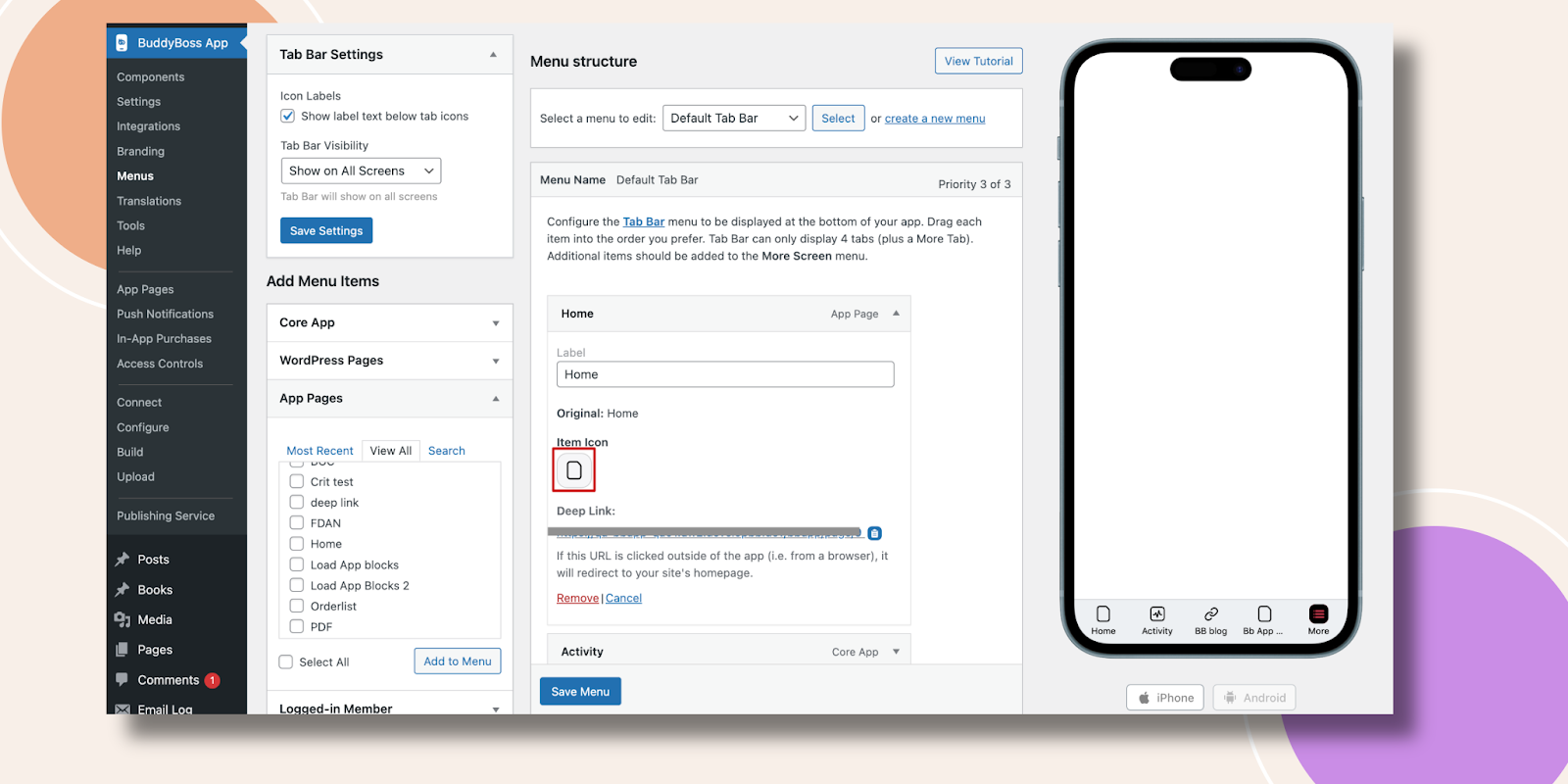
- In the menu list, click Home, then click Item Icon.
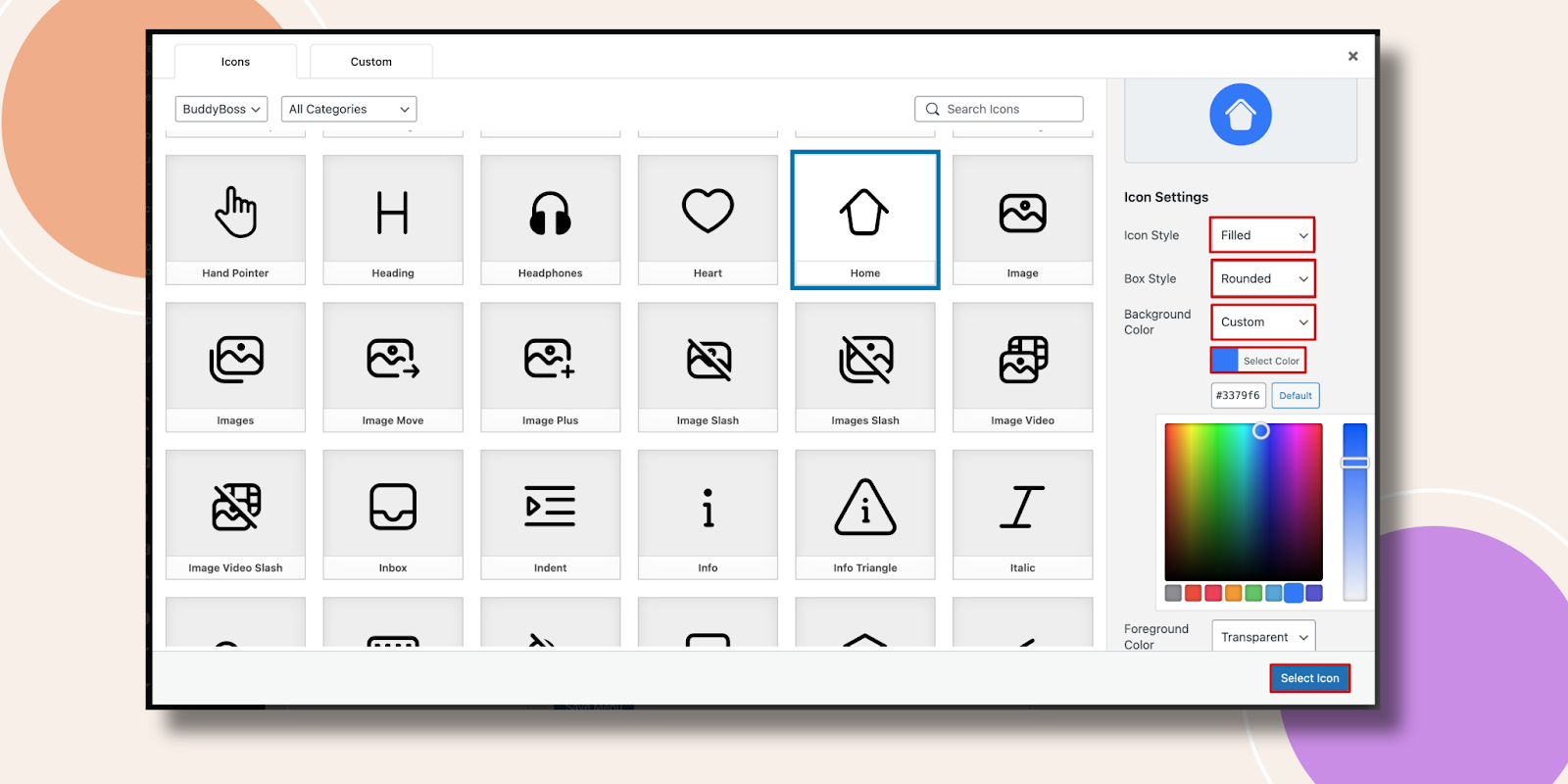
- Choose a Home icon, adjust Icon Settings, and click Select Icon.
- Click Save Menu to apply your Tab Bar changes.

Previewing Your Homepage
- Force-close and reopen the BuddyBoss App on your device.
- Tap the Home tab in the Tab Bar.
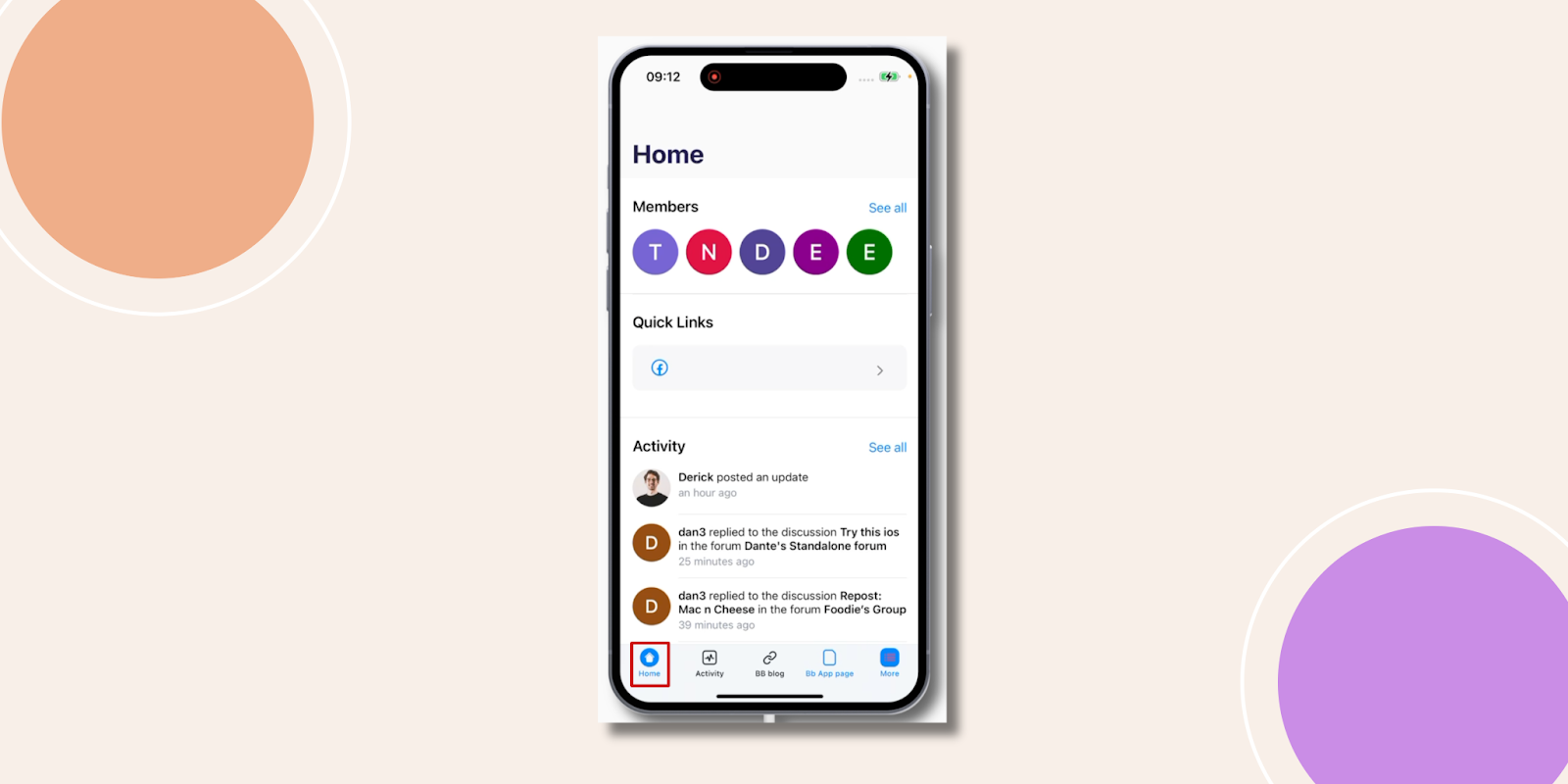
- Confirm your Members, Quick Links, and Activity blocks display and function as configured.
Troubleshooting and FAQs
Q: My new Home tab isn’t appearing.
A: Ensure you clicked Save Menu in Tab Bar Menu, then force-close and reopen the app to fetch updates.
Q: Blocks aren’t showing on my Homepage.
A: Return to App Pages, verify you added each block (Members, Quick Link, Activity), and click Update before reloading the app.
Q: I don’t see my custom icon on the Home tab.
A: In Tab Bar Menu, confirm you set the Item Icon for Home and clicked Select Icon, then Save Menu.
Q: Quick Link isn’t redirecting correctly.
A: Edit the Quick Link block, verify the URL is correct, and re-test in the app after saving the App Page.
Q: I lost my layout after editing.
A: Always click Update on your App Page and Save Menu in Tab Bar Menu; unsaved changes won’t display.


