BuddyBoss is a powerful community platform built for WordPress. It transforms your website into a vibrant social hub where members connect, share content, and build meaningful relationships.
The platform’s comprehensive features rival dedicated community software, but with the flexibility only WordPress can offer.
This guide provides quick, practical fixes for the most common BuddyBoss troubleshooting scenarios. You’ll learn step-by-step solutions that get your community back on track without the frustration or guesswork.
Here’s the reality: Most setup challenges arise from WordPress environments, hosting limits, or plugin conflicts, not BuddyBoss itself.
Whether you’re dealing with installation hiccups, plugin conflicts, or performance issues, the solutions are typically straightforward once you know where to look.
- Why Troubleshooting Matters in BuddyBoss-powered Community
- Common Setups, WordPress Environment Challenges & Quick Fixes
- Proactive Tips to Ensure Smooth BuddyBoss Setup & Growth
- When to Get Professional Help
- FAQs on WordPress and BuddyBoss Troubleshooting
- BuddyBoss Troubleshooting: Final Words
- Subscribe to Our Newsletter
Why Troubleshooting Matters in BuddyBoss-powered Community
The success of any online community depends on a smooth experience from the very first visit.
When members encounter broken features, slow loading times, or registration problems, they leave, often permanently. First impressions matter in community building.
Small technical issues create ripple effects. A broken notification system means reduced engagement.
Mobile responsiveness problems alienate users who browse on phones. Login difficulties prevent new member onboarding entirely.

The encouraging news? These problems have simple solutions. Many setup and configuration challenges resolve quickly once you follow the right steps.
Common Setups, WordPress Environment Challenges & Quick Fixes
WordPress community sites often run into environment setup challenges, plugin conflicts, and unexpected errors. Knowing quick fixes and standard setups helps keep your site stable, secure, and running smoothly.
Let’s talk about some common challenges-
1. When Setup or Activation Doesn’t Complete
What Happens: You encounter a white screen of death, theme activation fails, or error messages appear during BuddyBoss installation.

Quick Fix:
- Check PHP version compatibility – BuddyBoss requires PHP 7.4 or higher. Contact your hosting provider to upgrade if necessary.
- Increase memory limits – Add this line to your wp-config.php file: define( ‘WP_MEMORY_LIMIT’, ‘512M’ );
- Verify plugin compatibility – Temporarily deactivate all plugins except BuddyBoss Platform and BuddyBoss Theme.
- Clear all caches – Use your caching plugin’s clear function or contact your host.
If problems persist, switch to a default WordPress theme temporarily to isolate the issue. Most installation hiccups relate to server resources or plugin conflicts, not the BuddyBoss plugin itself.
Here’s how you can properly install and setup BuddyBoss Platform Plugin.
Or, watch the full tutorial
How to properly install the Platform?
2. When Plugins Don’t Play Nicely Together
What Happens: As with any WordPress setup, third-party plugins can sometimes conflict with BuddyBoss. Here’s how to test safely
Quick Fix:
- Create a plugin testing protocol – Always test new plugins on a staging site first.
- Use the elimination method – Deactivate plugins one by one to identify the conflicting plugin.
- Check plugin compatibility – Visit the BuddyBoss documentation for known plugin conflicts before installation.
- Update everything – Ensure BuddyBoss, WordPress, and all plugins run the latest versions.
Keep a list of confirmed compatible plugins for future reference. Popular plugins like WooCommerce, LearnDash, and most SEO plugins work seamlessly with BuddyBoss when properly configured.
Here’s a full guide on how to troubleshoot plugin conflicts- Read Here
Here’s a dedicated post on plugin conflict guide- Read Here
3. Theme Customization Difficulties
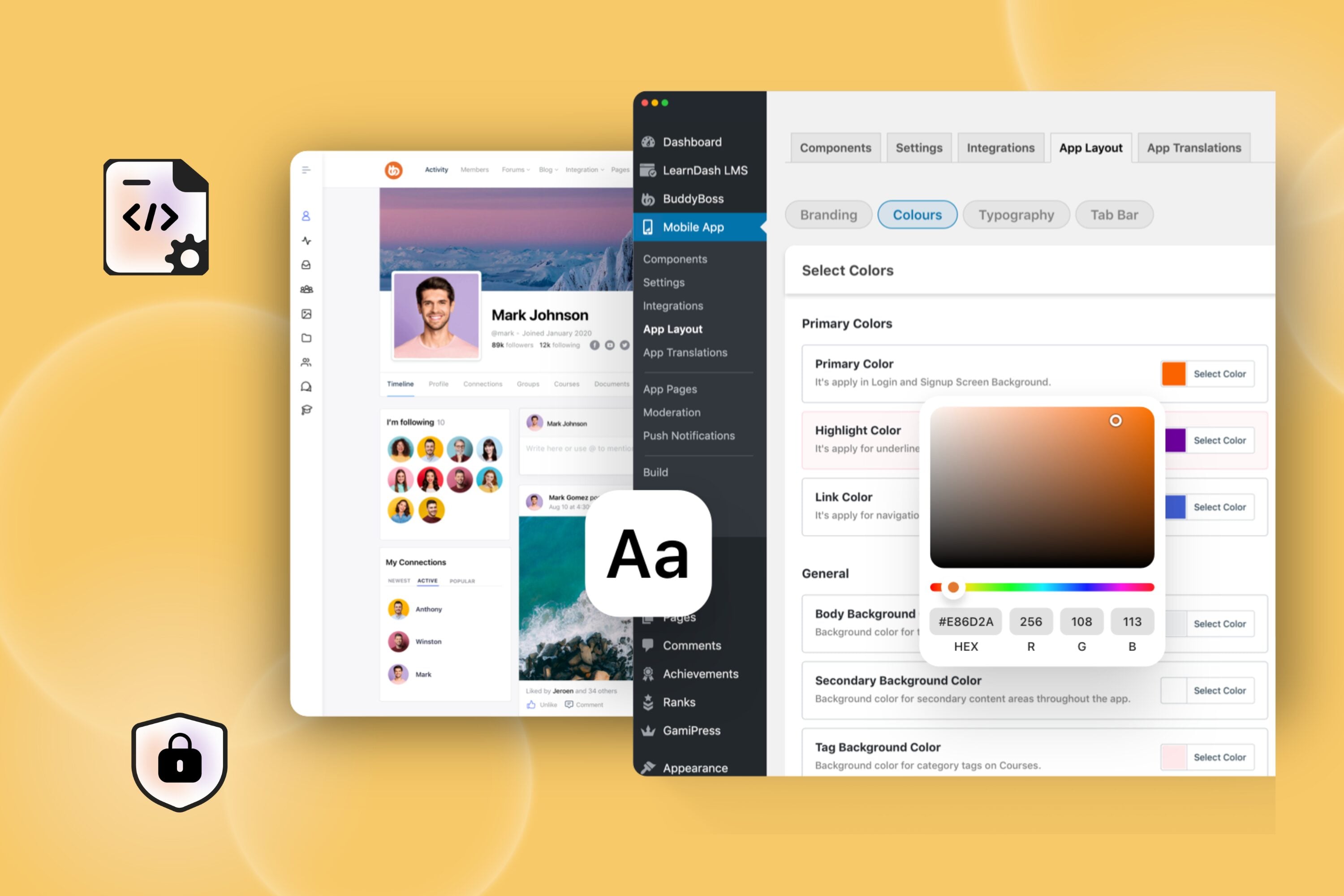
The Problem: you’re new to theme customization, you struggle with layouts, colors, fonts, or overall design customization in BuddyBoss.
Quick Fix:
- Use the BuddyBoss Customizer – Navigate to Appearance > Customize for user-friendly design controls.
- Create a child theme – This protects your customizations during BuddyBoss updates.
- Start with preset color schemes – BuddyBoss includes professional color combinations as starting points.
- Leverage the documentation – BuddyBoss provides detailed customization guides for common modifications.
For complex customizations requiring custom CSS or PHP modifications, consider professional help. A Done-For-You customization service ensures your design vision becomes reality without breaking your site’s functionality.
Get Expert Help Now
Scale Smarter with BuddyBoss Done-For-You Solutions
4. Performance & Speed Issues
The Problem: Your community site feels slow, affecting user experience and search engine rankings.
Quick Fix:
- Install a caching plugin – WP Rocket, W3 Total Cache, or WP Super Cache dramatically improve loading speeds.
- Optimize images – Use tools like Smush or ShortPixel to compress images without quality loss.
- Choose managed WordPress hosting – Providers like WP Engine or Kinsta offer BuddyBoss-optimized servers.
- Enable GZIP compression – Most hosting providers offer this through their control panels.
- Minimize plugins – Remove unnecessary plugins that add overhead.
Performance optimization is ongoing. Run speed tests monthly using GTmetrix or Google PageSpeed Insights to maintain optimal performance as your community grows.
Unleash Your BuddyBoss Speed: New Performance Tab & Page Speed Hacks
5. Login & Registration Problems
The Problem: Sometimes login or registration doesn’t behave as expected, registration forms don’t work, or new users don’t receive activation emails.
Quick Fix:
- Check WordPress user settings – Go to Settings > General and verify “Anyone can register” is enabled if you want open registration.
- Clear all caches – Login issues often resolve after cache clearing.
- Update BuddyBoss Platform – Ensure you’re running the latest version for bug fixes.
- Test with default themes – Switch to Twenty Twenty-Three temporarily to isolate theme-specific issues.
- Review user roles – Confirm BuddyBoss user roles are properly configured in Users > All Users.
Registration problems frequently trace back to email configuration issues, which leads us to our next common challenge.
Here’s how you can customize your Login and Registration page in BuddyBoss- Read the detailed guide
6. Notifications & Emails Not Sending
The Problem: Members don’t receive notification emails, password reset emails fail, or activity updates don’t trigger email notifications. (Note: Email delivery depends on WordPress and your host’s email setup)
Quick Fix:
- Install WP Mail SMTP – This plugin ensures reliable email delivery through services like Gmail or SendGrid.
- Test email functionality – Use the WP Mail SMTP test feature to verify your configuration works.
- Check spam folders – Ask members to check spam/junk folders and whitelist your domain.
- Review BuddyBoss notification settings – Navigate to BuddyBoss > Settings > Email to configure notification preferences.
- Contact your hosting provider – Some hosts block outgoing emails by default.
For mission-critical communities, consider a Done-For-You email integration service to ensure bulletproof email delivery from day one.
7. Mobile Responsiveness Issues
The Problem: Your site isn’t displaying correctly on mobile, affecting the majority of users who browse on phones. (Note: The BuddyBoss Theme is built mobile-first)

Quick Fix:
- Use the official BuddyBoss Theme – It’s built mobile-first and handles responsive design automatically.
- Clear mobile caches – Mobile-specific caching sometimes causes display issues.
- Check child theme CSS – Custom CSS modifications may need mobile-specific media queries.
- Test across devices – Use browser developer tools to test various screen sizes.
- Update BuddyBoss components – Mobile improvements ship with regular updates.
BuddyBoss’s mobile app integration sets it apart from other community platforms. If you’re planning mobile apps, ensure your web platform works perfectly on mobile devices first.
Get Started with BuddyBoss App
Scale your community by launching your BuddyBoss mobile app today!
Proactive Tips to Ensure Smooth BuddyBoss Setup & Growth
Prevention beats troubleshooting every time. These proactive steps minimize future problems:
Keep everything updated. BuddyBoss releases regular updates with bug fixes and new features. Enable automatic updates for security patches, but test major updates on staging sites first.
Use staging sites religiously. Most hosting providers offer one-click staging environments. Test all changes, plugins, themes, customizations, on staging before applying to your live community.
Follow official documentation. BuddyBoss maintains comprehensive guides covering installation, customization, and troubleshooting. Bookmark their knowledge base for quick reference.
Choose BuddyBoss-friendly hosting. Managed WordPress hosts understand BuddyBoss requirements and optimize their servers accordingly. This investment pays dividends in reliability and performance.
Join the BuddyBoss community. Connect with other BuddyBoss users in their official Facebook group or forums. Experienced users often share solutions before they appear in documentation.
When to Get Professional Help
Sometimes DIY troubleshooting reaches its limits. Here are signs it’s time to seek expert assistance:
- Time sensitivity: Your community launch can’t wait for trial-and-error fixes
- Complex customizations: You need custom features beyond standard BuddyBoss capabilities
- Recurring issues: The same problems keep appearing despite multiple fix attempts
- Technical comfort level: You prefer focusing on community growth rather than technical maintenance
Professional BuddyBoss services handle the technical heavy lifting while you concentrate on building your community. Done-For-You services fix issues quickly and implement best practices from the start, preventing future problems.
The investment in expert help often pays for itself through faster launch timelines, better performance, and reduced ongoing maintenance headaches.
FAQs on WordPress and BuddyBoss Troubleshooting
Do I need a license key to run BuddyBoss on a staging or test site?
No, BuddyBoss provides license keys for production and staging sites, allowing you to safely test and troubleshoot without violating your license terms.
Will clearing caches affect my live site visitors?
Purging caches may cause a brief slowdown as new cached pages are generated for visitors, but it will not disrupt overall functionality.
Why are my members not receiving notification or password reset emails?
This usually stems from WordPress email configuration or hosting restrictions. An SMTP plugin like WP Mail SMTP ensures delivery, and you should verify your site’s notification settings in BuddyBoss.
What should I do if plugin conflicts break my BuddyBoss site?
Deactivate all plugins except BuddyBoss components and test each plugin individually to identify the conflict. Switching to a default theme can also isolate theme-related problems.
BuddyBoss Troubleshooting: Final Words
BuddyBoss troubleshooting doesn’t have to derail your community-building goals. Most issues have straightforward solutions once you understand the underlying causes. The platform’s robustness and extensive documentation make it entirely manageable for site owners at any technical level.
Remember that every successful BuddyBoss community started with setup challenges. The difference between communities that thrive and those that stagnate often comes down to persistence in the troubleshooting phase.
Whether you tackle issues yourself using these solutions or partner with BuddyBoss experts for Done-For-You support, with consistent maintenance and support, your BuddyBoss platform can deliver reliable performance over the long term..
Your members are waiting for the vibrant community you’re building. Don’t let temporary technical challenges delay their experience.

-
 Article
 Article
- Building Your Online Community