
Introduction
External links in posts, course content, or menus often dictate user flow. This guide shows how to configure Link Handling so external URLs open in an in-app browser, in the device’s native browser, or give each user a choice. You’ll learn where to set this up in WordPress, test the behavior, and adjust user preferences accordingly.
Tutorial VIdeo
Configuring Link Handling Options
Accessing the Compatibility Settings
- In WordPress, go to BuddyBoss App > Settings > Compatibility.
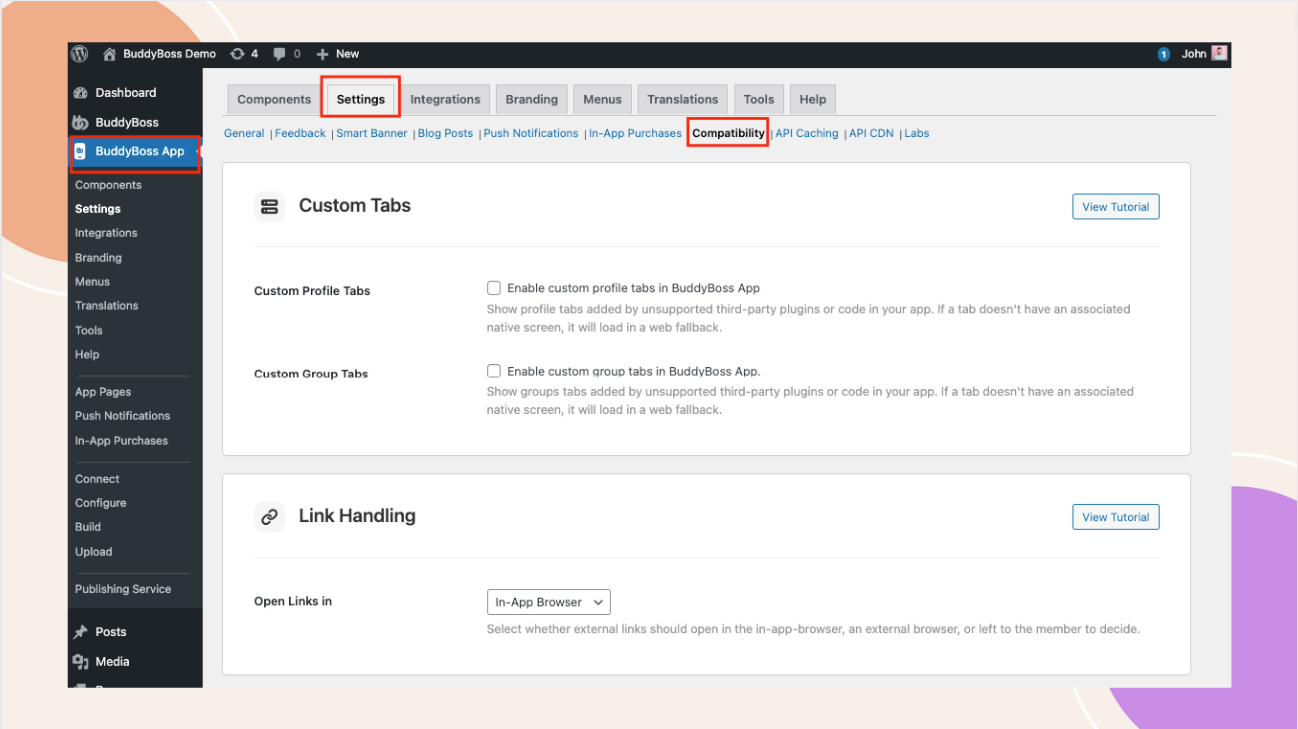
- Locate the Link Handling dropdown.
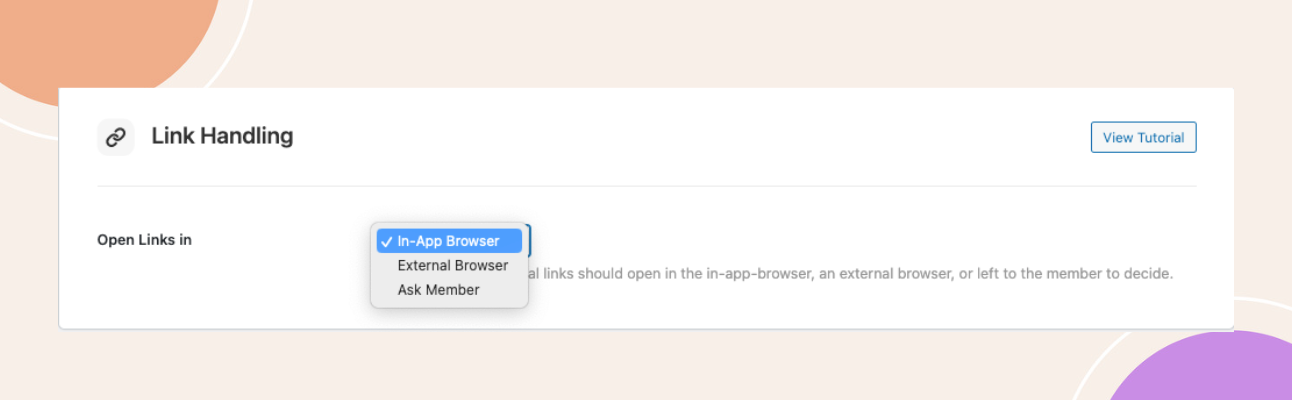
Enabling In-App Browser
- Select In-App Browser from the dropdown.
- Click Save Changes.
- Hard-quit the BuddyBoss App on your device, then tap any external link. It will open inside the app’s built-in browser, keeping users on your platform.
Enabling External Browser
- Return to Compatibility > Link Handling.
- Select External Browser.
- Click Save Changes, then hard-quit and reopen the app.
- Tap a link and confirm it launches in your device’s default browser (e.g., Safari or Chrome).
Enabling “Ask Member”
- In Link Handling, choose Ask Member.
- Save your changes and hard-quit the app.
- Tap an external link. The first time, a prompt asks In-App Browser or External Browser.
- Make a selection, the app remembers it for future taps.
Changing the User’s Preference In-App
- Within the BuddyBoss App, open More > Settings > Web Browser.
- Toggle between In-App Browser and External Browser at any time. This menu appears only if Ask Member was selected.
Troubleshooting and FAQs
Q: Why links still open in the wrong browser?
A: Hard-quit the app after saving settings. Ensure you updated Link Handling under Compatibility and cleared any caching plugins.
Q: Why I don’t see the “Web Browser” option in app settings?
A: Confirm Ask Member is selected in WordPress, then restart the app to reveal the Web Browser menu.
Q: Can I force certain domains to always open in-app?
A: Not currently. All external URLs follow the global Link Handling setting or user preference.


