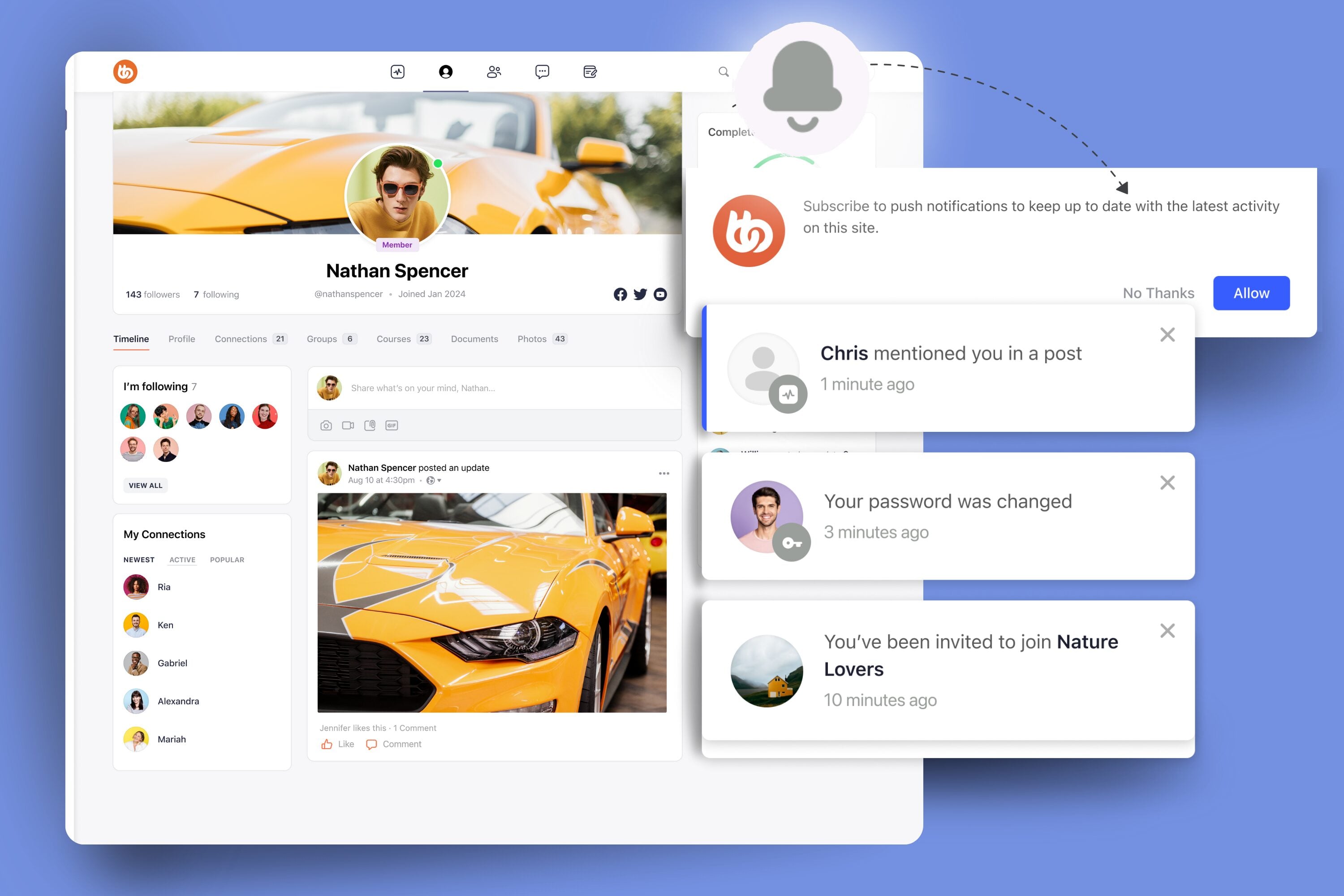
Web push notifications bridge the gap between community members and the critical updates, delivering instant alerts directly to browsers, even when users aren’t actively browsing your site.
BuddyBoss supports web push through official integration with OneSignal, connecting your community activity to browser alerts.
This guide walks you through setup, troubleshooting, and optimization, clarifying what’s native, what’s integrated, and what you need to configure for success.
Feature Reality Box: Web Push in BuddyBoss
| Aspect | Reality (Web) | App Notifications |
| Native? | Standard BuddyBoss notifications are in-site only | Mobile push is via BuddyBoss App (Firebase/Apple Push) |
| Official Support | Web push requires OneSignal setup and integration | Not handled by OneSignal |
| Permissions | Must configure permissions, icons, and triggers manually | Managed in app/mobile OS |
| Segmentation | Advanced options require OneSignal features | Managed differently |
| “Soft Prompt” | Powered by OneSignal, not BuddyBoss | N/A |
| Analytics | OneSignal analytics | App analytics separate |
Tip: BuddyBoss Push Notification Integration Guide
App Push Info: Mobile App Push via BuddyBoss
Key Push Notification Statistics to Know in 2025
- Average global opt-in rate for push notifications is 60% with Android at 81% and iOS at 51%.
- The average web push opt-in rate among unique site visitors is 6%, and up to 15% of a website’s audience can become push subscribers with effective strategy.
- Push notifications produce up to 4 times higher click-through rates (CTR) than email, and enjoy much higher open and delivery rates.
- Personalized push notifications lead to 59% more engagement compared to non-personalized messages; personalization can boost reaction rates by up to 4 times.
- Rich push notifications (with images or interactive components) enhance engagement by 33–56% compared to plain text notifications.
- Sending more than five notifications daily increases unsubscribe rates by 60%; overuse may result in up to 54% of users disabling notifications and 8% uninstalling the app.
- The average US smartphone user receives 46 push notifications per day.
Disclaimer: The following statistics are based on industry research across multiple platforms. Your results with BuddyBoss + OneSignal may vary depending on your audience and configuration.
Essential Prerequisites for Web Push Notifications
Before you dive into configuration, ensure your technical setup meets BuddyBoss’s requirements. This not only avoids errors but also guarantees smooth notification delivery.
You’ll need:
BuddyBoss Platform Pro – This premium add-on unlocks advanced notification triggers and the official OneSignal integration required for web push notifications. It is not sold as a standalone product.
See BuddyBoss Platform Pro pricing and details
Server Requirements – PHP 7.3+, MySQL 5.6+ (or MariaDB 10.1+), preferably running on a Linux/Nginx environment for optimal performance.
Review detailed server requirements
A OneSignal Account – Sign up at onesignal.com. The free plan supports most communities, but if you expect over 10,000 subscribers, consider upgrading.
Why OneSignal? OneSignal takes care of browser compatibility, delivery infrastructure, and scaling, letting you focus on crafting relevant, engaging messages for your members.
BuddyBoss Settings Configuration: After installing BuddyBoss Platform Pro and setting up your OneSignal account, enable web push notifications in your BuddyBoss dashboard at BuddyBoss > Settings > Notifications. Here you can activate web push, upload notification icons for consistent branding, and configure customized permission prompt messages to maximize opt-in rates.
Here are helpful video guides covering both web push and mobile app notifications:
BuddyBoss Web Push Setup with OneSignal
Configuring Push Notifications in the BuddyBoss Mobile App
Note: Web push is not native to BuddyBoss; OneSignal integration is required for browser-based push features.
Setting Up OneSignal Integration with BuddyBoss
Before diving into the technical steps, it’s important to understand that OneSignal acts as the engine powering your web push notifications, while BuddyBoss provides the dashboard to manage/trigger relevant alerts. Integration is supported, but setup and configuration are required. Connecting the two ensures your alerts are delivered seamlessly, branded beautifully, and optimized for engagement.
Step 1:- Prepare Your OneSignal Account
Navigate to OneSignal’s dashboard and create a new web application. Select “Web” as your platform, then choose “Custom Code” for maximum flexibility with BuddyBoss integration.
Input your site’s name and URL accurately; these details appear in notification headers when you install the plugin.
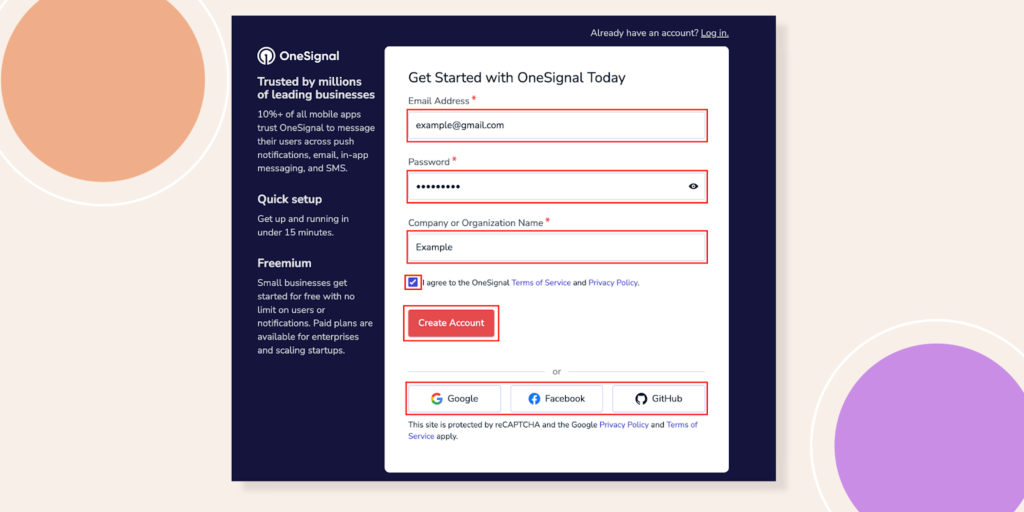
For more detailed Guide on Creating a OneSignal Account- Click Here
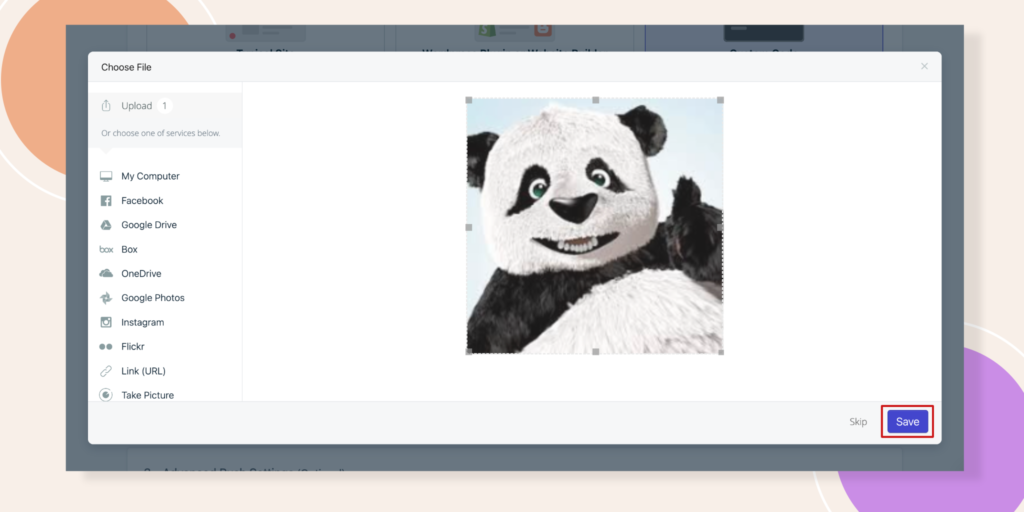
Step 2:- Upload Brand Icon and Copy Credentials
Upload a square notification icon, ideally 192×192 pixels in PNG format (keep file under 2MB). This icon represents your brand in push notifications, so choose something instantly recognizable. OneSignal generates your App ID and REST API Key upon saving these settings copy both values immediately.
Step 3:- Connect to BuddyBoss
Access your BuddyBoss dashboard and navigate to BuddyBoss > Settings > Notifications. Paste your OneSignal App ID and REST API Key into their respective fields. Upload your default notification icon here as well, ensuring brand consistency across all automated alerts in the notification system.
Reconnect Your OneSignal account to BuddyBoss for Web Push Notifications
Step 4:- Configure Permission Prompts
Enable “Automatically Request Permission” to trigger browser prompts when users first visit or log in. More importantly, activate the “Soft Prompt” feature that presents a branded permission request before the browser’s default prompt.
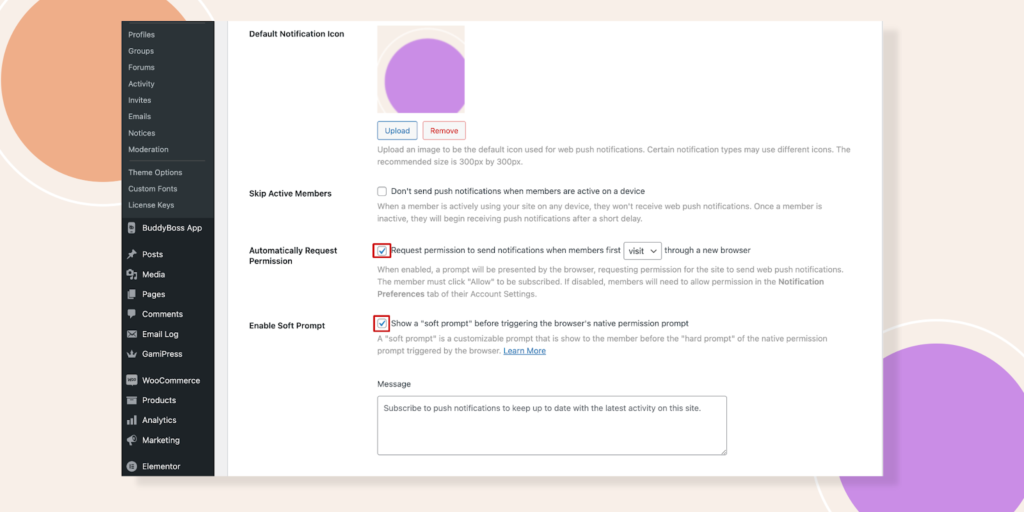
OneSignal reports that branded prompts can improve opt-in rates, but actual results vary.
Configuring Web Push Notification Triggers
BuddyBoss automatically handles common notification scenarios (mentions, replies, group invites), but all push delivery is via OneSignal.
The Skip Active Members feature proves particularly valuable; it suppresses notifications for users actively browsing your site within the past 180 seconds.
Prioritize notification types based on engagement impact, especially when using plugins to enhance user interaction.
Start with high-value alerts: replies to posts, direct mentions, friend requests, and group invitations in the BuddyBoss forum, then install additional plugins for enhanced functionality. These notifications drive immediate action and maintain conversation momentum within your community.
Course-related notifications deserve special attention if you’re running educational content. BuddyBoss Platform Pro integrates with learning management systems like LearnDash and TutorLMS (but via OneSignal integration), enabling automated deadline reminders and progress milestone celebrations through push notifications.
Configure notification frequency carefully. Members who receive more than five daily notifications show 60% higher unsubscribe rates.
Use OneSignal for notification groups/roles (e.g., admins get instant alerts, members get daily digests).
Balance staying top-of-mind with respecting user attention quality trumps quantity in your notification strategy, as outlined in our knowledge base.
click here to get started now!
For a comprehensive, step-by-step guide to configuring push notifications
Testing and Troubleshooting Your Web Push Notifications Setup
Test as a Regular Member
Log into your community as a regular member to experience the notification flow firsthand. The soft prompt should appear cleanly, matching your site’s design language. Test various scenarios: commenting on posts, receiving mentions, joining groups.
Verify Skip Active Members
Verify the Skip Active Members feature works correctly. Open your site in one tab, then trigger a notification from another device or browser. You shouldn’t receive the push notification until after 180 seconds of inactivity.
Common Issues
Common troubleshooting scenarios require systematic diagnosis. If notifications aren’t delivering, first verify your OneSignal credentials in BuddyBoss settings and consult our tutorial for troubleshooting. Check browser permissions next users must explicitly allow notifications for your domain.
Missing notification icons typically indicate upload issues. Check that your notification icon is uploaded (192x192px, <2MB).
Reset your default notification icon in BuddyBoss settings, ensuring file size stays under 2MB and dimensions match OneSignal’s specifications.
Use OneSignal Analytics
OneSignal’s analytics dashboard provides delivery metrics and engagement data, which can be used to edit notification strategies. Monitor these closely during your first week; low delivery rates often signal browser compatibility issues or overly aggressive notification blocking.
Advanced Web Push Notifications Optimization Strategies
Craft notification copy that compels immediate action. Generic messages like “New activity in your community” generate 40% lower click-through rates than specific alerts: “Sarah replied to your post about marketing automation.”
Test different soft prompt variations to maximize opt-in rates. A/B test messages like “Stay updated on community discussions” against “Never miss important replies.”
Icon choice matters too community logos often outperform generic notification symbols in the notification system.
Integrate notification timing with user behavior patterns. BuddyBoss Platform Pro’s scheduling features enable strategic notification deployment, sending course reminders during peak engagement hours rather than random intervals.
Consider notification segmentation based on user roles or interests. Group administrators might want instant alerts about membership requests, while casual members prefer daily digest formats. OneSignal’s segmentation features work seamlessly with BuddyBoss user data.
Compliance and Privacy Considerations for Web Push Notifications
GDPR and CCPA regulations require transparent notification practices. Include clear opt-in language explaining what types of notifications users will receive and how often, and consider adding a button for easy access to preferences.
Provide easy unsubscribe mechanisms within the notification settings or through individual notification actions, as advised in our tutorial.
Document opt-in consent for compliance consider double opt-in for sensitive alerts. Legal compliance depends on proving users actively opted into receiving alerts, not just clicked “allow” accidentally. Consider implementing double opt-in for sensitive notification categories.
TCPA compliance The notification system becomes relevant if you’re combining web push with SMS notifications.
Maintain separate opt-in records for each communication channel web push permission doesn’t extend to text messaging.
Implement notification frequency controls to prevent spam complaints. Platform Pro includes user preference panels where members can customize their notification types and timing, reducing unsubscribe rates while maintaining engagement through our knowledge base and on-screen notifications.
Measuring Success and Ongoing Optimization
OneSignal’s analytics reveal crucial engagement patterns. Track delivery rates, click-through rates, and unsubscribe trends weekly to improve your notification system.
Healthy communities typically see 15-25% click-through rates on web push notifications, with unsubscribe rates below 2% monthly.
Monitor notification performance by type and consult the BuddyBoss resources for best practices. Course deadline reminders might show 45% click-through rates, while social activity alerts average 12%.
Use these insights to prioritize high-performing notification categories and refine low-engagement triggers.
Seasonal optimization matters significantly. Educational communities see notification engagement spike during semester starts and drop during holidays, so it’s essential to register for timely updates.
Adjust notification frequency and content timing accordingly, rather than maintaining static schedules year-round.
Regular maintenance ensures continued performance. Update OneSignal credentials annually, refresh notification icons seasonally, and review user feedback quarterly by searching our documentation. What works today might irritate users tomorrow and stay responsive to community preferences.
Frequently Asked Questions (FAQs)
Q1: Can I use web push notifications in BuddyBoss without OneSignal?
No; BuddyBoss’s browser push functionality is not native it requires OneSignal integration.
Q2: Do web push notifications work on iOS Safari?
Support is limited. As of mid-2025, iOS Safari offers some push notification support (iOS 16.4+), but compatibility varies. Always test on target devices.
Q3: Are web and app notifications the same in BuddyBoss?
No. Web push uses OneSignal integration via browser; mobile app push notifications are managed by the BuddyBoss App through Firebase/Apple Push and are separate.
Q4: Can my users manage push notification preferences in BuddyBoss?
Native settings exist only for BuddyBoss in-app notifications. Push notification preferences (including unsubscribe/timing) are handled via OneSignal’s UI.
Q5: Is the “Soft Prompt” a BuddyBoss feature?
No. “Soft Prompt” is a OneSignal feature. BuddyBoss enables you to use it via integration.
Final Take: Notifications That Work
Web push notifications can turn passive site visitors into active participants in your BuddyBoss-powered community. For mobile apps, push notifications are handled separately via the BuddyBoss App. Remember:
- Setup and configuration are required features are not native or “out of the box.”
- Use clear messaging and avoid over-promising benefits.
- Monitor analytics and respect user preferences.
Proper BuddyBoss configuration, combined with strategic OneSignal optimization, creates notification experiences that users anticipate rather than tolerate, especially when using the right plugins. Start with these fundamentals, then iterate based on your community’s unique engagement patterns by editing notification settings.
Ready to boost your community engagement?
Set up your BuddyBoss–OneSignal integration today and start sending notifications that keep members engaged and informed.
New to BuddyBoss?
Start your journey today and see how effortless community engagement can be with the right platform.
Statistics source- mobiloud, businessofapps

-
 Article
 Article
- Building Your Online Community