
Introduction
Media permissions in the BuddyBoss Platform protect your privacy by preventing direct access to uploaded files such as photos, videos, and documents. Instead of being accessible through raw URLs, files remain available only when properly embedded in your site.
This article explains how to configure media restrictions for Apache, Nginx, and OpenLiteSpeed servers to ensure your files are secure.
Restrict Media Access on Apache
- In BuddyBoss Platform version 1.7.0 and later, updating your platform automatically adds a .htaccess file to the bb_videos, bb_medias, and bb_documents folders.
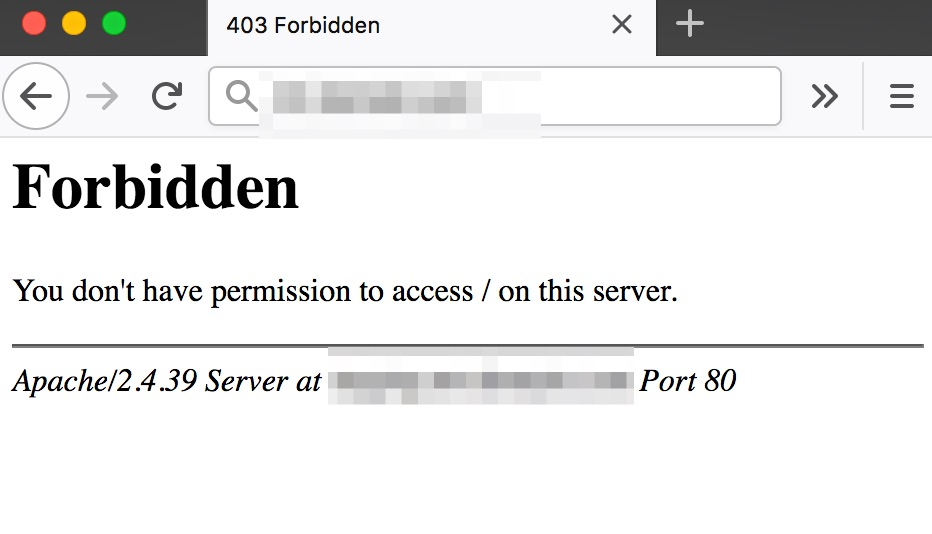
- This .htaccess file instructs the Apache web server to display a “Forbidden” error message when someone attempts to access the original media URL, effectively restricting direct access.
- This setup ensures that media files are only visible when they are properly embedded on your website, protecting your privacy.
- Note: Removing the .htaccess file from these folders will allow direct URL access to your media, which is not recommended due to potential privacy and security risks.
Configure Media Restrictions on Nginx
- Update your BuddyBoss Platform to the latest version; you should see an index.html file in the bb_videos, bb_medias, and bb_documents folders.
- Open the Nginx configuration file:
If you manage your server, open the file using Terminal:
$ sudo nano /etc/nginx/nginx.confAlternatively, if your site uses virtual hosts (e.g., /etc/nginx/sites-enabled/example.conf), open that file with:
$ sudo nano /etc/nginx/sites-enabled/example.conf- If you lack direct access, ask your hosting provider to update the configuration.
- Insert the following code blocks into the configuration file to restrict access to bb_medias, bb_videos and bb_documents folder.
location ~* /wp-content/uploads/bb_medias/ {
if ( $upstream_http_x_accel_redirect = "" ) {
return 403;
}
internal;
}
location ~* /wp-content/uploads/bb_videos/ {
if ( $upstream_http_x_accel_redirect = "" ) {
return 403;
}
internal;
}
location ~* /wp-content/uploads/bb_documents/ {
if ( $upstream_http_x_accel_redirect = "" ) {
return 403;
}
internal;
}
location ~* /wp-content/uploads/bb_medias/ {
autoindex off;
}
location ~* /wp-content/uploads/bb_videos/ {
autoindex off;
}
location ~* /wp-content/uploads/bb_documents/ {
autoindex off;
}- Save the configuration file and restart Nginx to apply the changes.
Restrict Media Access on OpenLiteSpeed
- In your Openlitespeed configuration, set Auto Load from .htaccess to “Yes”.
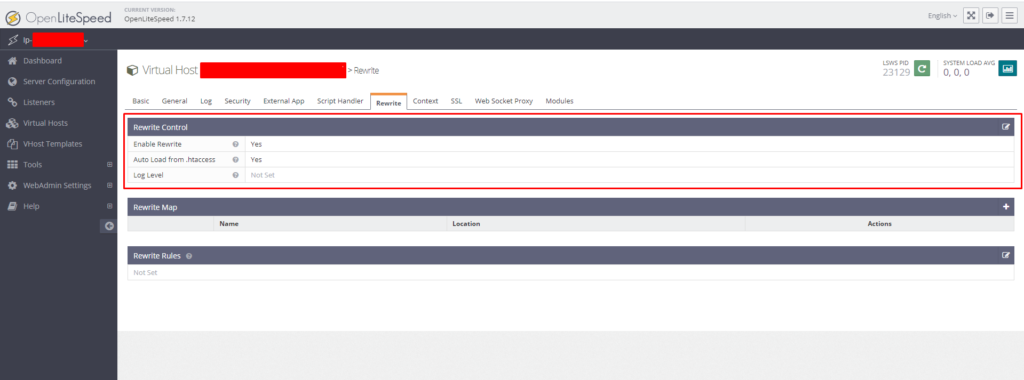
Restart the Openlitespeed service by running:
$ sudo /usr/local/lsws/bin/lswsctrl restartOr, you can restart it from the panel as shown in the screenshot below.
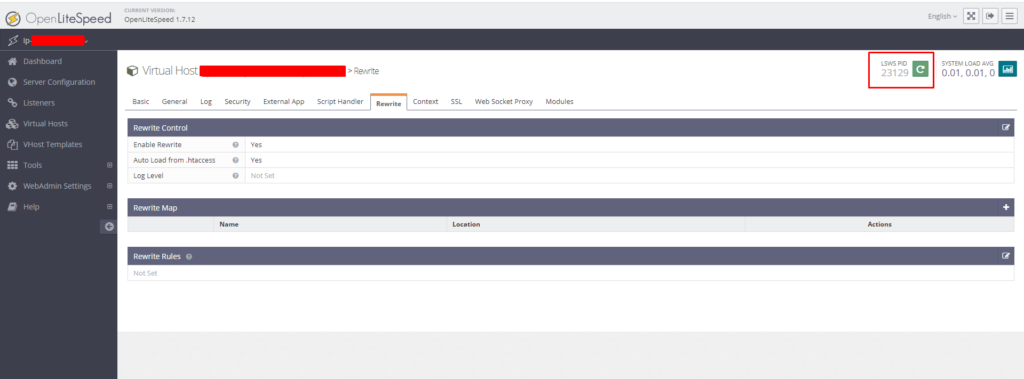
- Alternatively, use the control panel if available.
- Delete any existing .htaccess files from the following folders:
- wp-content/uploads/bb_medias/.htaccess
- wp-content/uploads/bb_documents/.htaccess
- wp-content/uploads/bb_videos/.htaccess
- Refresh your WordPress admin dashboard to verify that new .htaccess files are automatically generated in these folders.
- Restart Openlitespeed again to ensure the new restrictions are applied.
Troubleshooting and FAQs
Q: What happens if I remove the .htaccess file from the Apache folders?
A: Removing the .htaccess file will allow direct access to your media files via their URLs, potentially leading to privacy and security issues.
Q: How can I verify that media restrictions are working on Nginx?
A: After updating the configuration and restarting Nginx, try accessing a media URL directly. A 403 error should appear, indicating that the access restriction is active.
Q: Why aren’t media files showing in the WordPress Media Library on Openlitespeed?
A: Media uploaded from the BuddyBoss Platform frontend are intentionally hidden in the Media Library to maintain privacy, as public access via the WP media URL contradicts the restricted access settings.
Q: What should I do if I revert to an earlier version of the BuddyBoss Platform?
A:
- For Apache: Delete the .htaccess file from the wp-content/uploads/bb_medias folder to restore the previous media display, while document and video restrictions will remain intact.
- For Nginx: Remove the restriction code for bb_medias from the configuration file while keeping the document and video restrictions.


