
Introduction:
Customizing the email layout in the BuddyBoss Platform lets you create a professional, branded communication experience. With this feature, you can adjust the header, body, and footer to reflect your community’s unique style and ensure that your emails remain visually appealing and easy to read.
Step 1: Open the Email Template Preview
- Navigate to the BuddyBoss Dashboard > Emails.
- Click on Customize Layout to access the email template preview.
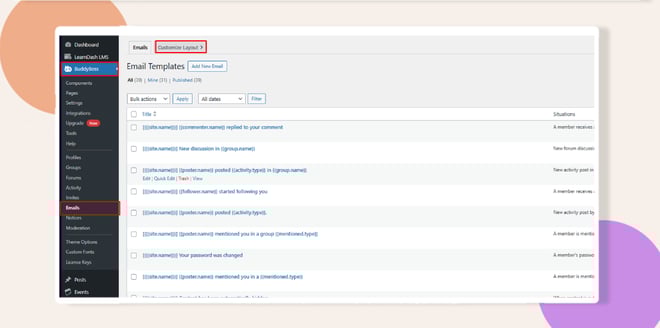
- Observe the default design to understand how your email will appear to users.
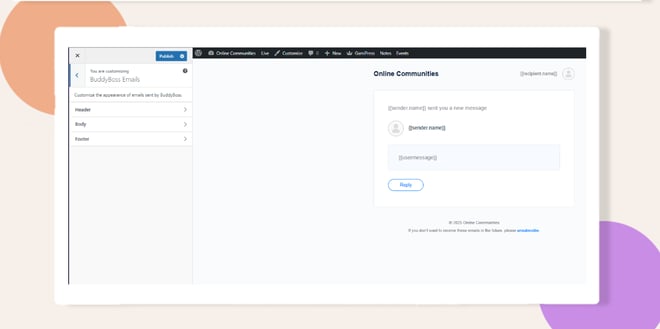
Step 2: Customize the Header
- Navigate to the Header section to begin personalizing your email header.
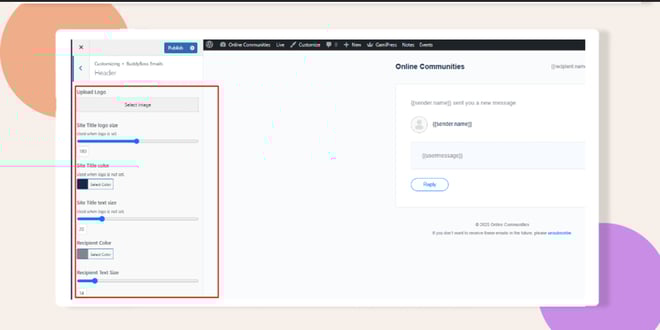
- Upload your logo, ensuring that it fits within the recommended dimensions to prevent cropping.
- Adjust the Title and Recipient’s color/size accordingly.
Step 3: Adjust Color Settings
- Modify the site title color and recipient color to match your branding.
- Use the live preview feature to see your changes in real time and confirm that the colors enhance the design.
Step 4: Customize the Body
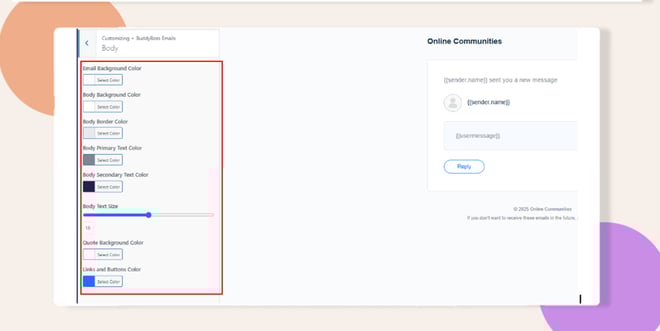
- Move to the Body section.
- Set the Body Text size, and the color of the email container depending on your brand’s style.
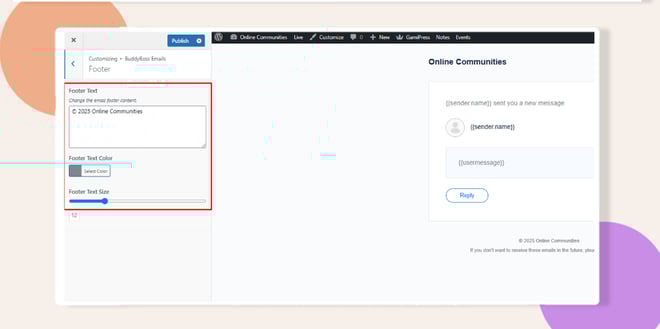
Step 5 : Modify the Footer
- Access the Footer section.
- Adjust the footer content size and style to create a cohesive look that complements the rest of the email.
Troubleshooting and Q&A
Q: Why is my logo getting cropped or not displaying correctly in the header?
A: Verify that your logo meets the recommended dimensions and file format. Re-upload it if necessary to ensure it fits properly without cropping.
Q: Why aren’t my color changes showing in the live preview?
A: Make sure you’ve saved your settings and are using the live preview feature. Clearing your browser cache can also help display the updated changes.


