
Introduction
The Awards Page in BuddyBoss Gamification allows members to view the achievements, badges, points, and rewards they have earned through community activity. Configuring this page properly ensures your members can easily access their progress and stay engaged, motivated, and active within your online community. This guide explains how you can setup the BuddyBoss Gamification awards page.
Access the Gamification Awards Page Settings
Follow the steps below to locate and configure the Awards Page:
- In your WordPress Dashboard, go to BuddyBoss > Gamification.
- Click on the General tab.
- Scroll down to the Pages section near the bottom of the settings panel.
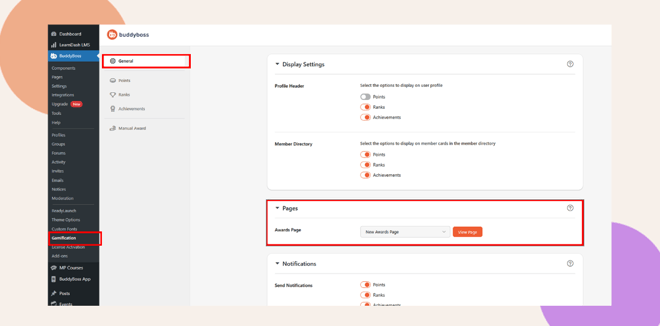
This is where you can assign or change the Awards Page.
Configure the Awards Page
Inside the Pages section, locate the dropdown labeled Awards Page.
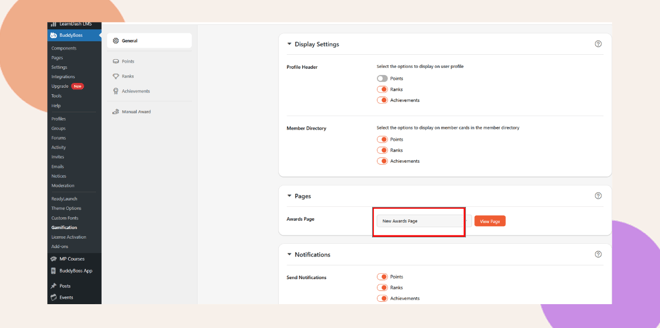
- Awards Page – Select the page that you want members to visit when viewing their earned badges and achievements.
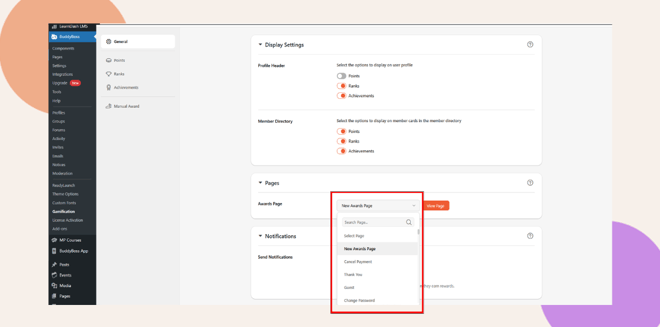
If You Already Have an Awards Page Created
- Simply choose it from the dropdown list.
If You Need to Create a New Awards Page
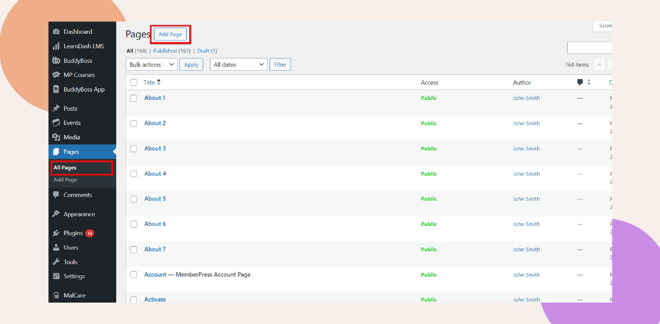
- Go to Pages > Add New.
- Give the page a clear name such as:
- My Awards
- Achievements
- Rewards
- My Awards
- Click Publish to save the new page.
- Return to BuddyBoss > Gamification > General > Pages.
- Select the newly created page from the Awards Page dropdown list.
You can click the View Page to confirm how it appears to users.
Save Your Settings
Scroll down and click Save Changes to apply and activate your Awards Page configuration.
Troubleshooting & FAQs
Q: Can I change the name of the Awards Page later?
A: Yes. You can rename the page anytime in Pages > All Pages. The connection remains as long as it stays selected in the Awards Page dropdown.
Q: Do users need to be logged in to see awards?
A: Yes. Awards and achievements are tied to individual user accounts and require login to view.


