
Introduction
The Points System in BuddyBoss is a powerful gamification tool that helps you reward members for specific actions such as posting updates, or engaging with others in your community. By configuring custom point types and triggers, you can boost member engagement, encourage participation, and build a more active online community.
Access the Points Settings
- In your WordPress Dashboard, go to BuddyBoss > Gamification > Points.
- Enable the Points System by toggling the switch at the top of the page.
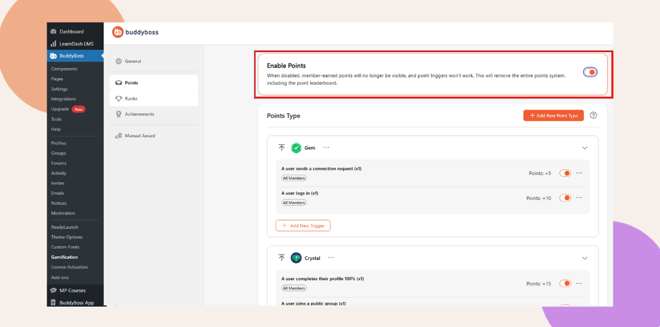
- When disabled, member-earned points will not be visible, and triggers will not function.
- Keeping this enabled ensures that your points leaderboard and rewards remain active.
Create a New Point Type
To define a type of point (e.g., Gems, Stars, or Coins):
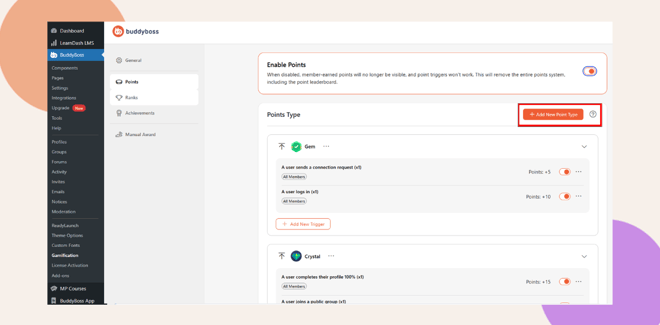
- Click Add New Point Type.
- Enter your Singular Name (e.g., Gem) and Plural Name (e.g., Gems).
- Choose a Point Type Icon from the available options or upload your own custom image (minimum 150×150 px, 1:1 ratio).
- Click Save to create your new point type.
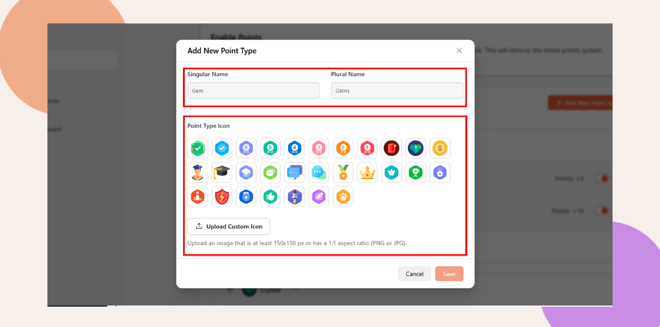
Your new point type will now appear in the Points dashboard.
Add a Trigger for Your Point Type
Triggers define how and when members earn or lose points based on their actions.
- Select the Point Type (e.g., Gems).
- Click Add New Trigger.
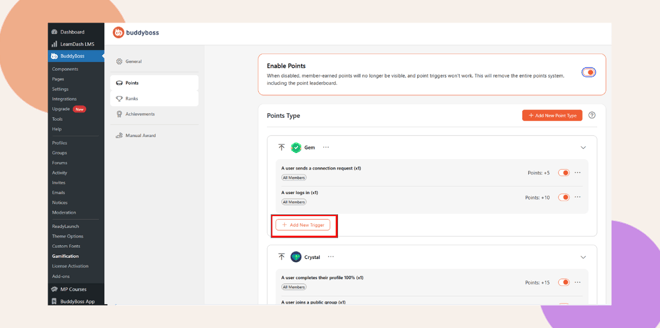
- In the popup window, configure the following options:
- User Action: Choose the event that earns or deducts points (e.g., completes a course, posts an update, comments on a post).
- Number of Actions Required: Set how many times this action must occur before points are awarded (default is 1).
- Frequency: Choose how often the reward applies:
- Once – Award only once per action.
- Daily – Award once per day.
- Weekly – Award once per week.
- Monthly – Award once per month.
- Annually – Award once per year.
- Once – Award only once per action.
- Applies to: Choose who can receive the points:
- All Members
- Profile Type
- Gender
- Membership
- WordPress Role
- All Members
- Award or Deduct: Select whether to give or remove points.
- Points: Enter the number of points to award or deduct each time the trigger condition is met.
- User Action: Choose the event that earns or deducts points (e.g., completes a course, posts an update, comments on a post).
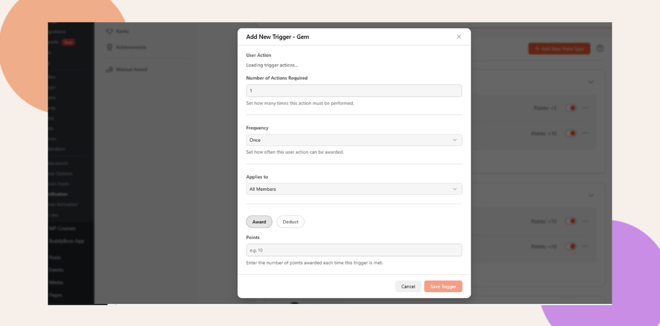
- Click Save Trigger to finalize.
Edit or Delete a Point Type
You can manage existing point types directly from the Points dashboard.
- Click the ellipsis (three dots) icon beside the point type you want to manage.
- Choose either Edit or Delete from the dropdown menu.
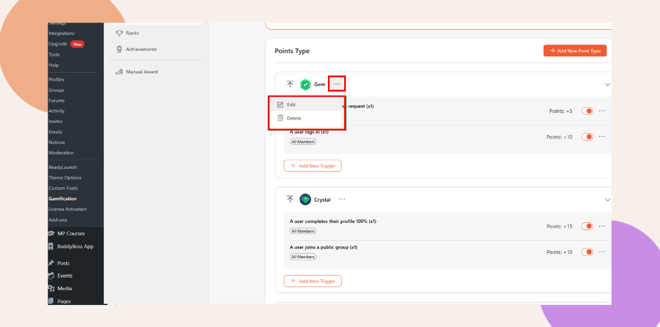
- Edit: Opens the point type editor, allowing you to update its name, icon, or related triggers.
- Delete: Permanently removes the point type.
When deleting, a confirmation message will appear:
“Delete Point Type?
This action is non-recoverable and will permanently delete the point type along with all associated triggers.”
Warning notice:
Deleting a point type will remove all associated triggers and permanently delete the point type from user profiles. Users will also lose any points they have under this point type.
Save and Review Your Configuration
After setting up your triggers, review your point types and triggers list to ensure everything is configured correctly. Members will automatically start earning points based on the rules you’ve defined.
Troubleshooting and FAQs
Q: I don’t see the Points menu under BuddyBoss.
A: Make sure the BuddyBoss Platform Pro plugin is installed and activated. The Points feature appears under BuddyBoss > Points once active.
Q: My members aren’t earning points.
A: Confirm that the Enable Points toggle is turned on and that at least one trigger is active and properly configured.
Q: Can I have multiple types of points?
A: Yes. You can create multiple point types (e.g., Gems, Coins) and assign separate triggers to each.
Q: Can I manually adjust a user’s points?
A: Yes. Go to BuddyBoss > Points > Manual Award to add or deduct points from individual members.


