
Introduction
Adding BuddyBoss as a Developer to your Stripe account allows our team to securely integrate and manage payment functionality for your community. This process is done through the Stripe Dashboard by inviting BuddyBoss with the Developer role. This guide explains how you can add BuddyBoss as Stripe developer.
Before you begin:
- Ensure you have your Stripe account credentials.
- Use the official BuddyBoss email: [email protected].
Log in to Your Stripe Account
- Visit https://dashboard.stripe.com/login.
- Enter your credentials and log in to your Stripe account.
Access Account Settings
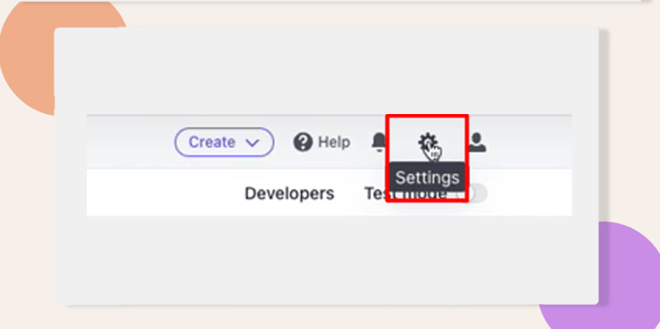
- In the Stripe Dashboard, click Settings in the upper-right corner.
Navigate to Team Settings
- Scroll down to Business Settings.
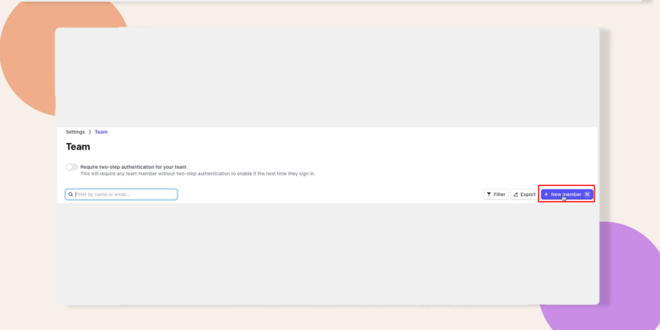
- Under Team and Security, click Team.
Invite BuddyBoss
- Click + New Member.
- In the email field, enter [email protected].
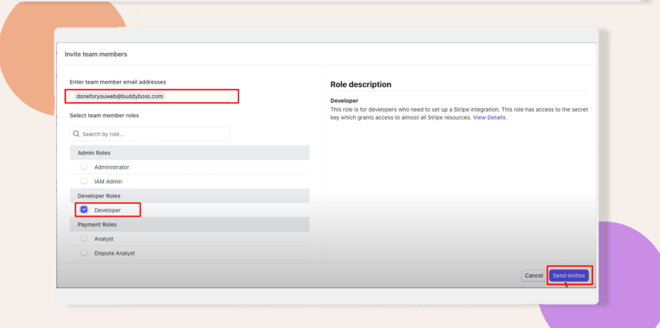
- From the dropdown, select Developer as the role.
- Click Send Invites to complete the process.
Provide Your Account Name
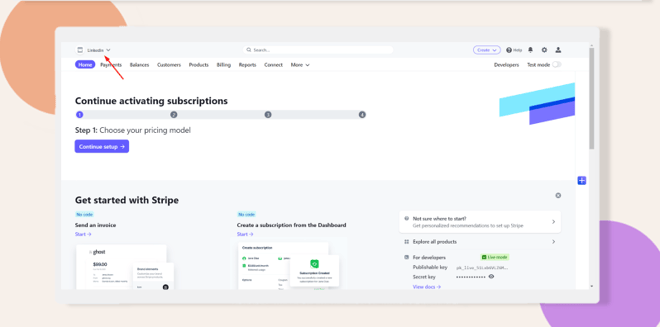
- Locate your Account Name in the Stripe Dashboard.
- Enter your account name in the field provided in the BuddyBoss onboarding questionnaire.
Troubleshooting and FAQs
Q: Why didn’t I receive a confirmation after inviting BuddyBoss as a Developer?
A: Double-check that you entered [email protected] correctly. Also verify that your Stripe account allows external invites. If still missing, check your spam or junk folder.
Q: How do I change the role or remove BuddyBoss later?
A: Go to Dashboard > Settings > Team, locate the BuddyBoss member, and use the Edit or Remove option to adjust permissions or delete access.


