
Introduction
The Log In Widget allows users to quickly access the login form directly from your site’s sidebar or widget areas. Adding this widget improves accessibility and provides a seamless login experience, encouraging better engagement across your community.
Adding and Configuring the Log In Widget
- Go to Appearance > Widgets in your WordPress Dashboard.
- Select the widget area where you want the login form to appear (e.g., Activity Directory Left).
- Click the + icon and search for Log In.
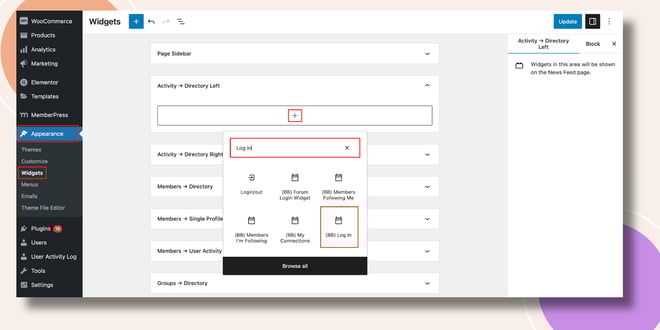
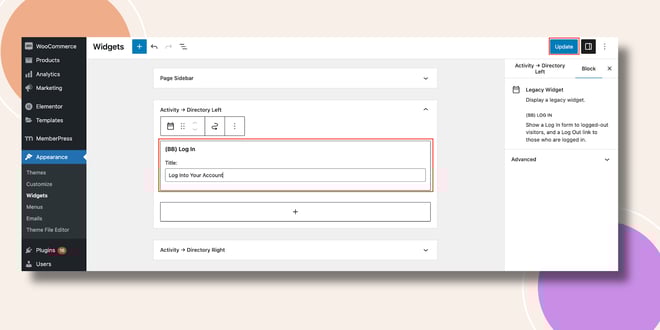
- Click the Log In Widget to add it to the selected area.
- Adjust the widget settings if necessary.
- Click Update to save your changes.
Verifying the Widget
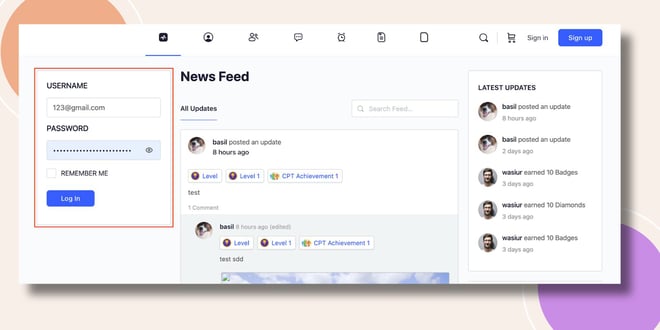
- Go to the Activity Feed on the frontend.
- The Log In form will now appear in the sidebar (e.g., the left side of the Activity Directory).
Troubleshooting and FAQs
Q: The widget isn’t showing on my site.
A: Make sure you added it to an active widget area and clicked Update. Clear your cache if needed.
Q: Can I add the widget to multiple areas?
A: Yes. You can place the Log In Widget in any widget-ready area, such as sidebars or footers.
Q: How is this different from the Forum Login Widget?
A: The Log In Widget provides a general site login form, while the Forum Login Widget is designed specifically for forum-related access, with options for registration and password recovery links.


