Plugins are one of the best things about using WordPress. With over 65,000 options available on the repository, you can customize your site to do almost anything whether it’s boosting performance, enhancing design, or adding powerful new features.
But with so many possibilities, it’s natural that sometimes plugins may not work perfectly together.
The good news? Most WordPress plugin conflicts are manageable and many are preventable with the right process and tooling.
In this guide, you’ll learn exactly how to spot potential plugin conflicts, resolve them smoothly, and take proactive steps to prevent them from happening again so your WordPress site keeps running at its best.
For BuddyBoss users, we also link to documentation and resources tailored for troubleshooting plugins and theme conflicts specific to WordPress.
Understanding WordPress Plugin Conflicts
A WordPress plugin conflict occurs when two or more plugins, a plugin and your theme, or a plugin and WordPress core try to execute contradictory code, leading to errors that can break your website’s functionality.
Think of WordPress plugin conflicts like having two chefs trying to use the same stove burner at the same time chaos ensues, and nobody gets their dish cooked properly.
Common Signs Your WordPress Site Has A plugin conflict
White Screen of Death (WSOD) – Your site displays nothing but a blank white page, often indicating a fatal PHP error caused by conflicting code.
Critical error messages – WordPress displays error messages like “There has been a critical error on this website” or specific PHP error notices.
Broken layouts and missing elements – Menus disappear, sliders stop working, forms won’t submit, or your page design looks scrambled.
Sluggish performance – Pages load slowly or timeout completely as conflicting plugins consume excessive server resources.
Admin panel issues – You can’t log into your WordPress dashboard, or certain admin features become unresponsive.
Why WordPress Plugin Conflicts Happen
Overlapping functionality occurs when multiple plugins try to perform similar tasks using different methods. For example, two SEO plugins might both try to modify your site’s meta tags, creating conflicts.
Outdated code and poor coding standards contribute significantly to conflicts. According to recent data, over 70% of all reported WordPress vulnerabilities originated from outdated or unmaintained plugins.
Resource conflicts happen when plugins compete for the same server resources, memory, or database connections, particularly common with heavy plugins like page builders, backup tools, and caching solutions.
Theme incompatibility can trigger conflicts when your theme’s code interferes with plugin functionality, especially with custom themes that don’t follow WordPress coding standards.
Learn more about BuddyBoss’s coding standards and compatibility best practices in our BuddyBoss Developer Docs.
The Numbers Behind Plugin Compatibility Issues
Current WordPress statistics reveal the scope of plugin-related problems:
- According to Patchstack’s analysis of 2023 data, 97% of new WordPress vulnerabilities were in plugins, 3% in themes, and
- Only 0.2% of vulnerabilities come from WordPress core itself
- Automated attacks target WordPress sites roughly every 22–32 minutes (2024–2025) .
- Plugins are the primary source of performance issues and site crashes
Sources:- https://patchstack.com/ and https://www.hostinger.com/
These statistics underscore why understanding WordPress plugin conflicts is crucial for anyone managing WordPress websites.
Step-by-Step Guide to Fixing WordPress Plugin Conflicts
When WordPress plugin conflicts strike, systematic troubleshooting is your best defense. Follow these steps in order, and you’ll identify the problematic plugin quickly.
Step 1: Backup Your Site First (Critical)
Never attempt conflict resolution without a recent backup. WordPress plugin conflicts can escalate during troubleshooting, and backups provide your safety net for complete recovery.
Create an immediate backup using your preferred backup plugin or hosting provider’s backup tools. If your site is completely broken, contact your hosting provider most maintain automatic daily backups you can restore.
Document current symptoms by taking screenshots of error messages and noting exactly what functionality isn’t working. This documentation helps track whether your fixes actually resolve the issues.
Step 2: Switch to a Default Theme
Before assuming you have WordPress plugin conflicts, rule out theme-related issues by temporarily switching to a default WordPress theme like Twenty Twenty-Four or Twenty Twenty-Three.
Navigate to Appearance > Themes in your WordPress dashboard (if accessible) and activate a default theme. If you don’t have a default theme installed, download one from the WordPress.org repository.
Test your site functionality with the default theme active. If problems disappear, your theme is conflicting with a plugin, not plugin-to-plugin conflicts.
Step 3: Deactivate All Plugins and Reactivate One by One
This systematic approach identifies exactly which plugin causes WordPress plugin conflicts.
If you can access your dashboard:
- Navigate to Plugins > Installed Plugins
- Select all plugins using the checkbox at the top
- Choose “Deactivate” from the bulk actions dropdown
- Click “Apply” to deactivate all plugins simultaneously
Test your site after deactivating all plugins. If problems persist, the issue isn’t plugin-related contact your hosting provider for server-level troubleshooting.
If your site works correctly with all plugins deactivated, begin reactivating plugins one by one, testing your site after each activation. When the problem returns, you’ve found your conflicting plugin.
If you can’t access your dashboard:
- Use FTP or your hosting file manager to access your website files
- Navigate to /wp-content/plugins/
- Rename the plugins folder to “plugins-disabled”
- Try accessing your dashboard again
Step 4: Check PHP Error Logs and Console
Technical error information pinpoints the exact cause of WordPress plugin conflicts, making resolution much faster.
Access PHP error logs through your hosting control panel or cPanel. Look for recent error entries that coincide with when problems started occurring.
Use browser developer console (F12 in Chrome/Firefox) to check for JavaScript errors. Navigate to the “Console” tab and look for red error messages that might indicate plugin conflicts.
Enable WordPress debugging by adding these lines to your wp-config.php file:
define('WP_DEBUG', true);
define('WP_DEBUG_LOG', true);
define('WP_DEBUG_DISPLAY', false);
This creates detailed error logs in your /wp-content/debug.log file, providing specific information about plugin conflicts.
Note: Don’t leave WP_DEBUG enabled on production for long; review /wp-content/debug.log then disable.
Step 5: Contact Plugin Developers and Check Support Forums
Once you’ve identified the conflicting plugins, leverage developer support and community knowledge for resolution.
Check plugin support forums on WordPress.org for similar conflict reports. Other users often share solutions for common WordPress plugin conflicts.
Contact plugin developers directly with specific information about the conflict, including your WordPress version, other active plugins, and exact error messages.
Search for known incompatibilities by googling “[Plugin A] conflicts with [Plugin B]” many conflicts are documented with established solutions.
Step 6: Rollback to Previous Versions if Needed
Sometimes WordPress plugin conflicts emerge after updates. Rolling back to stable versions provides immediate relief while developers fix compatibility issues.
Use plugin rollback features if available. Some plugins include built-in version management tools.
Download previous plugin versions from the WordPress.org repository’s “Advanced View” section or request older versions from developers.
For plugins/themes from WordPress.org, WP Rollback lets you revert to a specific version in a few clicks. Test on staging first.
Monitor for permanent fixes and upgrade again once developers release compatibility updates.
Preventing WordPress Plugin Conflicts Before They Happen
Prevention beats reaction every time. These proactive strategies dramatically reduce your risk of experiencing WordPress plugin conflicts.
Vet Plugins Before Installing
Check active installations and ratings – Plugins with millions of active installations and 4+ star ratings have proven stability across diverse WordPress environments.
Review update frequency – Plugins updated within the last few months show active development and WordPress compatibility maintenance.
Read recent reviews focusing on compatibility mentions, conflict reports, and developer responsiveness to support requests.
Test compatibility claims by checking if the plugin explicitly supports your WordPress version and lists compatibility with plugins you’re already using.
Keep Everything Updated
WordPress plugin conflicts often result from version mismatches between WordPress core, themes, and plugins.
Update WordPress core as soon as security and maintenance releases become available. Major version updates should be tested on staging sites first.
Update plugins systematically rather than all at once. Update 2-3 plugins weekly, monitoring your site after each batch for any emerging issues.
Update themes carefully as theme updates can introduce conflicts with existing plugins. Always backup before theme updates.
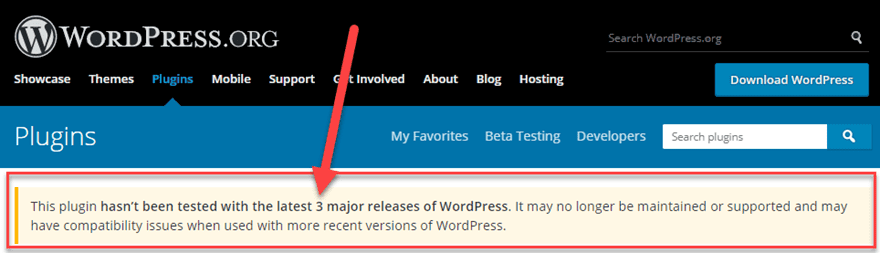
Remove abandoned plugins that haven’t been updated in over a year, as they pose security risks and compatibility problems.
Avoid Redundant Plugins
Multiple plugins serving similar functions create prime conditions for WordPress plugin conflicts.
Don’t run multiple SEO plugins – Choose either Yoast SEO or RankMath, never both simultaneously.
Avoid duplicate security plugins – Multiple security plugins often conflict and can actually reduce your site’s security.
Limit caching plugins – Use one caching solution at a time. Multiple caching plugins create conflicts and can slow your site rather than speed it up.
Audit functionality overlap regularly to ensure plugins aren’t duplicating features unnecessarily.
Test Updates in Staging Environments
Staging sites let you test WordPress plugin conflicts in safe environments before affecting your live website.
Create staging copies of your site using hosting provider tools or plugins like WP Staging.
Test all updates on staging including WordPress core, theme, and plugin updates before applying them to your live site.
Simulate real usage on staging sites by testing key functionality like forms, e-commerce, and user registration processes.
Choose Managed Hosting with Safe-Update & Alerting Tools
Quality WordPress hosting providers offer tools that detect and prevent WordPress plugin conflicts automatically (Possible via Third-Party/Custom (host features vary).
Managed WordPress hosts like WP Engine scan for incompatible plugins and provide conflict warnings before issues affect your site.
Staging environment integration allows safe testing of updates and new plugins without risking your live site.
Automatic security scanning identifies vulnerable plugins that commonly cause conflicts and security issues.
Must Read- Learn How to Create a Staging Website for Your WordPress Site
Expert Insights and Best Practices For WordPress Plugin Conflicts
After troubleshooting thousands of WordPress plugin conflicts over the years, certain patterns emerge that every WordPress user should understand.
Many plugin conflicts stem from code that diverges from WordPress coding standards (hooks, capability checks, nonces). Well-structured plugins that follow the standards are less likely to collide.
“Plugins that hook into WordPress properly rarely conflict with each other, but plugins that take shortcuts or ignore best practices cause persistent problems.”
This demonstrates the importance of choosing well-coded, standards-compliant plugins for your BuddyBoss site.
WordPress.org community forums provide invaluable resources for resolving conflicts. The community has documented solutions for virtually every common plugin combination conflict.
WPBeginner and similar resources offer step-by-step conflict resolution guides that complement this article’s strategies.
Developer experience perspective: In practice, any WordPress plugin or theme can encounter compatibility challenges. When working with BuddyBoss alongside third-party plugins, systematic testing and an understanding of how plugins interact at the code level ensures smooth performance. Conflicts aren’t random, they follow patterns based on how plugins handle similar WordPress functions.
Resource recommendations for ongoing education:
- WordPress.org Plugin Handbook for understanding plugin architecture
- WordPress Developer Resources for coding standards
- Plugin compatibility checking tools and services
Tools and Resources for Troubleshooting Conflicts
The right tools transform WordPress plugin conflicts from nightmare scenarios into manageable technical tasks.
Essential Debugging Tools
Query Monitor provides detailed information about plugin performance, database queries, and PHP errors that help identify conflict sources quickly.
Health Check & Troubleshooting plugin creates a troubleshooting mode that lets you test plugin combinations without affecting your live site visitors.
Conflict Finder plugin automates the process of deactivating and reactivating plugins systematically to identify conflicts faster.
Staging Site Solutions
WP Staging creates complete copies of your website for safe testing without affecting your live site.
UpdraftPlus Premium / UpdraftClone provides staging on Updraft servers via tokens; free version is backup/migration, providing comprehensive testing environments.
Hosting provider staging tools offered by quality WordPress hosts provide integrated testing environments with one-click deployment.
Support Communities and Forums
WordPress.org Plugin Support Forums offer plugin-specific help directly from developers and experienced users.
Reddit WordPress Communities provide real-time help from fellow WordPress users facing similar conflicts.
Facebook WordPress Groups connect you with communities of professionals sharing solutions and experiences.
Stack Overflow WordPress Tags provide technical solutions for complex conflicts requiring code-level fixes.
Frequently Asked Questions on WordPress Plugin Conflicts
How do I know if a plugin is causing issues?
The most reliable method is systematic plugin deactivation. If your site works normally with all plugins deactivated but breaks when you reactivate plugins one by one, you can identify the problematic plugin. Additionally, check your PHP error logs for specific error messages mentioning plugin names or file paths.
Can two plugins with similar features run together?
Generally, no. Running two SEO plugins, two security plugins, or two caching plugins almost always causes WordPress plugin conflicts. These plugins try to modify the same WordPress functions and database tables, leading to conflicts. Choose one high-quality plugin for each major function rather than multiple competing plugins.
What’s the safest way to update plugins?
Update plugins one at a time, testing your site after each update. Never update all plugins simultaneously, as this makes identifying conflict sources nearly impossible. Use staging sites for testing updates before applying them to your live site. Create backups before any updates, and schedule updates during low-traffic periods.
Should I hire a developer to fix plugin conflicts?
For simple conflicts following the systematic approach in this guide usually resolves issues quickly. However, consider professional help if: your site generates significant revenue and downtime is costly, you’re uncomfortable with technical troubleshooting, conflicts involve custom code or complex plugins, or you need conflicts resolved urgently. Professional developers can often resolve complex WordPress plugin conflicts in hours rather than days.
Preventing WordPress Plugin Conflicts: Your Path to a Stable Site
WordPress plugin conflicts may happen, but with the right strategy, tools, and knowledge especially when using BuddyBoss, you can keep your site stable and performant.
Remember to vet plugins properly, update systematically, and test thoroughly in staging environments.
If you want a dedicated guide on troubleshooting regular plugin and theme conflicts while using BuddyBoss, drop a comment below! Our team is ready to help ensure your BuddyBoss-powered community runs flawlessly.

-
 Article
 Article
- Growing Your Online Community