
Introduction
The Activity Post Sharing feature in the BuddyBoss Platform Pro allows your community members to share posts both internally within the platform and externally to social media or other websites.
With this feature, members can share activity posts to their own feeds, groups, friends’ profiles, or private messages and even generate a shareable link for external sharing. This helps boost engagement and makes your community’s best content easier to share and discover.
This guide explains how to enable and configure Activity Post Sharing and demonstrates how it works on both the backend and frontend.
Note: The Activity Post Sharing feature is included with BuddyBoss Platform Pro Plan.
Install and Activate the BuddyBoss Sharing Plugin
- Download the BuddyBoss Sharing plugin from your BuddyBoss Account Dashboard.
- From your WordPress Dashboard, go to Plugins > Add New.
- Upload, install, and activate the plugin.
Once activated, you can configure the sharing options from your BuddyBoss settings.
Configure Activity Post Sharing Settings
- In your WordPress Dashboard, go to BuddyBoss > Settings > Activity.
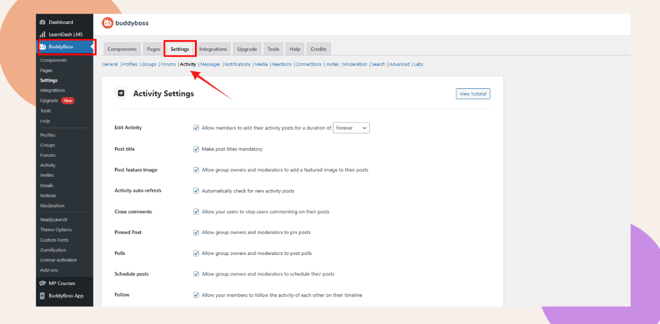
- Scroll to the section labeled Activity Sharing.
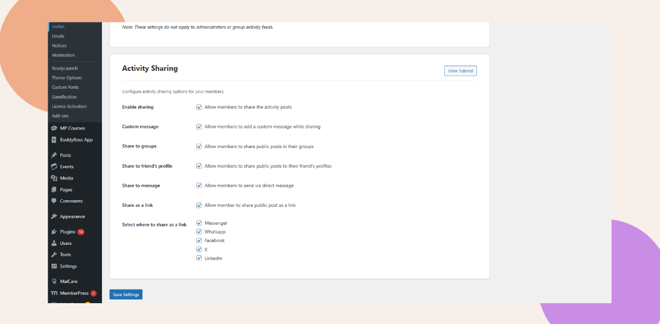
Here you can enable and customize all sharing options.
Key Options
- Enable Sharing: Toggle this option to activate Activity Post Sharing.
- Custom Message: Allow users to include a personal message when sharing an activity.
- Share to Groups: When the Groups component is enabled, users can share activity posts directly to specific group feeds.
- Share to Friends’ Profiles: Available when the Member Connections component is enabled. Lets members share posts to a friend’s profile.
- Share to Message: When the Messages component is active, this option allows users to share posts privately through messages.
- Share as a Link: Enables external sharing via a copyable link or direct sharing to social platforms like Facebook Feed/Messenger, WhatsApp, LinkedIn, or X (Twitter).
After selecting your preferred options, click Save Changes.
Share Posts on the Frontend
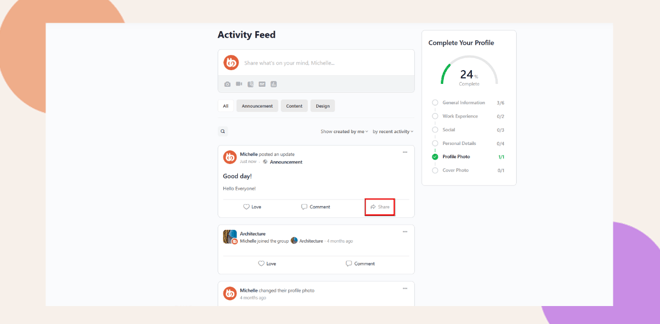
Once enabled, members will see a Share button next to the Like and Comment buttons on each activity post.
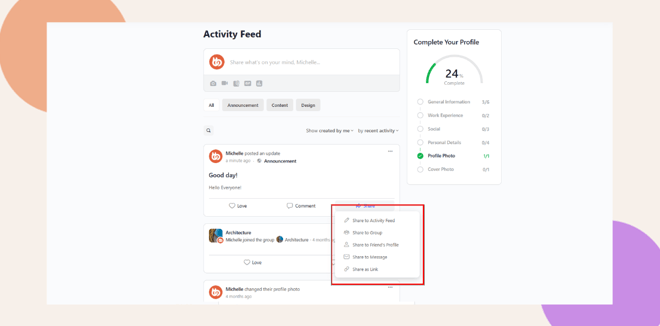
- Click Share to open a dropdown with available sharing options.
- Choose where to share for example, your own feed, a group, a friend’s profile, or a message thread.
- If Custom Message is enabled, a popup will appear where the user can add a personalized message before sharing.
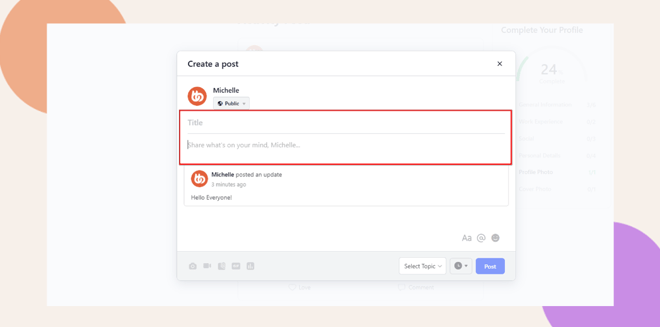
- If it’s disabled, the post is shared instantly.
When a post is shared, BuddyBoss automatically tracks and links the shared content back to the original post, ensuring that engagement metrics remain connected.
Share Posts Externally
When members share a post externally using the Share as a Link option, BuddyBoss automatically generates a clean and engaging link preview.
External shares on platforms like Facebook or LinkedIn include:
- The post title
- The post description
- A featured image
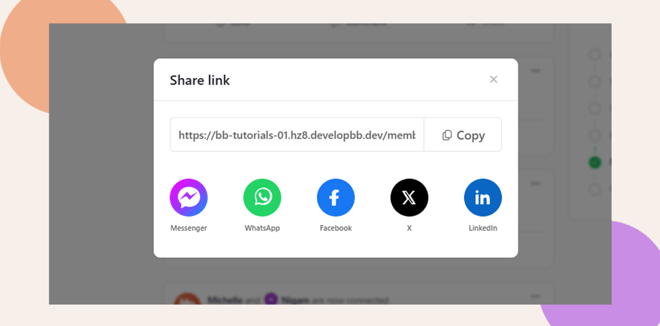
This ensures shared content looks professional and attractive on other platforms.
Troubleshooting and FAQs
Q: I don’t see the Activity Sharing section in my settings.
A: Ensure that the BuddyBoss Sharing plugin is installed and activated.
Q: Some sharing options are missing.
A: Certain options depend on active BuddyBoss components. For example, Share to Groups requires the Groups component to be enabled.
Q: The Custom Message popup doesn’t appear.
A: Verify that Custom Message is enabled in your settings. If it still doesn’t appear, clear your site cache or test using a different browser.
Q: Can I disable external sharing but keep internal options?
A: Yes. Simply disable Share as a Link in the Activity Sharing settings while keeping the other internal sharing options enabled.


