
Introduction
The BuddyBoss Gamification Ranks feature allows you to recognize and reward members for their engagement and contributions within your online community.
By setting up ranks, you can motivate users to earn points, level up, and unlock special privileges helping boost participation and loyalty.
This guide will walk you through how to set up BuddyBoss Gamification Ranks, create custom rank icons, assign point thresholds, and troubleshoot common issues.
Access BuddyBoss Gamification Settings
- In your WordPress Dashboard, navigate to BuddyBoss > Gamification.
- Select the Ranks tab.
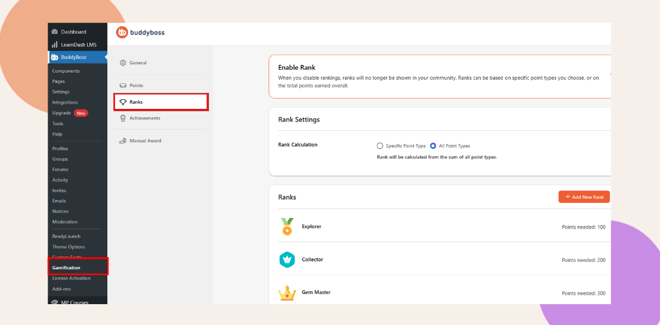
Here, you can view existing ranks, create new ones, and manage your ranking system for community members.
Add a New Rank
To create a new rank:
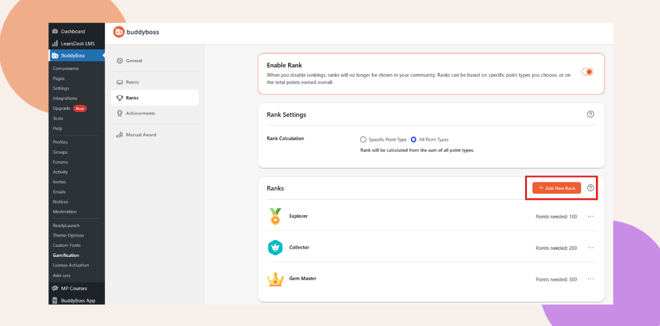
- Click + Add New Rank.
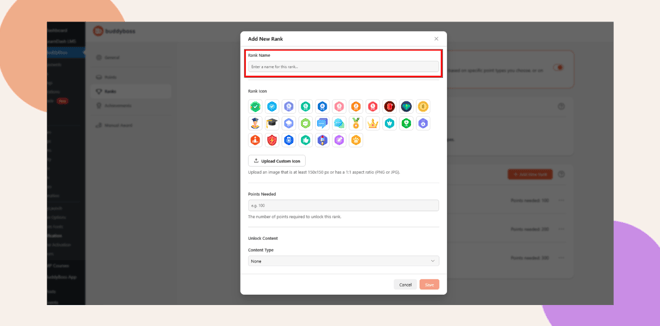
- Enter a Rank Name for example, Explorer, Collector, or Gem Master.
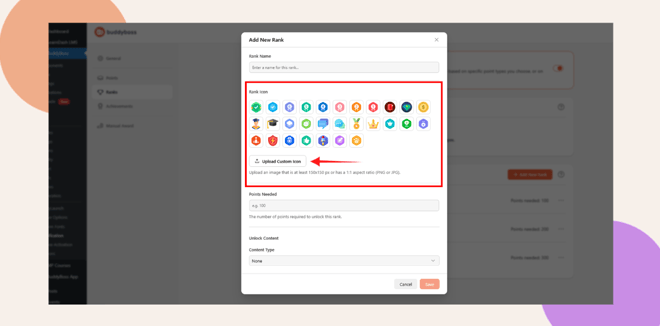
- Choose a Rank Icon from the available options or upload your own (recommended size: 150×150 px, 1:1 aspect ratio), or upload a custom icon by clicking the Upload Custom Icon.
- Specify the Points Needed for a member to achieve this rank.
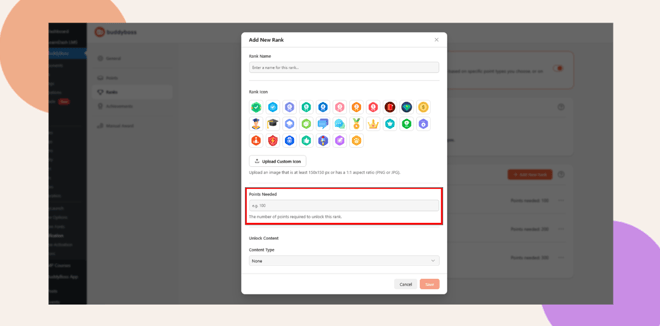
- (Optional) Under Unlock Content, select what members gain access to upon reaching this rank, such as:
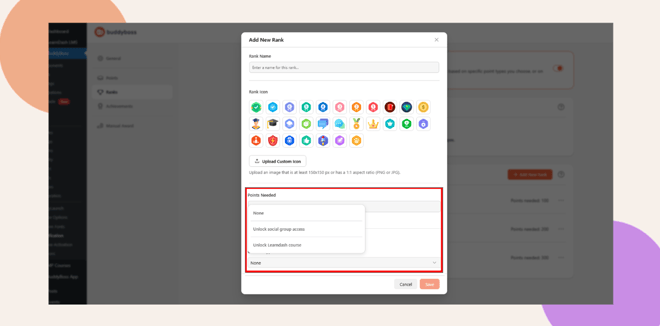
- Unlock social group access
- Unlock a LearnDash course
Note: To use these options, please ensure you have an active course enrolled or your group access has been set up.
- Click Save to finalize your new rank.
Manage Ranks
You can edit or delete ranks anytime by clicking the three-dot menu beside each rank.
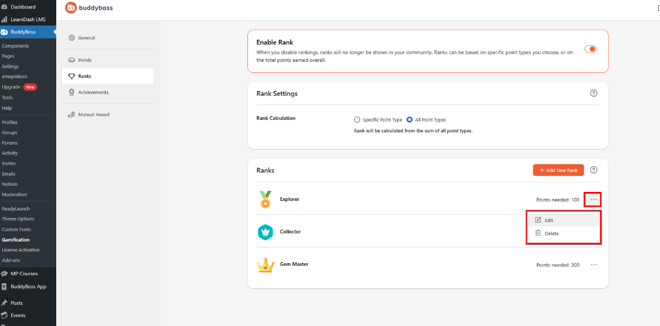
This makes it easy to refine your rank structure as your community grows.
Test Your Rank System
Before launching your ranking system live, it’s best to test it using a sample user account:
- Earn points to trigger rank upgrades.
- Confirm that ranks unlock at the correct point thresholds.
- Ensure rank icons and unlockable content display correctly on the user’s profile.
Testing helps ensure a smooth, rewarding experience for your members before you go live.
Troubleshooting and FAQs
Q: Why aren’t members earning ranks?
A: Make sure the Gamification Points system is active and users have earned enough points to meet the rank threshold.
Q: Can I use multiple point types for ranks?
A: Yes. BuddyBoss supports using multiple point types (e.g., “Gem,” “Crystal,” or “Coin”) to calculate rank progress.
Q: How can I unlock specific content with ranks?
A: When adding or editing a rank, use the Unlock Content feature to grant access to exclusive areas, such as a private group or LearnDash course.
Q: Why is my rank icon not displaying?
A: Check that your uploaded icon is 150×150 px in PNG or JPG format and clear your cache if it doesn’t appear immediately.
Q: Can I edit or delete ranks after creating them?
A: Yes. You can easily modify or remove ranks from the Ranks List using the three-dot menu next to each rank.
Q: Do ranks update automatically when points change?
A: Yes. Ranks are automatically recalculated as users earn or lose points.
Q: Where can members view their ranks?
A: Members can view their ranks directly on their profile page, within activity feeds, or through the leaderboard, depending on your BuddyBoss setup.


