
Introduction
The BuddyBoss Gamification Rank Settings feature allows you to reward members based on the points they earn, encouraging engagement and participation within your online community.
By setting up ranks, members can unlock badges, access exclusive content, and feel more motivated to stay active.
This guide explains how to configure your BuddyBoss Rank Settings, create ranks, assign point thresholds, and troubleshoot common issues.
Access BuddyBoss Gamification Settings
- From your WordPress Dashboard, go to BuddyBoss > Gamification.
- Select the Ranks tab.
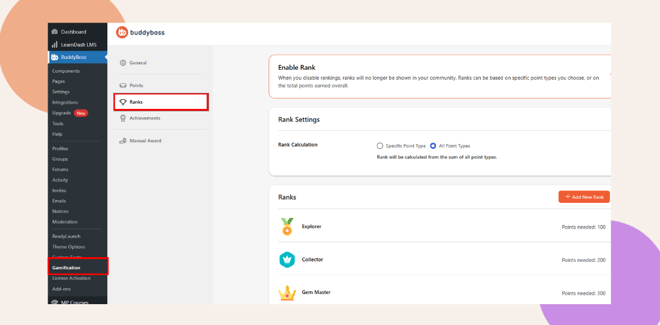
Here, you can view existing ranks, enable or disable ranking, and create new ranks for your community.
Enable the Rank Feature
Before setting up ranks, ensure the Enable Rank toggle is switched on.
When disabled, ranks won’t appear in your community.
- Go to BuddyBoss > Gamification > Ranks.
- Turn on Enable Rank.
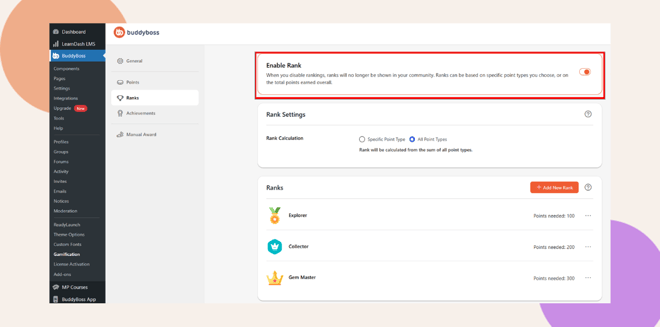
Note: If you use multiple point systems (e.g., “Gem” or “Crystal”), selecting All Point Types will calculate ranks using the total combined points.
Configure Rank Calculation Settings
In the Rank Settings section, you can define how your ranks are calculated:
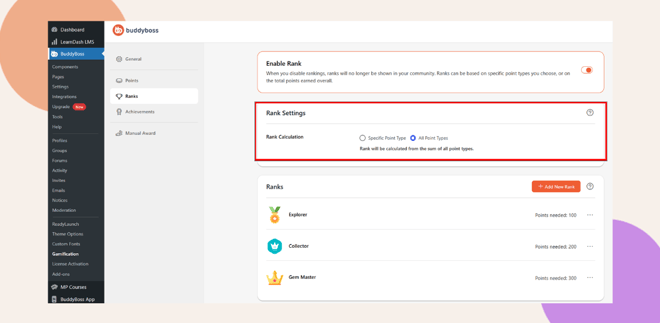
- Specific Point Type: Base ranks only on one type of points (e.g., course completion points).
- All Point Types: Combine all earned points from different systems to determine rank progress.
This gives you flexibility in how you measure community engagement.
Troubleshooting and FAQs
Q: Why aren’t members earning ranks?
A: Make sure the Enable Rank toggle is switched on, and your point system is active. Users must meet the required point threshold for a rank to unlock.
Q: Can I use multiple point types for ranks?
A: Yes. In Rank Settings, select All Point Types to calculate ranks based on the total points across all types such as “Gem” or “Crystal.”
Q: How can I unlock specific content with ranks?
A: When adding or editing a rank, use the Unlock Content dropdown to give access to a social group or a LearnDash course once members reach that rank.
Q: Why is my rank icon not displaying?
A: Check that your uploaded image is 150×150 px and in PNG or JPG format. Clear your browser or site cache if the icon still doesn’t appear.
Q: Can ranks be edited or deleted later?
A: Yes. You can edit or delete ranks anytime by clicking the three-dot menu beside the rank name in the Ranks list.
Q: Do ranks update automatically when points change?
A: Yes. Ranks automatically adjust when points are added or removed, ensuring users always have the correct rank.
Q: Where can members view their ranks?
A: Members can view their ranks on their profile page, in activity feeds, or on leaderboards, depending on your BuddyBoss configuration.


