
Introduction
The BuddyBoss Theme gives you multiple options for customizing your site footer. You can edit footer menus, switch between medium and small footer styles, and add branding elements like logos, copyright notices, descriptions, and social links.
This guide walks you through editing footer menus, setting up the Medium Footer, and configuring the Smallest Footer
How to Edit the Footer Menu
- From your WordPress Dashboard, go to Appearance > Menus.
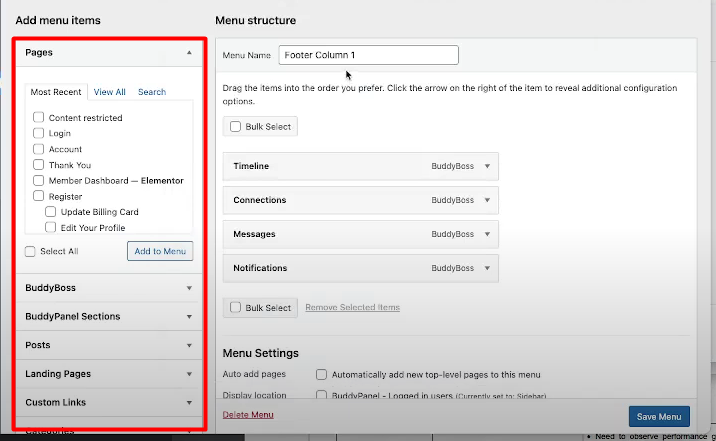
- In the dropdown, select the Footer Column you want to edit and click Select.
- From the Add Menu Items panel, choose the pages or links you want to add to that footer column.
- Click Save Menu to apply changes.
Setting Up the Medium Footer
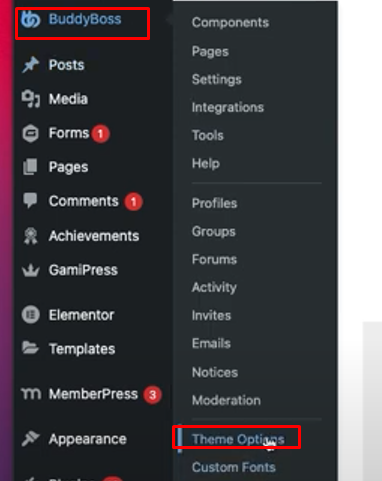
- From the left side menu, go to BuddyBoss > Theme Options
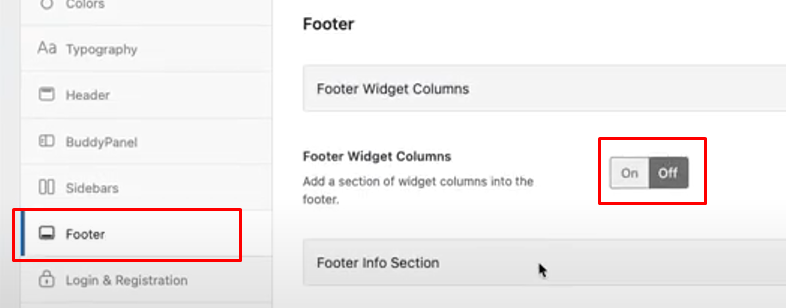
- Go to the Footer Section and turn off the Footer Widget Columns
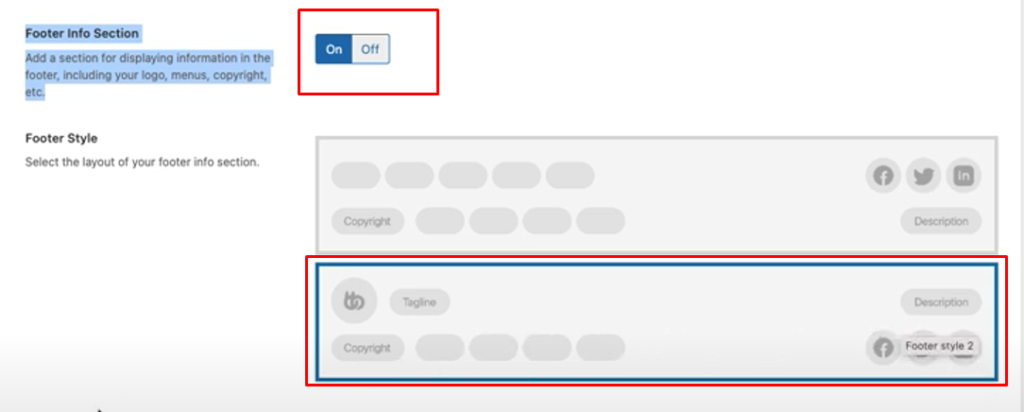
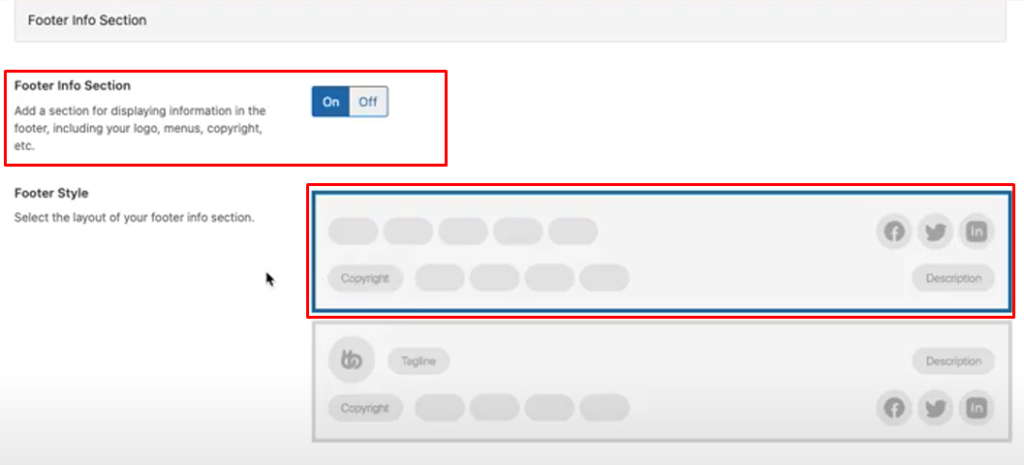
- Ensure that the Footer Info Section is ON and select the 2nd option for Footer Style
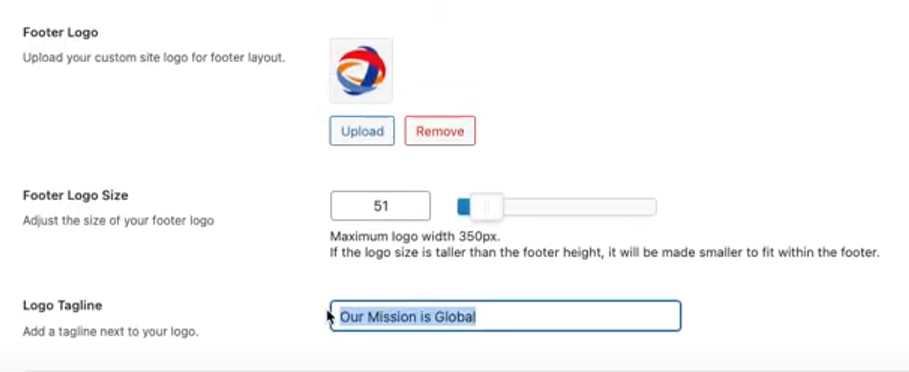
- For the Footer Logo
- Upload the logo for the footer
- Adjust the size based on how it will look best with the Medium sized footer.
- Add the Logo tagline
- Add a Copyright notice.

- Add a Footer Description.

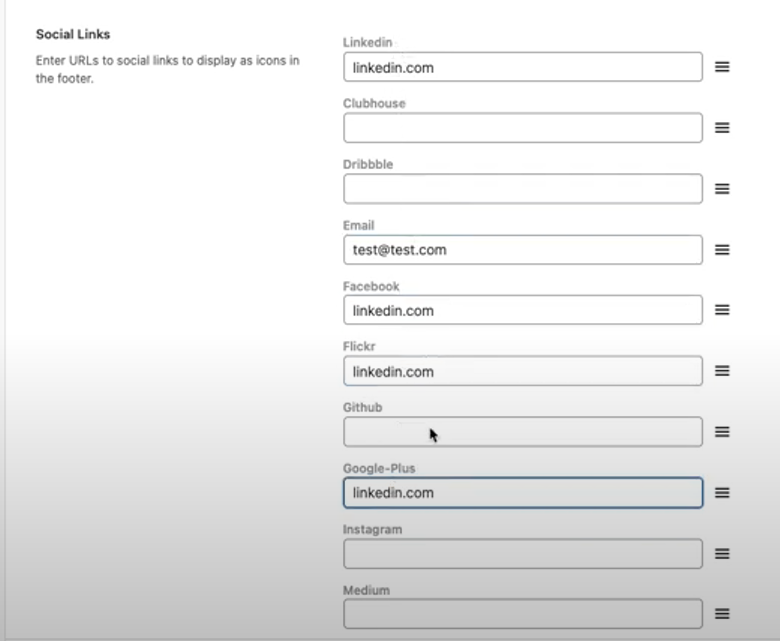
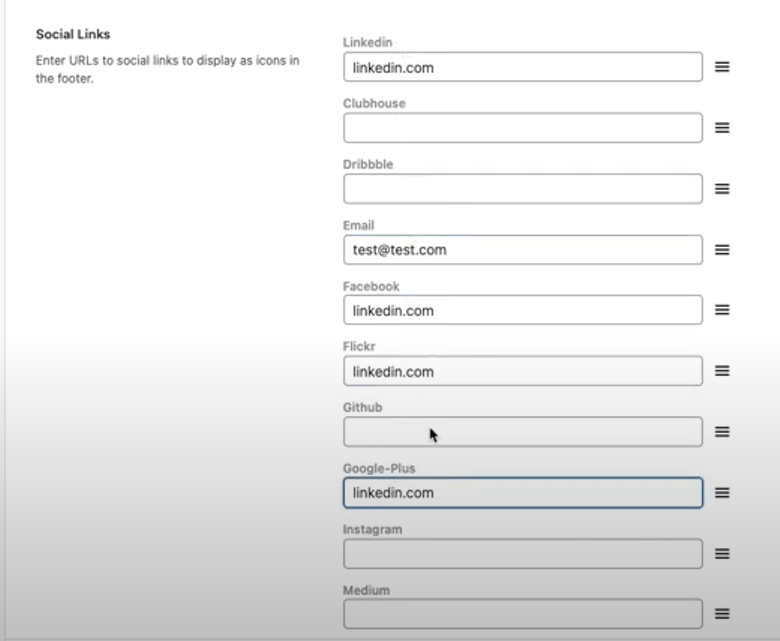
- Add the social links.
- Click Save Changes
- Visit the site to test if the Medium footer has been applied

Setting Up the Smallest Footer
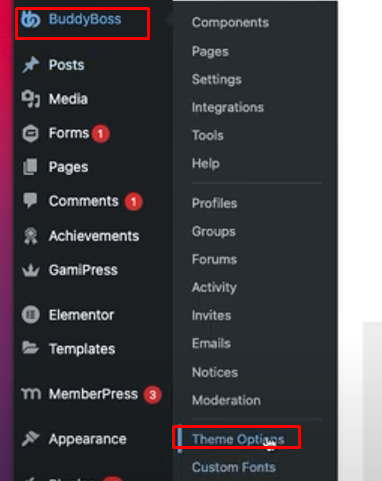
- From the left side menu, go to BuddyBoss > Theme Options
- Go to the Footer Section and turn off the Footer Widget Columns
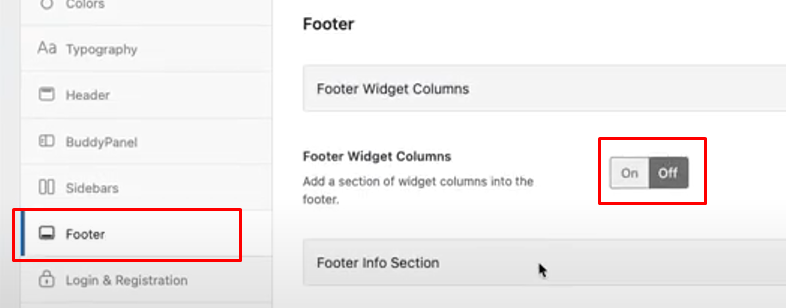
- Ensure that the Footer Info Section is ON and select the 1st option for Footer Style
- Keep the Footer Primary Menu blank (click “X” on the default selection to make it blank)

- Add a Copyright notice.

- Add a Footer Description, if provided by the client.

- Add the social links, if provided.
- Click Save Changes.
- Visit the site to test if the smallest footer has been applied
Troubleshooting & FAQs
Q: Why isn’t my footer style updating after changes?
A: Clear your browser and site cache, then refresh. If the issue persists, check that Footer Widget Columns are turned off.
Q: Can I use both a menu and social links in the smallest footer?
A: Yes, but keeping the primary menu blank is recommended for the cleanest look.
Q: Where should I upload the footer logo?
A: Upload the logo directly under BuddyBoss > Theme Options > Footer Section in the Footer Logo field.


