
Introduction
The Social Groups Widget displays a list of groups from your community in a sidebar or widget area. This widget allows members to easily find and join groups, encouraging collaboration and engagement across your BuddyBoss platform.
Adding and Configuring the Widget
- Go to Appearance > Widgets in your WordPress Dashboard.
- Select the widget area where you want the groups list to appear (e.g., Activity Directory Left).
- Click the + icon and search for Social Groups.
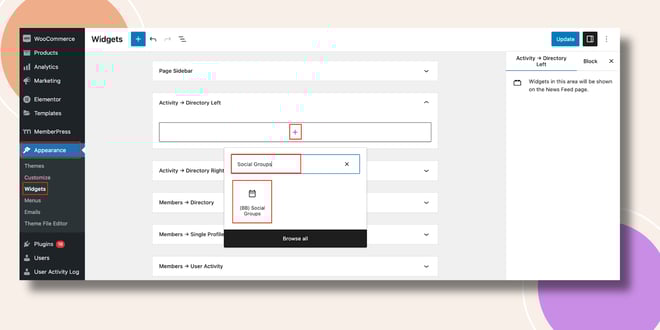
- Add the Social Groups Widget to the selected area.
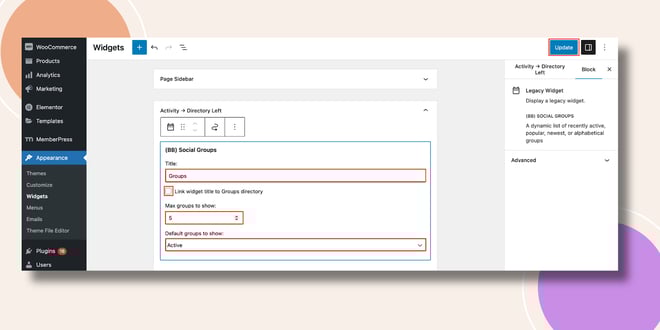
- Configure the following options:
- Title – Enter a custom title (e.g., Social Groups or Community Groups).
- Max Groups to Show – Define how many groups will be displayed in the list.
- Default Groups to Show – Choose which groups to display (e.g., Newest, Active, or Popular).
- Title – Enter a custom title (e.g., Social Groups or Community Groups).
- Click Update to save your changes.
Verifying the Widget
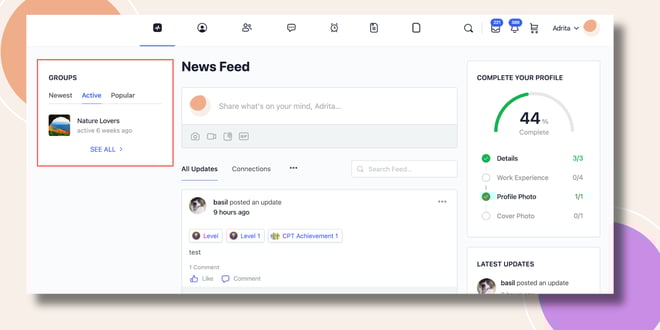
- Go to the Activity Feed on the frontend.
- The Social Groups Widget will appear in the sidebar (e.g., left side of the Activity Directory), showing a list of groups according to your selected settings.
Troubleshooting and FAQs
Q: The widget isn’t showing after I added it.
A: Make sure it’s added to an active widget area and that you clicked Update. Refresh the page or clear your cache if it doesn’t appear.
Q: Can I change which groups appear first?
A: Yes. You can select the Default Groups to Show option (e.g., Newest, Active, or Popular).
Q: Can I add the widget to multiple pages?
A: Yes. You can place the Social Groups Widget in any widget-ready area, such as sidebars or footers.


