
Introduction
The Members Following Me Widget displays the list of members who follow a logged-in user. Adding this widget helps users easily see their followers, fostering engagement and community interaction within your BuddyBoss platform.
Adding and Configuring the Widget
- Go to Appearance > Widgets in your WordPress Dashboard.
- Select the widget area where you want the followers list to appear (e.g., Activity Directory Left).
- Click the + icon and search for Members Following Me.
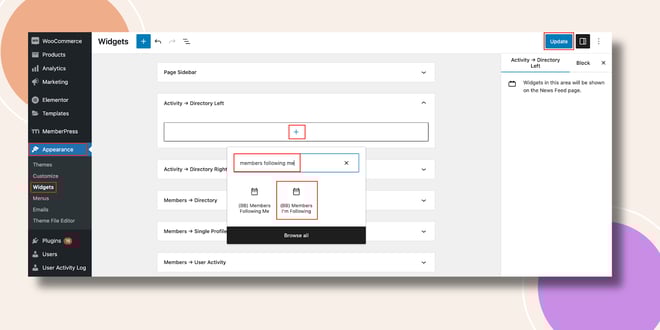
- Add the Members Following Me Widget to the selected area.
- Set the Max Number to Show (this defines how many followers will be displayed in the widget).
- Click Update to save your changes.
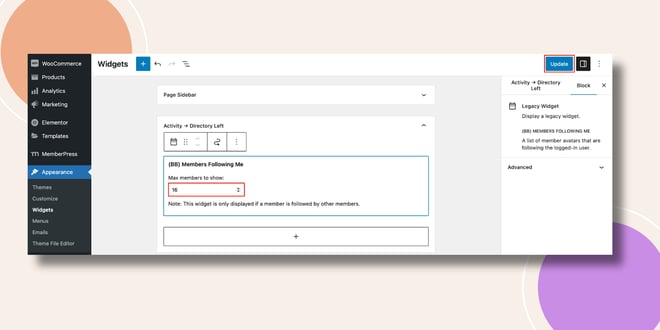
Note: The widget will only appear if the member is followed by at least one other member.
Verifying the Widget
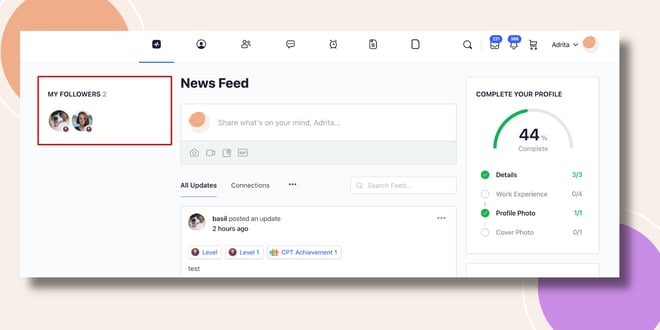
- Go to the Activity Feed on the frontend.
- The Members Following Me Widget will appear in the sidebar (e.g., left side of the Activity Directory) as My Followers, displaying the followers based on your configuration.
Troubleshooting and FAQs
Q: The widget isn’t showing on my profile or sidebar.
A: This widget only appears if the member has followers. Make sure other members are following you.
Q: Can I control how many followers appear in the list?
A: Yes. You can adjust the number in the Max Number to Show field when configuring the widget.
Q: Can I display followers for other users?
A: No. The Members Following Me Widget displays followers only for the currently logged-in user.


