
Introduction
Messaging emails in the BuddyBoss Platform keep members updated about new private messages, replies, and mentions. Configuring these notifications ensures that your community stays connected and engaged even when users are not logged in.
This article explains how to set up, customize, and manage all messaging-related emails, including new message alerts, reply notifications, and mentions.
Key Features of Messaging Emails
- New Message Notifications – alert users of incoming private messages.
- Message Reply Notifications – notify users when someone responds in an existing thread.
- Mention Notifications – let users know when they’re mentioned in private messages.
- Customizable Templates – personalize content, subject lines, and design.
- Frequency Control – manage how often members receive emails.
Access Messaging Email Settings
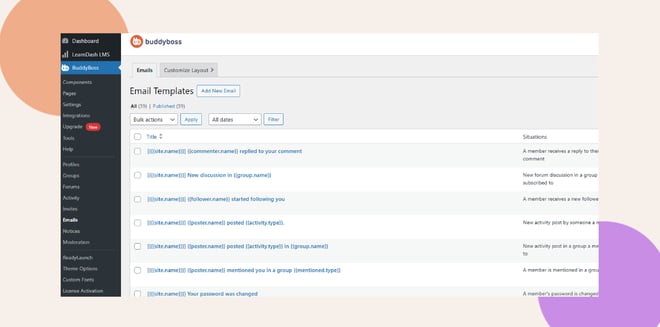
- In your WordPress Dashboard, go to BuddyBoss > Emails.
- Review the list of email notifications, including all messaging-related templates.
Customize Email Templates
- Locate the templates for:
- Replied to Your Comment
- Message Reply Notification
- Mention Notification
- Replied to Your Comment
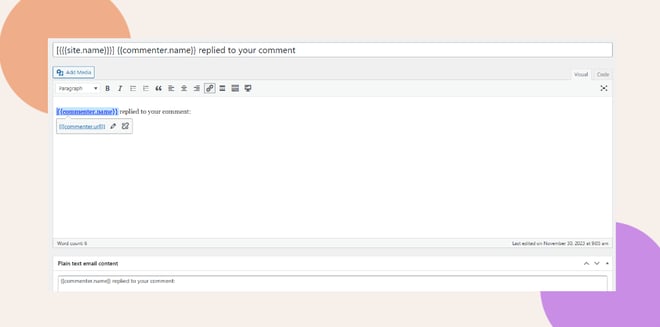
- Click Edit under the template you want to customize.
- Modify the Subject Line to make it clear and engaging.
- Example: “You’ve Got a New Message from [Sender’s Name]!”
- Example: “You’ve Got a New Message from [Sender’s Name]!”
- Update the Email Body using a friendly, professional tone.
- Include dynamic variables like [Sender’s Name], [Message Excerpt], and [Reply Link] for personalization.
- Example:
“Hi [User’s Name], you have a new message from [Sender’s Name]. Click here to reply: [Reply Link].”
- Include dynamic variables like [Sender’s Name], [Message Excerpt], and [Reply Link] for personalization.
- Adjust Styling (header, footer, colors) to match your brand’s identity.
Set Email Frequency and Preferences
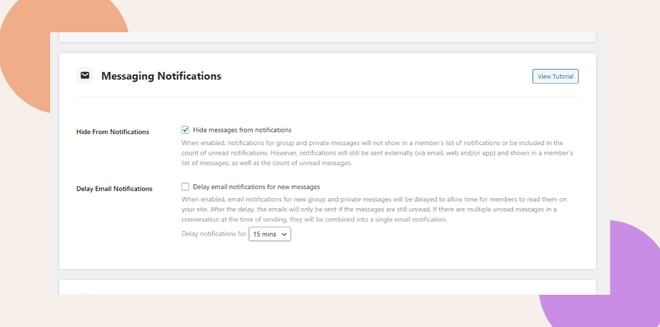
- Go to BuddyBoss > Settings > Notifications.
- Under Messaging Notifications, choose how often members receive emails:
- Instantly – send right after a message is received.
- Daily Digest – one summary email per day.
- Weekly Digest – one summary email per week.
- Instantly – send right after a message is received.
- Allow members to adjust their preferences in their Account Settings for more control.
Test and Preview Emails
- In the Email Editor, click Send Test Email.
- Enter your email address to preview the notification.
- Check the design in both desktop and mobile clients to confirm responsiveness.
Best Practices for Messaging Emails
- Keep subject lines clear and concise. Example: “New Message from [Sender’s Name]”.
- Personalize content with dynamic variables.
- Include a CTA such as “Reply now” or “View in your inbox”.
- Balance frequency to avoid overwhelming users with too many notifications.
Troubleshooting and FAQs
Q: Why aren’t users receiving messaging emails?
A: Check the following:
- Email Settings – Ensure notifications are enabled under BuddyBoss > Settings > Emails.
- User Preferences – Confirm users haven’t disabled email notifications.
- Spam Filters – Ask users to check spam/junk folders and mark the sender as safe.
Q: Why are emails displaying incorrectly?
A: Ensure all dynamic variables (e.g., [Sender’s Name], [Reply Link]) are configured correctly. Confirm the email template HTML is mobile-responsive.
Q: Emails are delayed or not sending. What should I check?
A:
- Confirm your hosting provider supports reliable email delivery.
- Use a third-party service such as SendGrid or Mailgun for better deliverability.


