⚡️Cyber Monday Flash Sale 70% Off:
H :
M :
S
⚡️
  1. Home
  2. Knowledge Base
  3. Customizations
  4. CSS
  5. How to Move the Header Sub-Menu from Left to Right

How to Move the Header Sub-Menu from Left to Right

Table of Content

By default, the BuddyBoss Theme displays sub-menus on the left side. You can use the following CSS code.

Please follow the steps below:

    1. Go to BuddyBoss – Theme Options

    2. Under Custom Codes, enable CSS

    3. Append the following:

.site-header #primary-navbar .primary-menu .menu-item > .ab-submenu .bb-sub-menu .menu-item:hover .ab-submenu,
.site-header #primary-navbar .primary-menu .menu-item > .ab-submenu .bb-sub-menu .menu-item:hover .ab-submenu {
    -webkit-transform: translateX(100%) !important;
    -ms-transform: translateX(100%) !important;
    transform: translateX(100%) !important;
}

    4. Save changes.

Note: Any modifications are considered as custom work already. Know more about our Support policy here: https://www.buddyboss.com/support-policy/


Screenshots

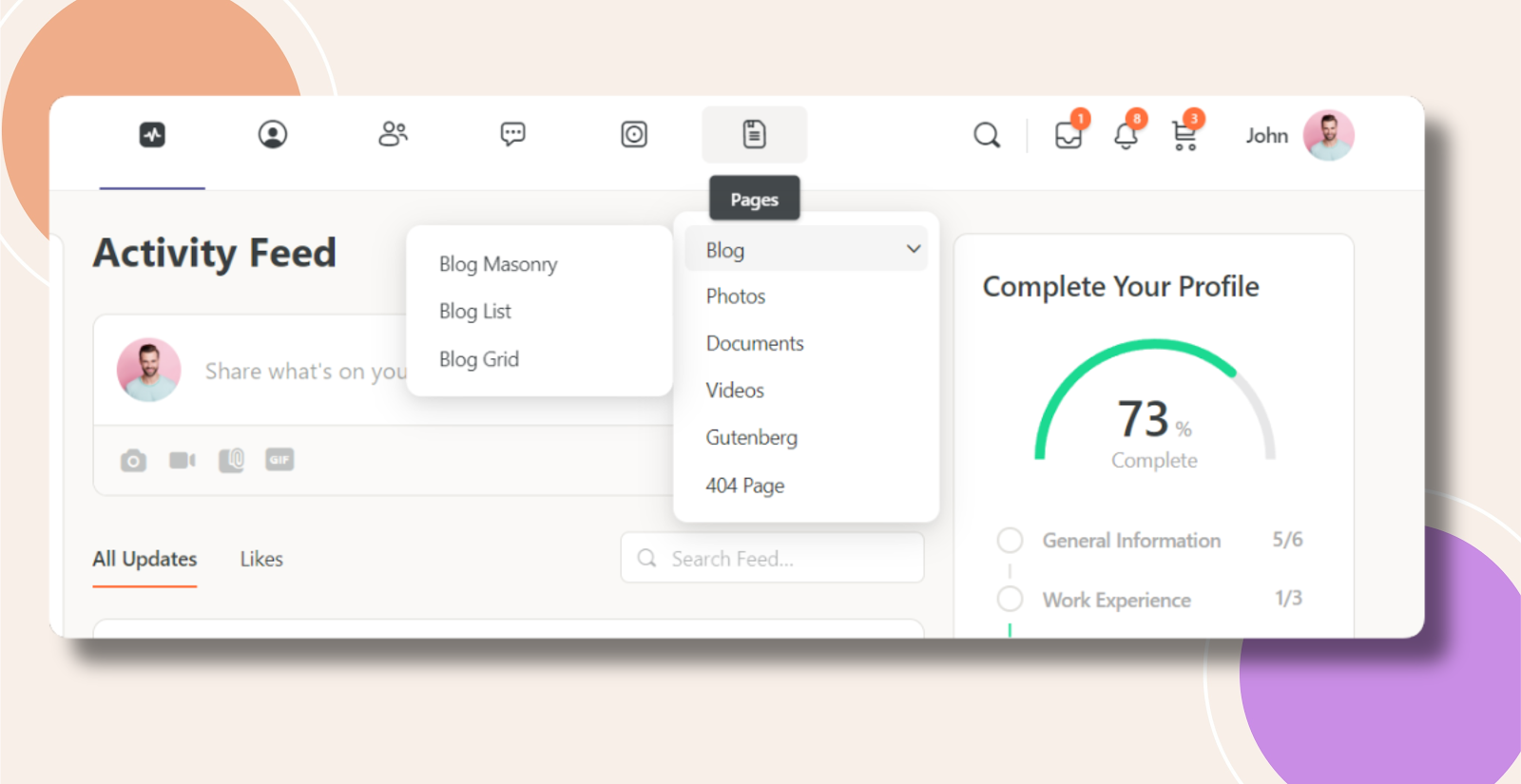
Without Code:


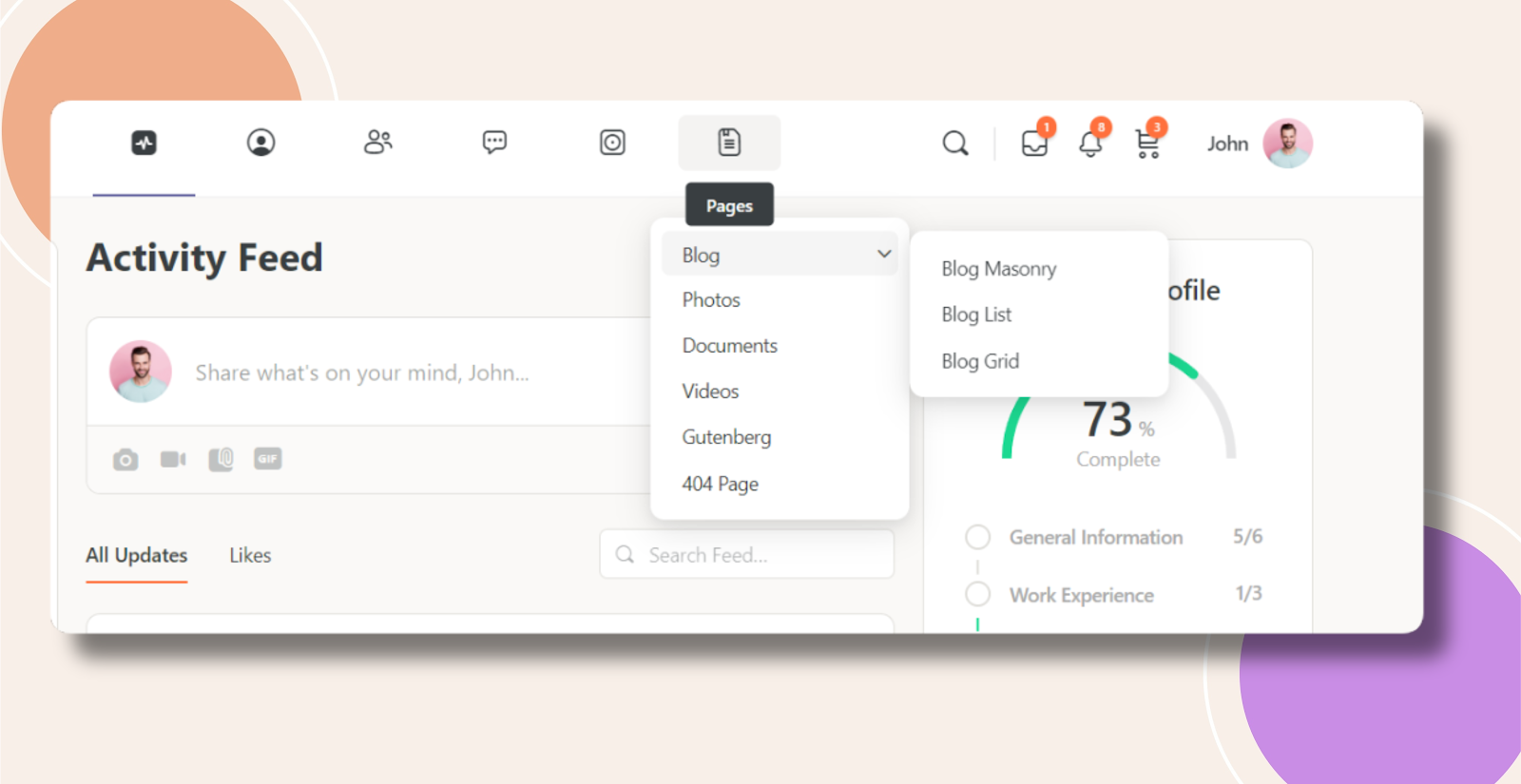
With Code:

Was this article helpful?

Related Articles

Subscribe to Our Newsletter

Stay In Touch

Subscribe to our Newsletter, and we’ll send you the latest news from BuddyBoss

  • This field is hidden when viewing the form
  • This field is for validation purposes and should be left unchanged.

To speak to our Agency consultant, fill in the form found at our Contact Page.

  • Get Started

    Enter your name and email address to get started with your project...

  • This field is for validation purposes and should be left unchanged.