
Introduction
The Site Notices feature in the BuddyBoss Platform lets admins instantly broadcast announcements, promotions, or critical updates across the community. Notices are displayed prominently, ensuring maximum visibility so members never miss important information.
This article explains how to create, customize, and manage site notices effectively.
Key Features of Site Notices
- Instant Notifications – reach all members at once.
- High Visibility – display notices as banners or popups.
When to Use Site Notices
- Announcing maintenance schedules or feature updates.
- Promoting special offers, discounts, or events.
- Sharing community guidelines or policy changes.
Access the Site Notices Feature
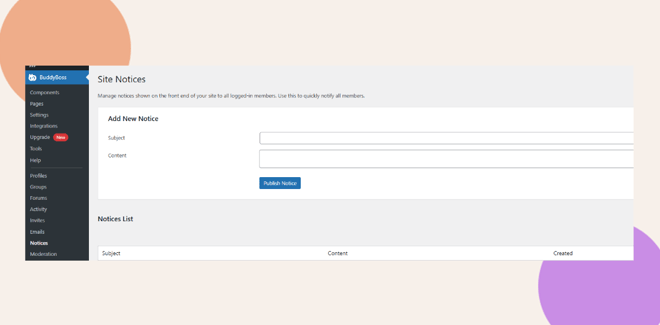
- In your WordPress Dashboard, go to BuddyBoss > Notices.
Create a New Notice
- Enter a Notice Title – keep it clear and attention-grabbing.
- Example: “Scheduled Maintenance on March 15”
- Example: “Scheduled Maintenance on March 15”
- Write the Notice Message – short, professional, and relevant.
- Example: “Our site will undergo maintenance on March 15 from 12:00 AM to 4:00 AM. Some features may be unavailable during this time.”
- Example: “Our site will undergo maintenance on March 15 from 12:00 AM to 4:00 AM. Some features may be unavailable during this time.”
Publish the Notice
- Review the notice for clarity and accuracy.
- Click Publish.
- The notice will display to your selected audience according to the chosen display options.
Manage Existing Notices
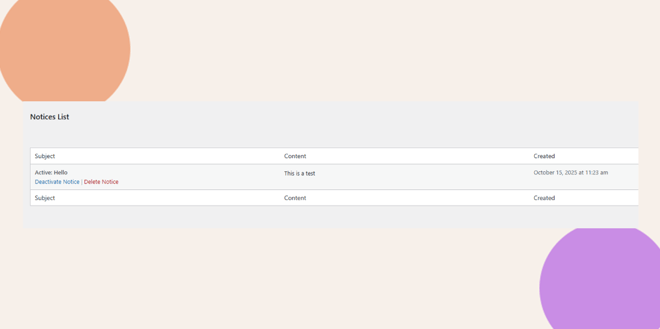
- In the Dashboard, go to BuddyBoss > Notices.
- To deactivate – click Deactivate Notice (useful for temporary pauses).
- To delete – click Delete Notice to permanently remove.
Best Practices for Site Notices
- Keep messages concise – short notices engage users best.
- Limit frequency – avoid overusing notices to prevent fatigue.
- Test across devices – confirm visibility on desktop and mobile.
Troubleshooting and FAQs
Q: My site notice isn’t appearing for members. What should I check?
A: Make sure the notice is published and not set to inactive. Also confirm that the display conditions
Q: Can I target specific member types with a notice?
A: Currently, site notices are displayed globally to all members.


