
Introduction
Live Messaging in the BuddyBoss Platform brings real-time communication to your community. With typing indicators, instant message delivery, online status updates, and media sharing, members can enjoy a seamless and interactive chat experience on both web and app.
This article explains how to enable Live Messaging, connect it with Pusher, and test it on web and app.
Key Features of Live Messaging
- Typing Indicator – shows when another user is typing in real time.
- Instant Delivery – messages appear instantly without page refresh.
- Online Status Indicator – displays real-time member availability.
- Media Sharing – send photos, videos, emojis, and GIFs in messages.
Integrate with Pusher
Live Messaging uses Pusher Channels to power real-time features.
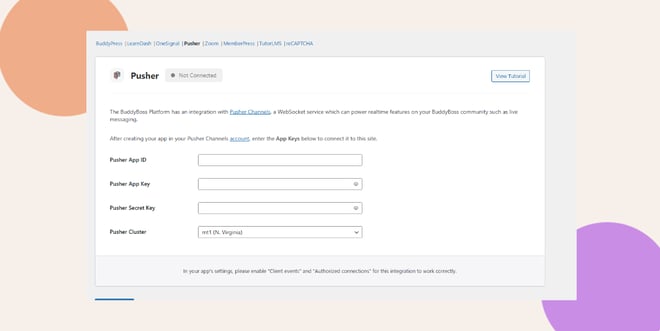
- In your WordPress Dashboard, go to BuddyBoss > Integration > Pusher.
- Create a free account at Pusher.
- Click Sign Up, or Sign In if you already have an account.
- Go to Channels > Create App.
- Click Sign Up, or Sign In if you already have an account.
- Configure the app:
- Enter an App Name (e.g., “BuddyBoss App”).
- Select a Cluster (e.g., us2 – US East (Ohio)).
- Optional: For multiple environments (staging/development), create separate apps and uncheck Share app.
- Click Create App.
- Enter an App Name (e.g., “BuddyBoss App”).
- Enable required settings:
- In App Settings, turn on Enable Client Events.
- Turn on Enable Authorized Connections (required for Live Messaging).
- In App Settings, turn on Enable Client Events.
- Copy your App Keys and paste them into WordPress:
- App ID – Pusher App ID
- Key – Pusher App Key
- Secret – Pusher Secret Key
- Cluster – same cluster selected in Pusher (e.g., us2).
- App ID – Pusher App ID
- Click Save Settings.
- Confirm Pusher status is Connected, then check Enable Live Messaging.
- Click Save Settings again.
Test Live Messaging on Web
- Open two browsers and log in as two different members (e.g., John and Luna).
- John starts typing without sending – Luna sees the typing indicator.
- John clicks Send – Luna receives the message instantly, without refreshing.
- Try sending photos, videos, or emojis – they deliver instantly.
- Online Status updates in real time when users log in or out.
Test Live Messaging on App
- Log in to the BuddyBoss App on two devices.
- Each member sees a green online indicator in real time.
- John types – Luna sees a typing indicator instantly.
- John sends a message – Luna receives it immediately.
- Replies appear instantly on both devices.
- In Group Messages, typing indicators show who is typing in real time.
Troubleshooting and FAQs
Q: Why isn’t Live Messaging working after setup?
A: Make sure Enable Client Events and Enable Authorized Connections are turned on in Pusher App Settings.
Q: Messages are delayed or not delivered. What should I check?
A: Confirm that the internet connection is stable and that the Pusher status in BuddyBoss shows Connected.
Q: The typing indicator isn’t showing. How can I fix this?
A: Clear browser cache, reinstall the BuddyBoss App, and verify that both users are online with updated versions.


