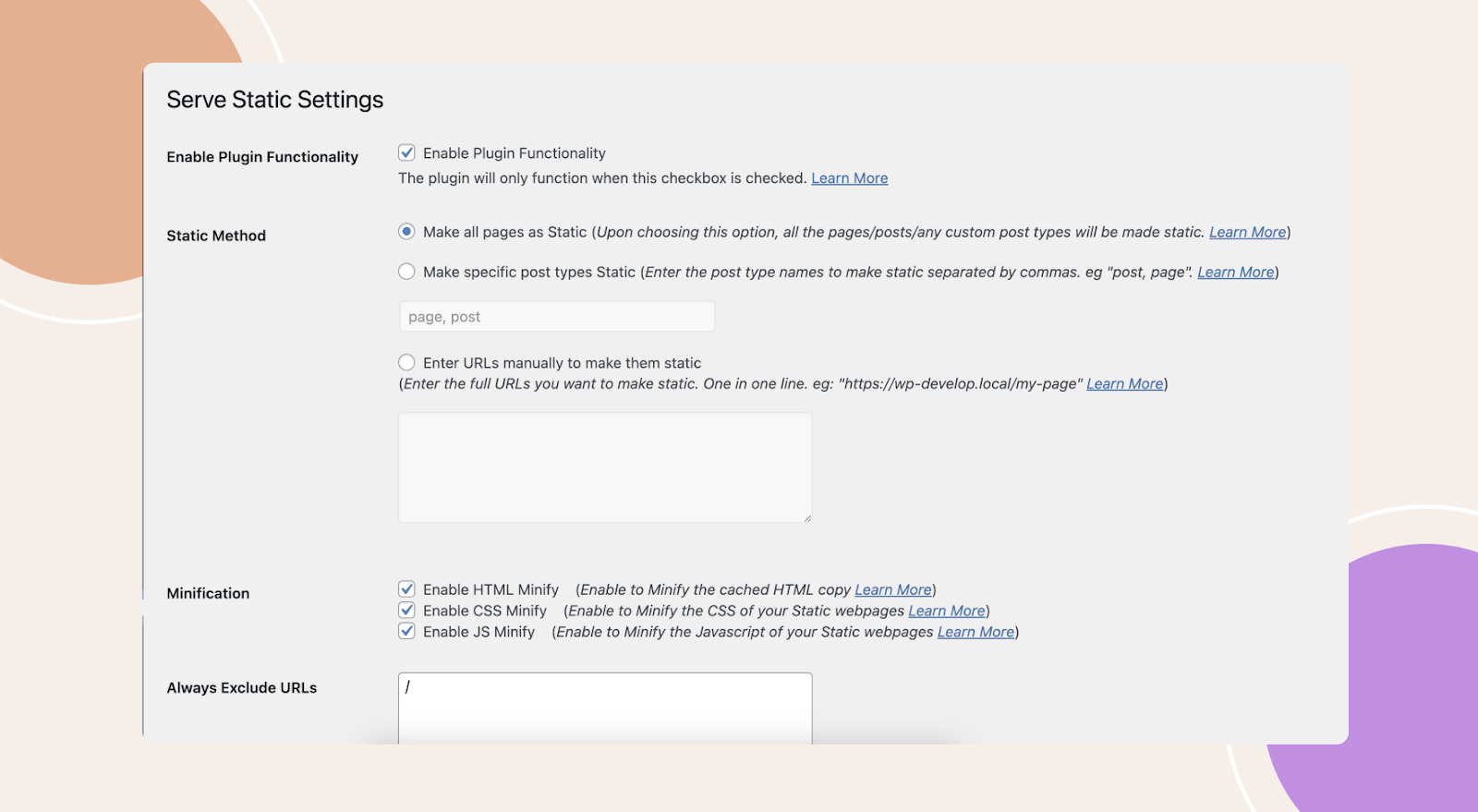
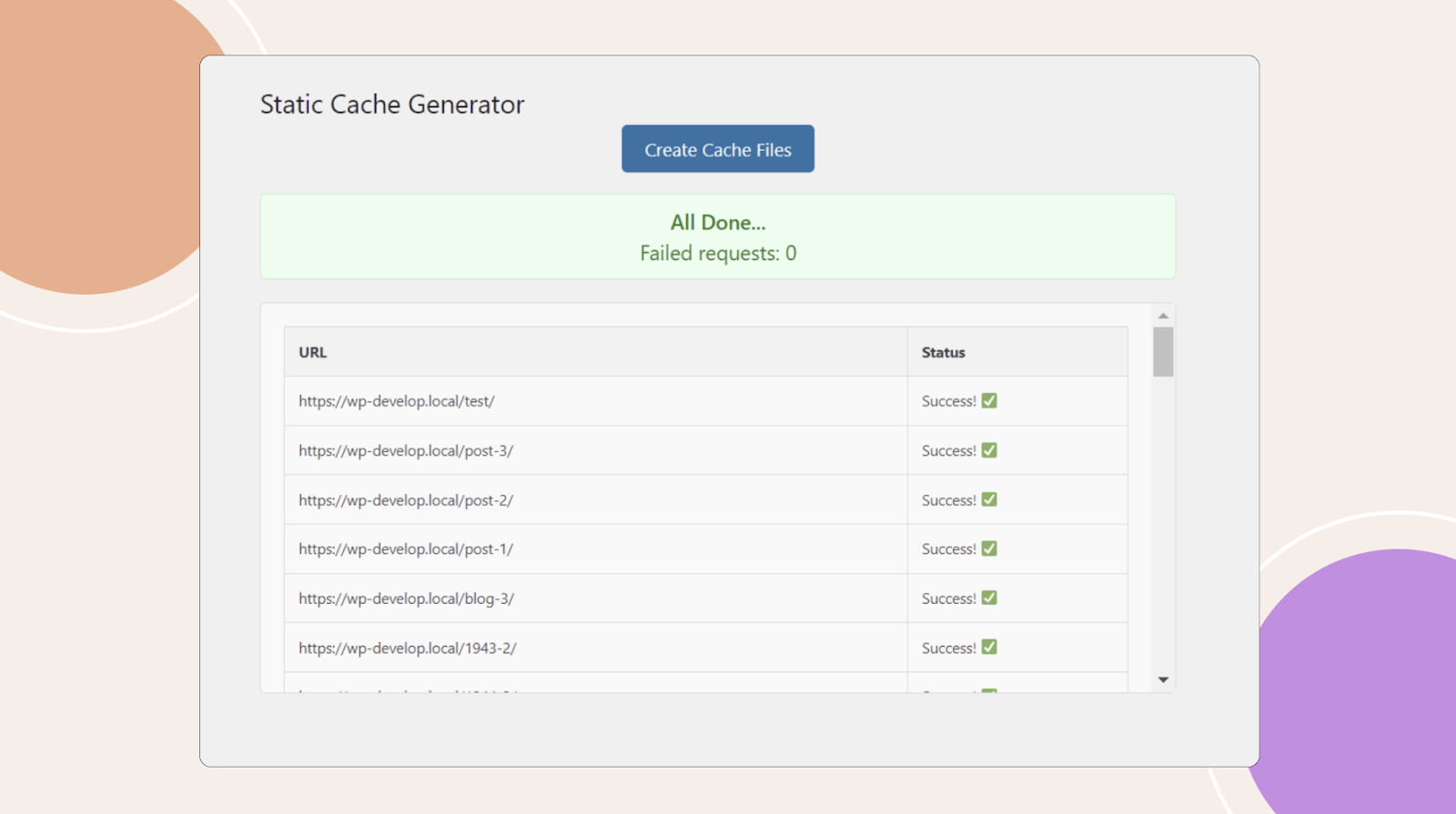
The Serve Static WordPress plugin is a performance optimization tool that helps website owners enhance their site’s speed and efficiency by serving static resources, such as images, CSS, and JavaScript files, in a more streamlined way. It converts dynamic files into static versions, allowing for faster load times and reduced server load.
Key Features:
Static File Serving: Converts dynamic content into static files for faster delivery.
CDN Integration: Supports the use of Content Delivery Networks to serve files from geographically closer servers.
Improved Load Times: Optimizes website performance by delivering files faster, improving user experience and SEO.
Browser Caching: Enables caching of files on users’ devices for quicker repeat visits.
Minification & Compression: Reduces the size of CSS, JavaScript, and HTML files to improve load times.
Mobile Optimization: Ensures efficient serving of assets for mobile devices.
Easy Setup: Simple configuration, making it accessible to non-technical users.
Installation
Unzip the downloaded package.
Upload serve-static.zip to the /wp-content/plugins/ directory
Activate the plugin through the ‘Plugins’ menu in WordPress
Optional: You may need to modify the rewrite rules.
To configure the Serve Static plugin, follow these steps for optimal performance:
1. Access the Plugin Settings:
After installation, navigate to the WordPress dashboard.
Go to Settings > Serve Static to access the configuration options.
2. Enable Static File Serving:
Static File Serving: Check the box that allows the plugin to convert dynamic resources (like images, CSS, and JavaScript files) into static files. This helps in reducing server load and speeding up your site.
3. Set Up CDN (Optional):
CDN Settings: If you are using a Content Delivery Network (CDN) like Cloudflare or Amazon CloudFront, enter your CDN URL in the corresponding field. This ensures that static files are served from a global network, reducing latency for users.
4. Enable Browser Caching:
Browser Cache Settings: Set a duration for how long browsers should cache static files (e.g., 1 week or 1 month). This reduces load time for returning visitors as their browser will use cached versions of files.
5. Enable Compression:
Gzip or Brotli Compression: Enable one of these compression options to minimize file sizes. Compressed files reduce bandwidth usage and improve loading speed.
6. Minification:
Minify CSS/JS/HTML: Enable this feature to remove unnecessary characters like spaces and line breaks from your code. This reduces file sizes and enhances loading speed.
7. Mobile Optimization:
Mobile Settings: Ensure that the plugin is set to optimize for mobile users by serving smaller, optimized static files for mobile networks.
8. Save Your Settings:
Once all the options are configured, click Save Changes at the bottom of the settings page.
9. Clear Cache:
If you are using a caching plugin, clear the cache to ensure that all changes take effect and static files are served properly.
Screeenshots
For further setup and usage tutorials, refer to the official documentation of Serve Static.
This integration is developed and maintained by Serve Statc. It is the responsibility of their developers to keep the integration updated to ensure it works with the latest versions of BuddyBoss products and addresses major security concerns.
We use cookies to improve your experience on our site. By using our site, you consent to our cookie policy.
This website uses cookies
Websites store cookies to enhance functionality and personalise your experience. You can manage your preferences, but blocking some cookies may impact site performance and services.
Essential cookies enable basic functions and are necessary for the proper function of the website.
Name
Description
Duration
Geolocation Config
This cookie is used to store the consent settings based on the visitor's location.
30 days
Cookie Preferences
This cookie is used to store the user's cookie consent preferences.
30 days
CloudFlare provides web performance and security solutions, enhancing site speed and protecting against threats.
Whether a CAPTCHA or Javascript challenge has been solved.
session
__cfseq
Sequence rules uses cookies to track the order of requests a user has made and the time between requests and makes them available via Cloudflare Rules. This allows you to write rules that match valid or invalid sequences. The specific cookies used to validate sequences are called sequence cookies.
session
cf_use_ob
The cf_use_ob cookie informs Cloudflare to fetch the requested resource from the Always Online cache on the designated port. Applicable values are: 0, 80, and 443. The cf_ob_info and cf_use_ob cookies are persistent cookies that expire after 30 seconds.
session
cf_ob_info
The cf_ob_info cookie provides information on: The HTTP Status Code returned by the origin web server. The Ray ID of the original failed request. The data center serving the traffic
session
__cfwaitingroom
The __cfwaitingroom cookie is only used to track visitors that access a waiting room enabled host and path combination for a zone. Visitors using a browser that does not accept cookies cannot visit the host and path combination while the waiting room is active.
session
cf_chl_rc_i
These cookies are for internal use which allows Cloudflare to identify production issues on clients.
session
cf_chl_rc_ni
These cookies are for internal use which allows Cloudflare to identify production issues on clients.
session
cf_chl_rc_m
These cookies are for internal use which allows Cloudflare to identify production issues on clients.
session
__cfruid
Used by the content network, Cloudflare, to identify trusted web traffic.
session
__cf_bm
Cloudflare's bot products identify and mitigate automated traffic to protect your site from bad bots. Cloudflare places the __cf_bm cookie on End User devices that access Customer sites that are protected by Bot Management or Bot Fight Mode. The __cf_bm cookie is necessary for the proper functioning of these bot solutions.
session
__cflb
When enabling session affinity with Cloudflare Load Balancer, Cloudflare sets a __cflb cookie with a unique value on the first response to the requesting client. Cloudflare routes future requests to the same origin, optimizing network resource usage. In the event of a failover, Cloudflare sets a new __cflb cookie to direct future requests to the failover pool.
session
_cfuvid
The _cfuvid cookie is only set when a site uses this option in a Rate Limiting Rule, and is only used to allow the Cloudflare WAF to distinguish individual users who share the same IP address.
session
These cookies are needed for adding comments on this website.
Name
Description
Duration
comment_author
Used to track the user across multiple sessions.
Session
comment_author_email
Used to track the user across multiple sessions.
Session
comment_author_url
Used to track the user across multiple sessions.
Session
Google reCAPTCHA helps protect websites from spam and abuse by verifying user interactions through challenges.
Name
Description
Duration
_GRECAPTCHA
Google reCAPTCHA sets a necessary cookie (_GRECAPTCHA) when executed for the purpose of providing its risk analysis.
179 days
Google Tag Manager simplifies the management of marketing tags on your website without code changes.
Name
Description
Duration
cookiePreferences
Registers cookie preferences of a user
2 years
td
Registers statistical data on users' behaviour on the website. Used for internal analytics by the website operator.
session
Statistics cookies collect information anonymously. This information helps us understand how visitors use our website.
Facebook Pixel is a web analytics service that tracks and reports website traffic.
Used to determine whether a user is included in an A / B or Multivariate test.
18 months
_ga
ID used to identify users
2 years
_gali
Used by Google Analytics to determine which links on a page are being clicked
30 seconds
_ga_
ID used to identify users
2 years
_gid
ID used to identify users for 24 hours after last activity
24 hours
_gat
Used to monitor number of Google Analytics server requests when using Google Tag Manager
1 minute
__utmv
Contains custom information set by the web developer via the _setCustomVar method in Google Analytics. This cookie is updated every time new data is sent to the Google Analytics server.
2 years after last activity
_gac_
Contains information related to marketing campaigns of the user. These are shared with Google AdWords / Google Ads when the Google Ads and Google Analytics accounts are linked together.
90 days
__utma
ID used to identify users and sessions
2 years after last activity
__utmt
Used to monitor number of Google Analytics server requests
10 minutes
__utmb
Used to distinguish new sessions and visits. This cookie is set when the GA.js javascript library is loaded and there is no existing __utmb cookie. The cookie is updated every time data is sent to the Google Analytics server.
30 minutes after last activity
__utmc
Used only with old Urchin versions of Google Analytics and not with GA.js. Was used to distinguish between new sessions and visits at the end of a session.
End of session (browser)
__utmz
Contains information about the traffic source or campaign that directed user to the website. The cookie is set when the GA.js javascript is loaded and updated when data is sent to the Google Anaytics server
6 months after last activity
Clarity is a web analytics service that tracks and reports website traffic.