
Introduction
The Tab Bar Visibility feature lets you control where the main navigation bar appears, creating a cleaner interface by hiding tabs on specific screens. This streamlines user focus on content and enhances the overall user experience.
Tutorial Video
Accessing the Tab Bar Visibility Settings
- In WordPress, go to BuddyBoss App > Menus.
- Under Tab Bar, locate the Tab Bar Visibility options.
Showing the Tab Bar on All Screens
- Select Show on All Screens.

- Click Save Settings.
- Open the BuddyBoss App, navigate to any screen (e.g., view a member’s Activity), and confirm the tab bar is visible.
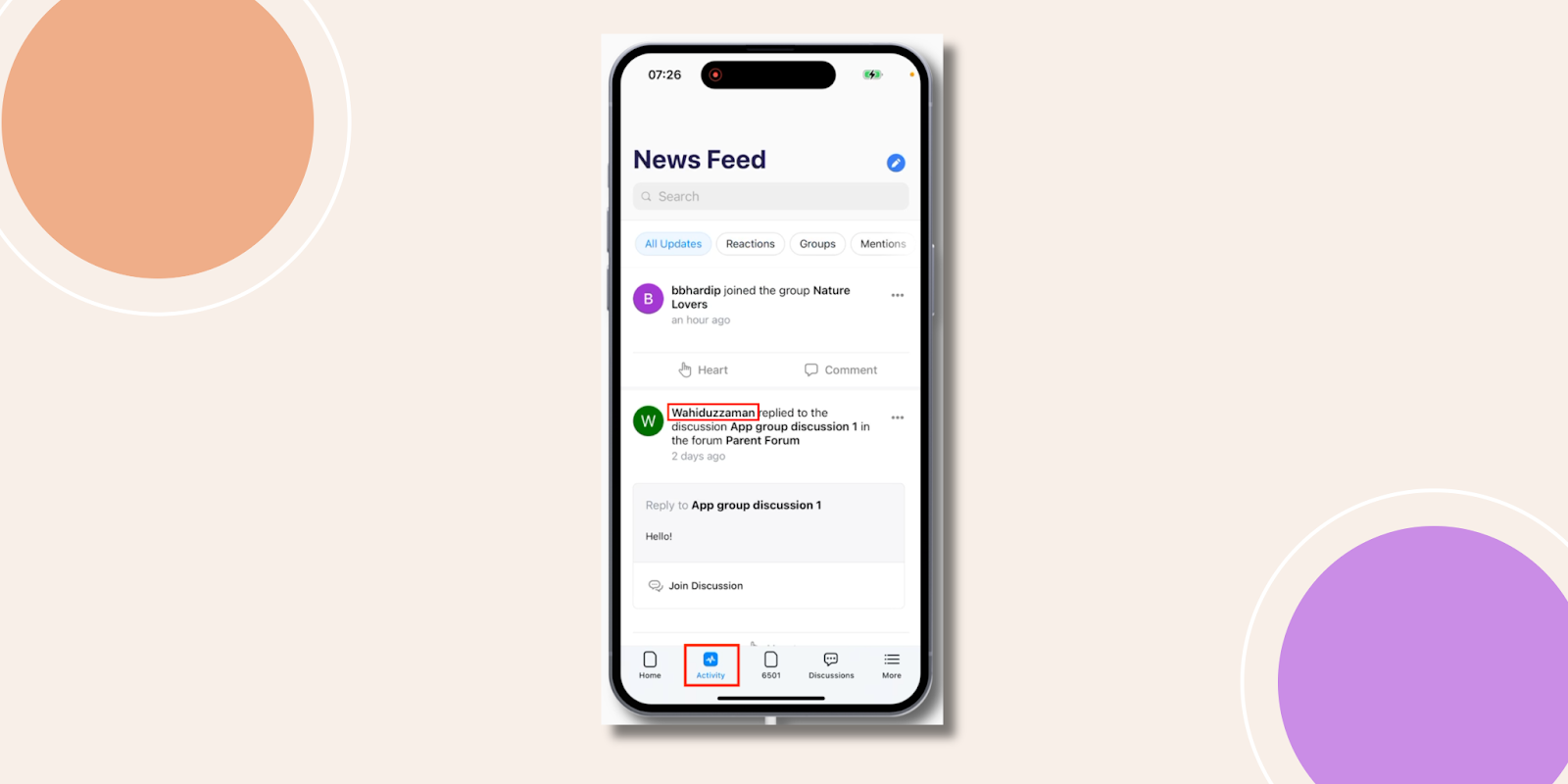
Restricting the Tab Bar to the Main Menu
- Return to BuddyBoss App > Menus.
- Select Show on Tab Bar Menu.
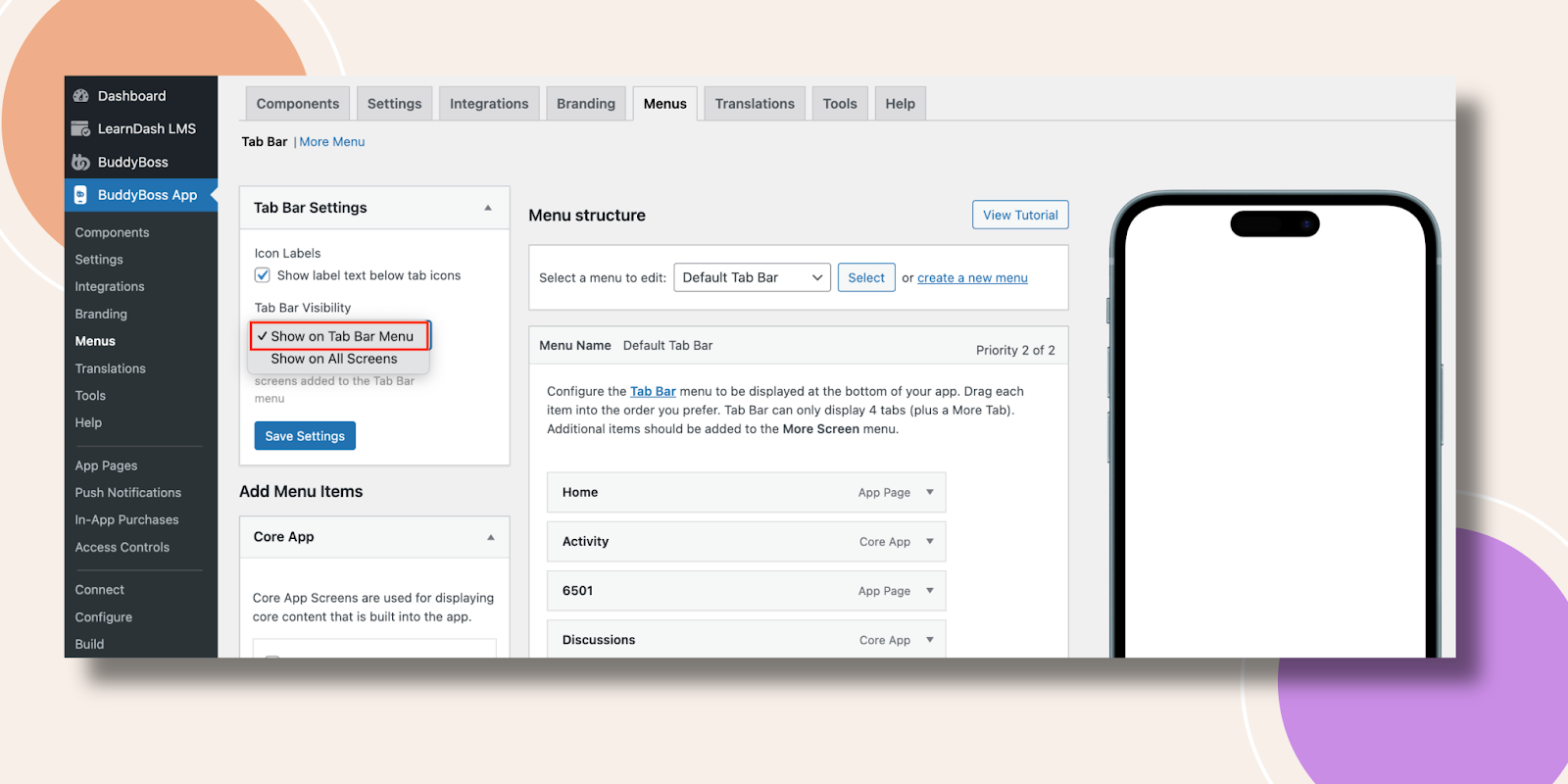
- Click Save Settings.
- In the app, navigate to a secondary screen (e.g., a member’s Activity detail page) and confirm the tab bar is hidden.

Troubleshooting and FAQs
Q: The tab bar still shows on restricted screens.
A: Clear your app cache or force-close and reopen the BuddyBoss App to fetch the latest menu settings.
Q: I don’t see the “Tab Bar Visibility” option.
A: Ensure you have the latest version of the BuddyBoss App plugin installed and activated.
Q: Changes aren’t saving.
A: Verify you clicked Save Settings and that no caching plugins are preventing updates; then reload the Menus page.
Q: Can I hide only certain tabs instead of the entire bar?
A: The current setting applies to the full tab bar. To customize individual tabs, use the Menus > Tab Bar drag-and-drop order and visibility toggles.