
Introduction
Setting up your BuddyBoss App is an essential step in bringing your community or online course to mobile users. This guide will walk you through installing the necessary plugins, connecting your app to your WordPress site, and ensuring everything runs smoothly.
Tutorial Video
Prerequisites
Before installing the BuddyBoss App, confirm that you have:
- A properly configured WordPress environment
- Ensure your hosting is set up and meets the recommended requirements.
- Verify that WordPress is installed and running.
- A full site backup
- It’s best practice to have daily backups in place.
- Perform a manual backup before proceeding to ensure you can revert if needed.
Once these steps are completed, you’re ready to install the required plugins.
Downloading the Required Plugins
To properly configure your BuddyBoss App, you will need the following plugins:
- BuddyBoss Platform (Core functionality for your app)
- BuddyBoss Platform Pro (Adds advanced features)
- BuddyBoss App (Required for mobile app integration)
Note: If you already have BuddyBoss Platform and BuddyBoss Platform Pro installed, you only need to download the BuddyBoss App plugin.
How to Download:
- Log in to your BuddyBoss Account.
- Navigate to Dashboard > Downloads.
- Download the Current Build of the required plugins.
Tip: Need an older version? When selecting a plugin, you’ll see options for the last few releases.
Installing the Plugins
Once downloaded, follow these steps to install the plugins:
- Log in to your WordPress Dashboard.
- Go to Plugins > Add New.
- Click Upload Plugin.
- Select the BuddyBoss Platform plugin .zip file.
- Click Install Now, then Activate.
- Repeat these steps for BuddyBoss Platform Pro and BuddyBoss App (if applicable).
Connecting Your BuddyBoss App
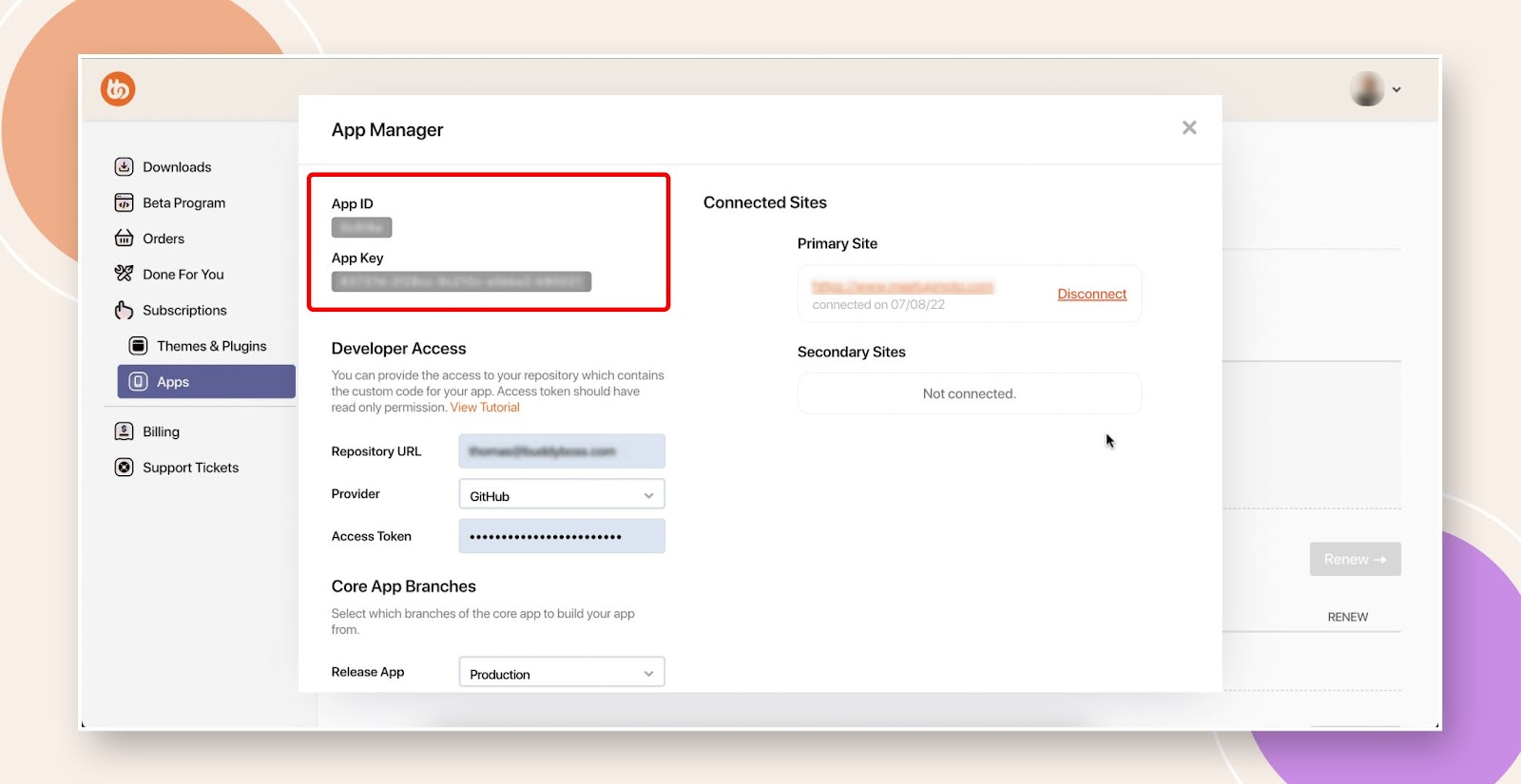
To link your BuddyBoss App to your WordPress site, you will need your App ID and App Key.
How to Obtain Your App Credentials:
- Log in to your BuddyBoss Account.
- Click on My Account (top-right corner) to access your dashboard.
- Navigate to Apps under Subscriptions.
- Select Manage on the license you wish to use.
- Copy the App ID and App Key.

Enter Credentials in WordPress:
- In your WordPress Dashboard, go to BuddyBoss App > Connect.
- Paste your App ID and App Key.
- Click Connect.
Troubleshooting
Q: Why isn’t my BuddyBoss App connecting?
A:
- Check your credentials: Ensure you copied the App ID and App Key correctly.
- Verify plugin installation: Confirm that all required plugins are installed and activated.
- Clear cache: Purge any caching plugins or hosting-level caches that might block the connection.
- Check WordPress & PHP version: Make sure your site meets the BuddyBoss Platform system requirements.
Q: I don’t see the BuddyBoss App menu in my Dashboard.
A:
- Activate required plugins: Ensure the BuddyBoss App plugin and its dependencies are all active.
- Refresh your Dashboard: Reload the WordPress admin to pick up new menu items.
- Check for conflicts: Temporarily deactivate other plugins to identify any conflicts preventing the menu from appearing.