
Introduction
The Post Featured Image feature in BuddyBoss makes activity and group feed posts more visually engaging and impactful. By adding an image to a post, members can highlight important updates and create a stronger visual presence in feeds. This guide explains how to enable and use the post featured image.
Tutorial Video
Enable Post Featured Images
- Navigate to BuddyBoss Dashboard > Settings > Activity.
- Locate the option Allow group owners and moderators to add a featured image to their posts.
- Tick the checkbox to enable it.
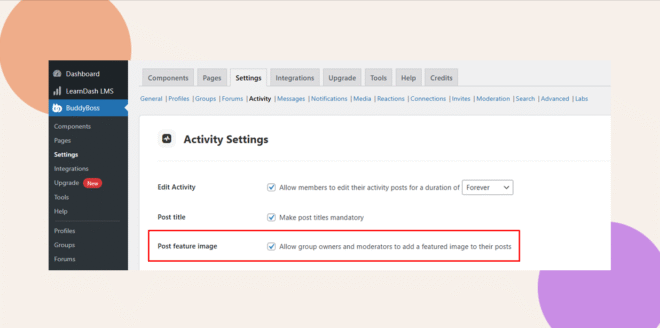
- Click Save Settings to apply the changes.
Note: Adding group activity Featured images are always enabled for site admins by default.
Recommended Post featured Image Size
Minimum: 1200 x 324 px
Optimal: 1480 x 400
Maximum: 2400 x 648 px
Add a Featured Image to Activity Posts
- When posting in the Activity Feed, click the featured image icon in the upper-right corner of the post modal.
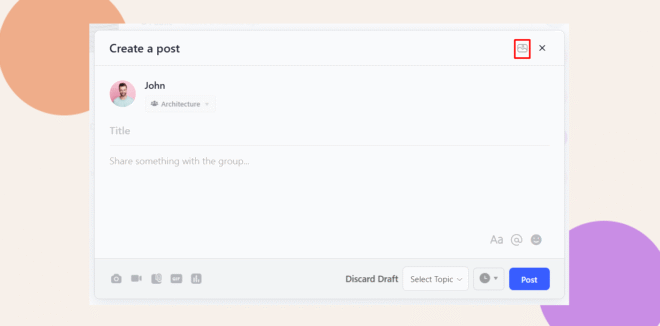
(Website Preview)
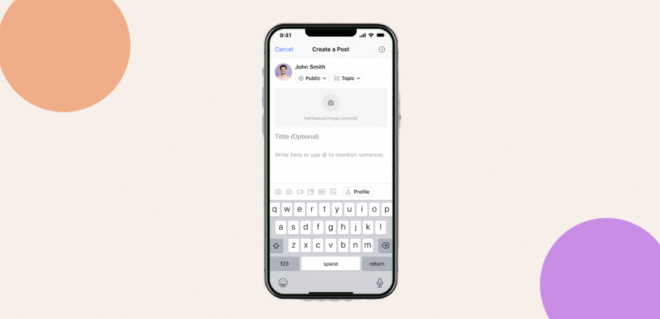
(App Preview)
- Select and upload your image.
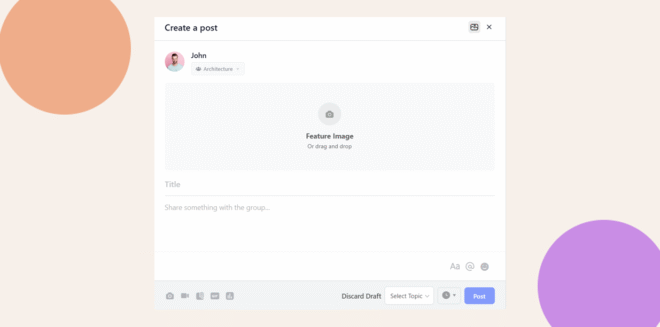
- Reposition your featured image (Optional).
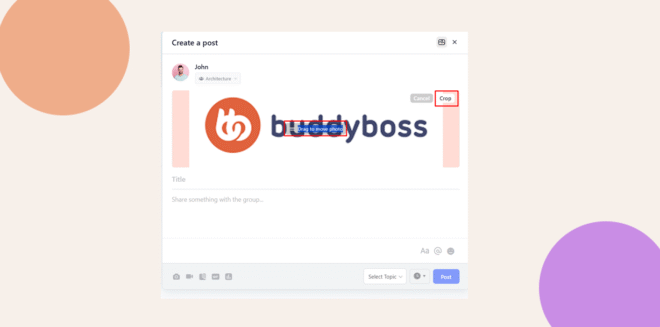
- Enter a title and content for your post.
- Click Post to publish your content..
Troubleshooting & FAQs
Q: Why can’t group owners or moderators add featured images?
A: Ensure the option Allow group owners and moderators to add a featured image to their posts is enabled in BuddyBoss Dashboard > Settings > Activity.
Q: Where are uploaded featured images stored?
A: Featured images are stored as attachments but do not appear in the WordPress Media Library.
Q: What happens if I remove or don’t publish a post after uploading an image?
A: The uploaded image is automatically deleted, preventing unused files from taking up space.
Q: Where will the featured image appear?
A: The featured image will appear above your post content in the feed.