
Introduction
The video upload feature in the BuddyBoss Platform allows members to share videos across your community, making engagement more dynamic and interactive. Uploaded videos can be organized into albums and shared in Activity, Profiles, Groups, Messages, and Forums.
This article explains how to enable video uploads, configure permissions, set upload limits, and test the feature.
Tutorial Video
Enable Video Uploading
- In your WordPress Dashboard, go to BuddyBoss > Settings.
- Click the Media tab.
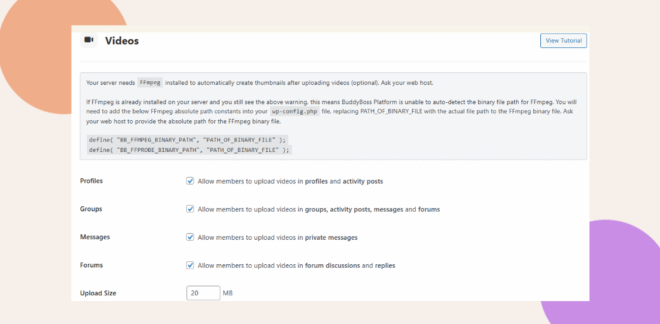
- Go to the Video section.
- Enable video upload on Profile, Groups, Messages, Forums.
- Click Save Changes.
Configure Upload Permissions
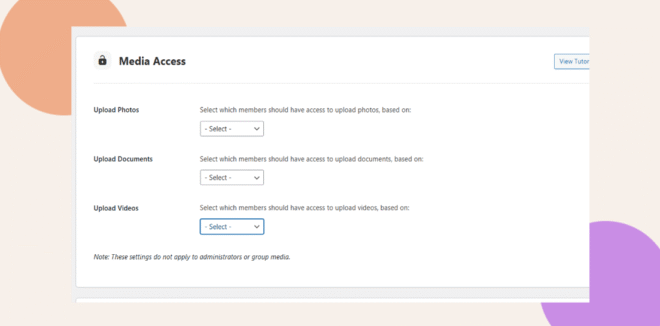
- In Media Settings, locate Media Access Permissions.
- Select the roles allowed to upload videos (e.g., Members, Moderators, Administrators).
- Click Save Changes.
Set Video Upload Limits
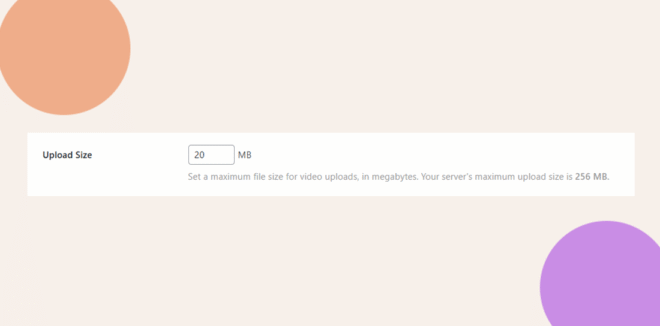
- In Media Settings, find the Maximum Upload Size field.
- Enter the maximum file size allowed per video.
- Set the Maximum Number of Videos Per Upload to control batch uploads.
- Click Save Changes.
Test the Upload Feature
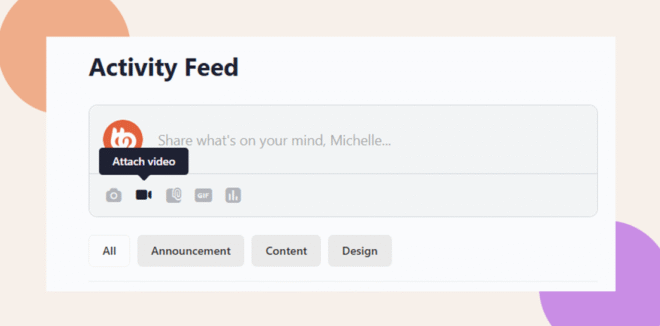
- On the frontend, go to an Activity post, Group, or Private Message.
- Click the Attach Video button.
- Select an .mp4 video file and upload it.
- Verify the video appears and plays correctly.
Troubleshooting & FAQs
Q: Why can’t some users upload videos?
A: Make sure their role has permissions under User Upload Permissions in Media Settings.
Q: Why won’t my video preview in the browser?
A: Some browsers do not support H.265/HEVC. Convert your video to .mp4 format for best results.
Q: How can I prevent inappropriate video uploads?
A: Enable Media Moderation under BuddyBoss > Settings > Media to require admin approval before videos appear.
Q: Can members delete their own uploaded videos?
A: Yes, if Allow Users to Delete Their Own Media is enabled in Media Settings.