
Introduction
The Cloudflare Media Offloading feature in the BuddyBoss Platform allows you to automatically store and serve your images, videos, and documents through Cloudflare’s CDN and secure storage. This setup improves your site’s performance, enhances video streaming, and reduces server load.
This article explains how to enable and configure Cloudflare Media Offloading, manage your media files, and understand the benefits this feature brings to your BuddyBoss community.
Note: The Activity Post Sharing feature is included with BuddyBoss Platform Plus Plan.
Prerequisites
- In your WordPress Dashboard, go to BuddyBoss > Integrations > Cloudflare.
- Make sure you have the BuddyBoss Plus Plan, as this feature is included in that plan.
- Download and install the BuddyBoss Offload Media plugin from your BuddyBoss account.
Connect BuddyBoss to Your Cloudflare Account
To connect your BuddyBoss site with Cloudflare, you’ll need your Cloudflare Account ID and API Token.
Configure Global Settings
After successfully connecting your Cloudflare account, configure your offloading preferences.
- Go to BuddyBoss > Integrations > Cloudflare > Global Settings.
Obtain Cloudflare Account ID
- Log in to your Cloudflare Dashboard.
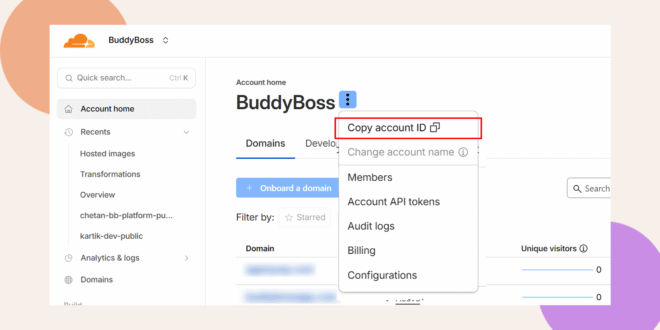
- From your account homepage, click the ellipsis (⋯) next to your account name.
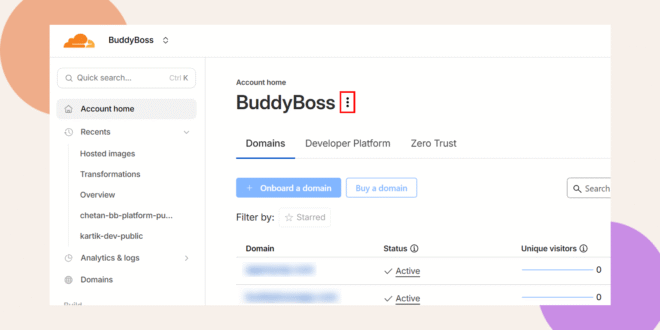
- Select Copy Account ID, then paste it into the Account ID field on your BuddyBoss site.
Creating Cloudflare Account API Tokens
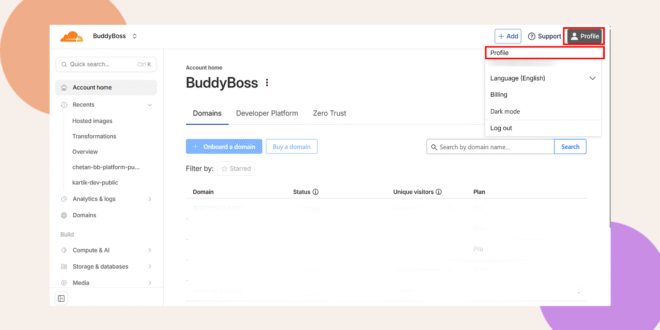
- Click your profile icon in the upper-right corner, then select Profile.
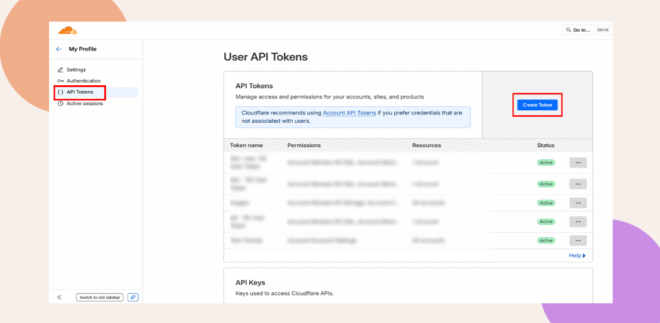
- Go to the API Tokens tab and click Create Token.
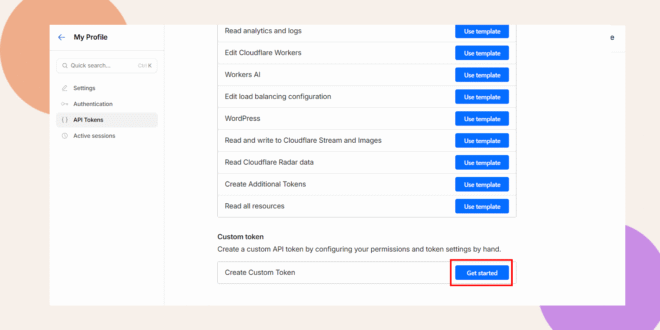
- Scroll down and click Get started next to Custom Token.
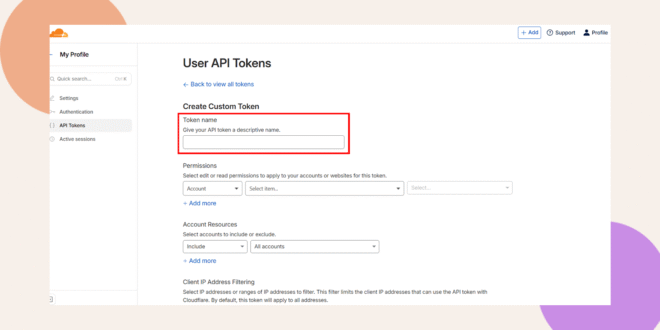
- Enter a name for your token (e.g., BuddyBoss Media Token).
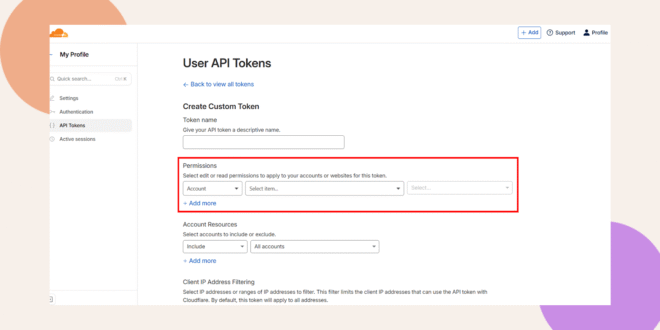
- Under Permissions, select:
For Global Settings: Account > Account Settings > Read
For Image Offload: Account > Cloudflare Images > Edit
For Video Offload: Account > Stream > Edit
For Video Offload: Account > Workers R2 Storage > Edit
- (Optional) Set an expiration date under TTL if you want the token to expire.
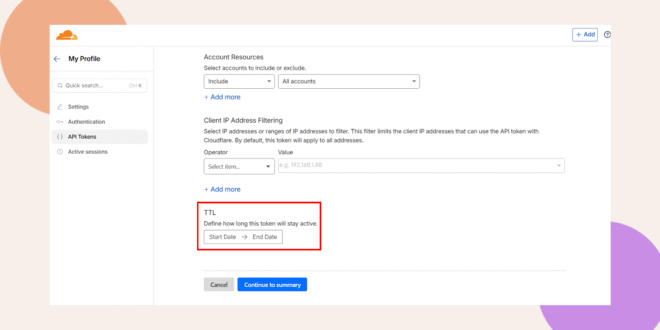
- Click Continue to Summary.
- Then click Create Token.
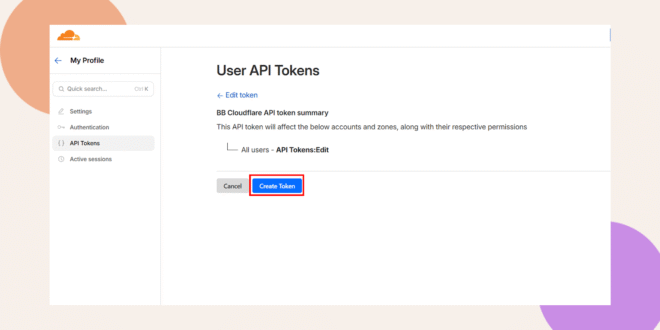
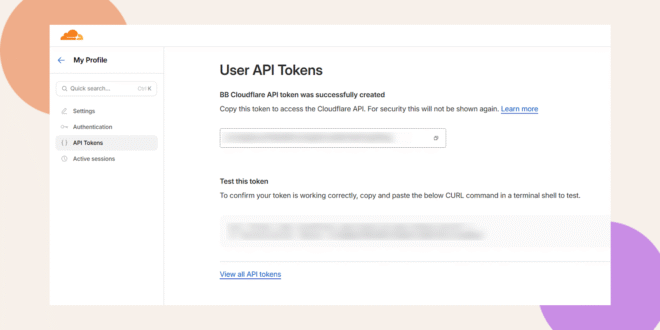
- Copy your new token API Token.
Linking your Cloudflare Account
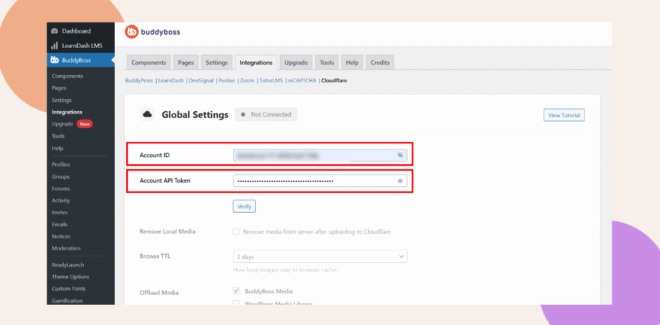
- Go to BuddyBoss dashboard > Integration > Cloudflare.
- Input your Cloudflare Account ID and Account API token.
- Click Verify.
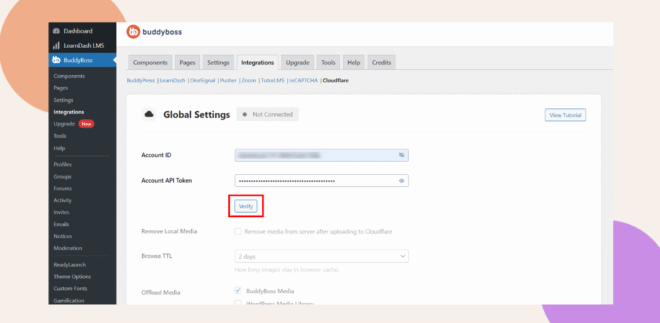
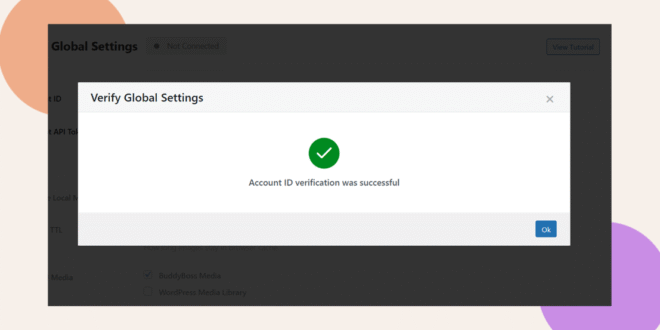
Once verified, you will see a verification message:
Set Up Media Offloading
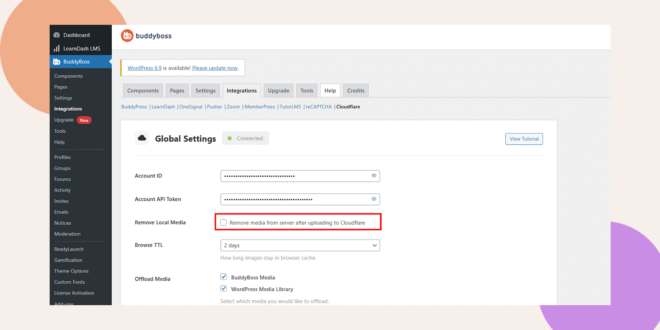
- Enable Remove Local Media if you want BuddyBoss to automatically delete media from your server after it’s uploaded to Cloudflare.
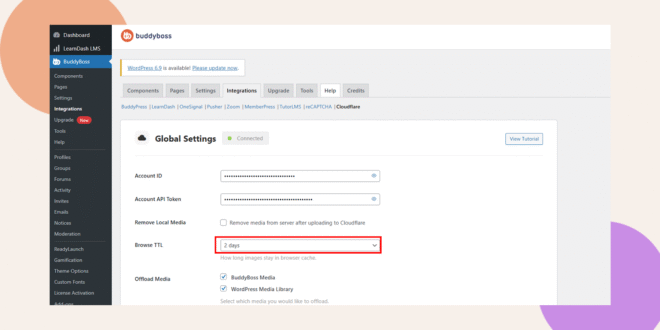
- Under Browser TTL, select how long files should stay cached in browsers options range from 2 days to 1 year.
- Choose the media types you want to offload
 .
.
- Click Save Settings to apply your configuration.
Set Up Media Offloading
- Go to Cloudflare dashboard > Media > Images > Hosted Images > key tab.
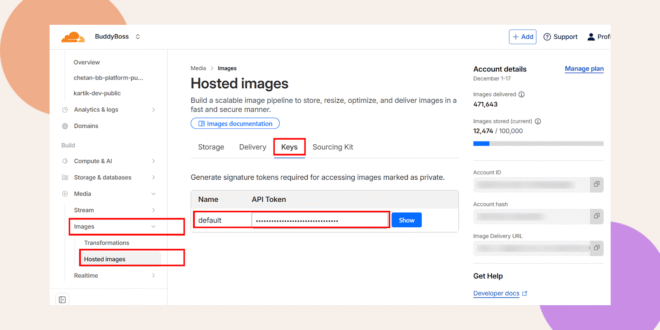
- Copy the default API Token. This is your Signed Token.
- Navigate to BuddyBoss > Integrations > Cloudflare > Image Configuration section.
- Enter your Key Token, and Signed Token to securely connect your site to Cloudflare.
Note: Your Key Token is the same as your Account API token
- Click Verify. A verified message will appear if successful.
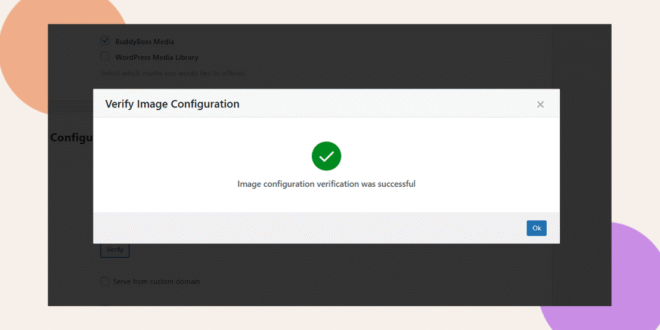
- Enable Custom Domain If you want to use your own domain for serving media.
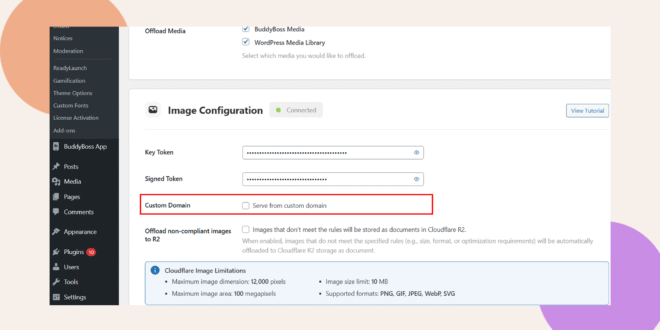
- Activate Offload non-compliant images to R2 if you want to store Images that don't meet the rules as documents in Cloudflare R2.
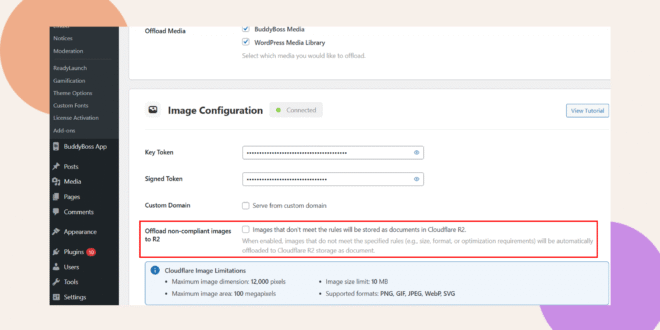
- Click Save Settings once all options are configured.
Deleted files will also be removed from Cloudflare, ensuring both systems stay synchronized.
Configure Video Integration with Cloudflare Stream
The Video Configuration section allows you to connect Cloudflare Stream to BuddyBoss Media so videos are hosted and served securely from Cloudflare’s fast, global CDN improving load times and reducing server usage.
Follow these steps to set it up:
Setup Video offload Configuration
- Navigate to BuddyBoss > Integration > Cloudflare.
- Scroll down to find the Video Configuration panel.
- Input your Stream API Key.
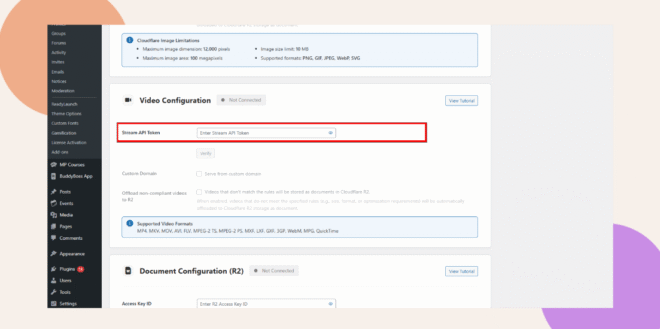
Note: Your Key Token is the same as your Account API token
- Click Verify. A verified message will appear if successful.
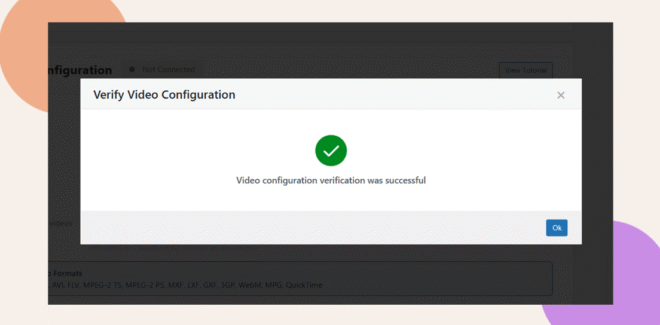
- If you want videos to stream under your own domain (for example, videos.yourdomain.com instead of a Cloudflare URL), check the box labeled Serve from the custom domain.
- Check the box for Offload non-compliant videos to R2 so that unsupported or large videos are stored as Cloudflare R2 documents instead of Stream videos.
Document Configuration
- From your WordPress Dashboard, go to BuddyBoss > Media > Cloudflare.
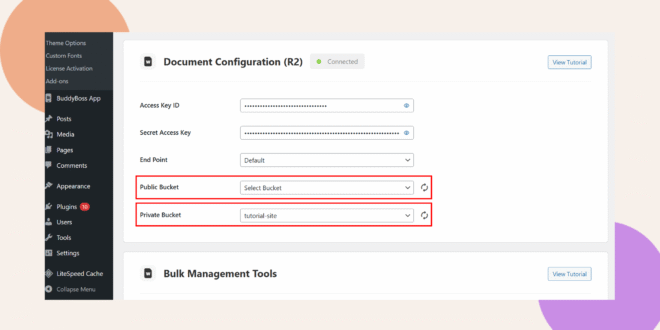
- Go to the Document Configuration (R2) section.
Obtain Your Cloudflare R2 Access Details
To connect BuddyBoss with Cloudflare R2, you’ll need credentials from your Cloudflare account.
- Log in to your Cloudflare Dashboard.
- Navigate to your Storage and Databases > R2 Object storage > Overview.
- In the right part of the website, click Manage.
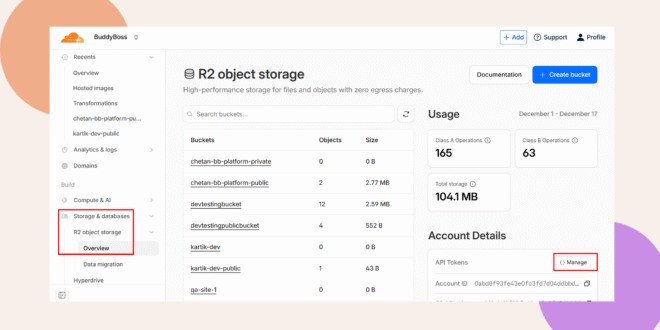
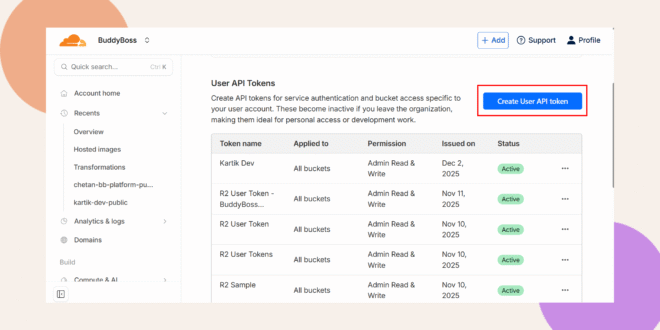
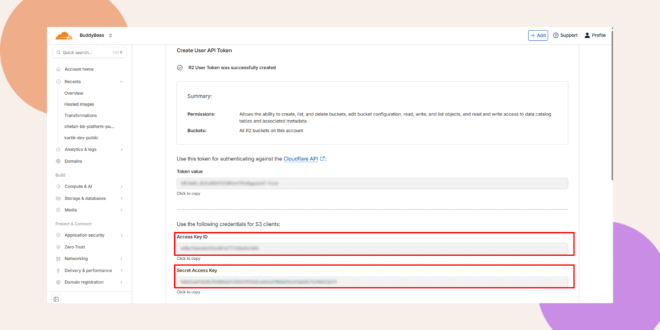
- Click create User API Token.
- Input the name of your API Token, and set the permission to admin read and write.
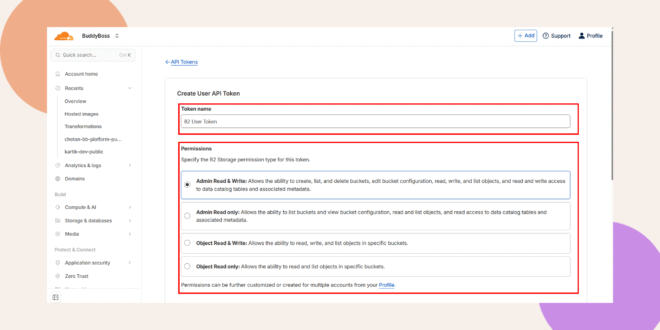
- Click Create User API Token.
- Copy the Access Key ID and Secret Access Key.
- Return to your BuddyBoss > Media > Cloudflare Integration page.
- Enter your Access Key ID and Secret Access Key
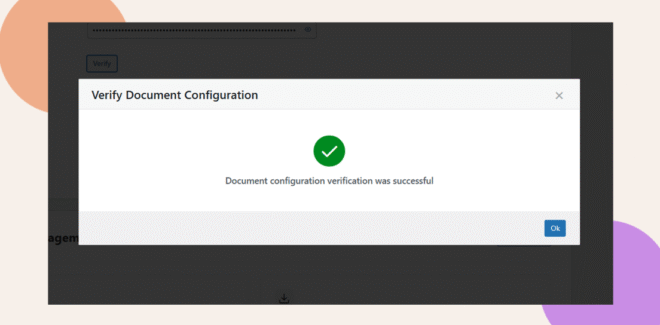
- Click Verify to confirm your connection. A verified message will appear if successful.
- (Optional) Select your private or public bucket. If none is selected, the files will be stored in your local server.
Use Bulk Management Tools
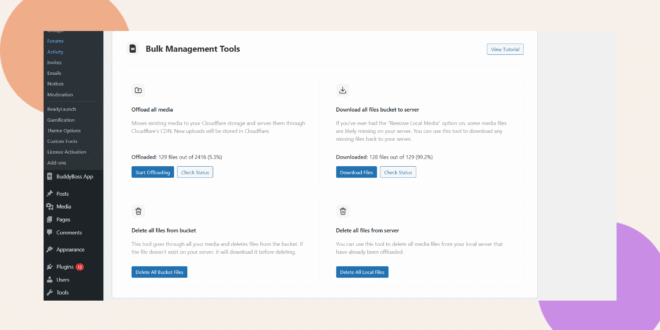
Once your Cloudflare R2 integration is active, BuddyBoss provides Bulk Management Tools to help you manage existing and new media efficiently.
Available Options:
- Offload All Media
Moves your existing media to Cloudflare storage and serves them via Cloudflare’s CDN.
Click Start Offloading to begin transferring files. - Download All Files Bucket to Server
If you’ve previously removed local media, this lets you re-download all missing files back to your WordPress server.
Click Download Files to begin. - Delete All Files from Bucket
Permanently deletes all media files stored in your Cloudflare bucket.
Click Delete All Bucket Files with caution. - Delete All Files from Server
Deletes all local media files that have already been offloaded to Cloudflare.
Click Delete All Local Files to free up space on your hosting server.
Troubleshooting and FAQs
Q: Where can I find my Cloudflare Account ID?
A: Log in to your Cloudflare Dashboard, click the ellipsis (⋯) next to your account name, and select Copy Account ID. Then paste it into the Account ID field on your BuddyBoss site.
Q: How do I create a Cloudflare API Token for BuddyBoss?
A: In Cloudflare, go to your profile, open API Tokens, and click Create Token. Under Permissions, select:
- Account > Account Settings > Read
- Account > Cloudflare Images > Edit
- Account > Stream > Edit
- Account > Workers R2 Storage > Edit
Then click Create Token and copy it to your BuddyBoss settings.
Q: How do I verify my Cloudflare connection?
A: After entering your Account ID and API Token, click Verify. A verified message will appear if successful.
Q: Where do I get the Signed Token for image offloading?
A: Go to your Cloudflare Dashboard > Media > Images > Hosted Images > Key tab, then copy the default API Token. This is your Signed Token.