
Introduction
The Bookmark feature in the BuddyBoss App lets members save their favorite WordPress blog posts to a dedicated app screen for quick access. By enabling bookmarks, you give users a personalized way to revisit key content, driving engagement and retention. This feature works exclusively with standard WordPress posts.
Tutorial Video
Enable the Bookmark Feature
Enabling Bookmarks
- In your Dashboard, go to BuddyBoss App > Settings > Blog Posts.
- Check Enable Bookmarking to allow members to bookmark posts.
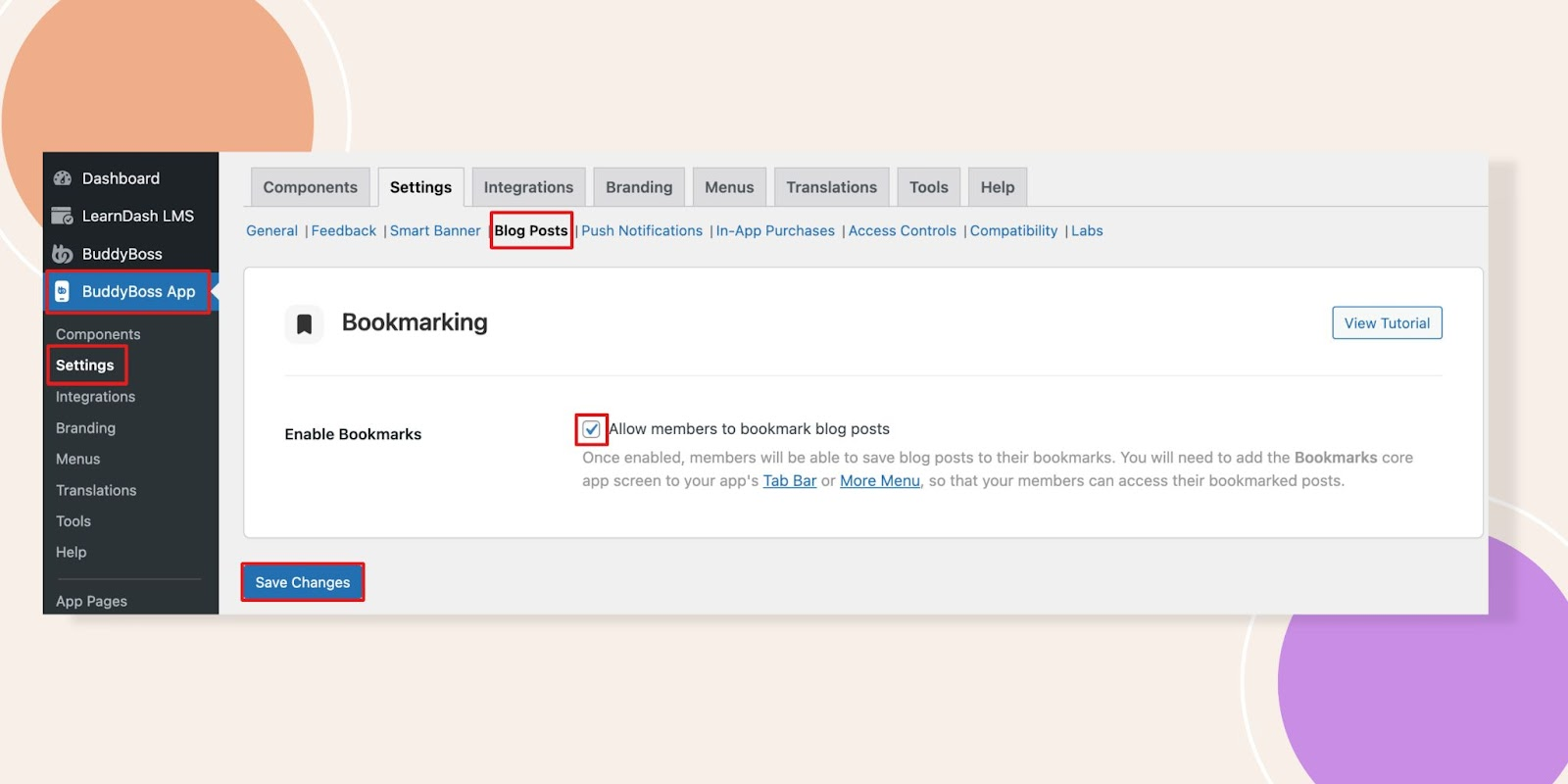
- Click Save Changes.
Add the Bookmarks Screen to Your App
Adding to the Tab Bar or More Menu
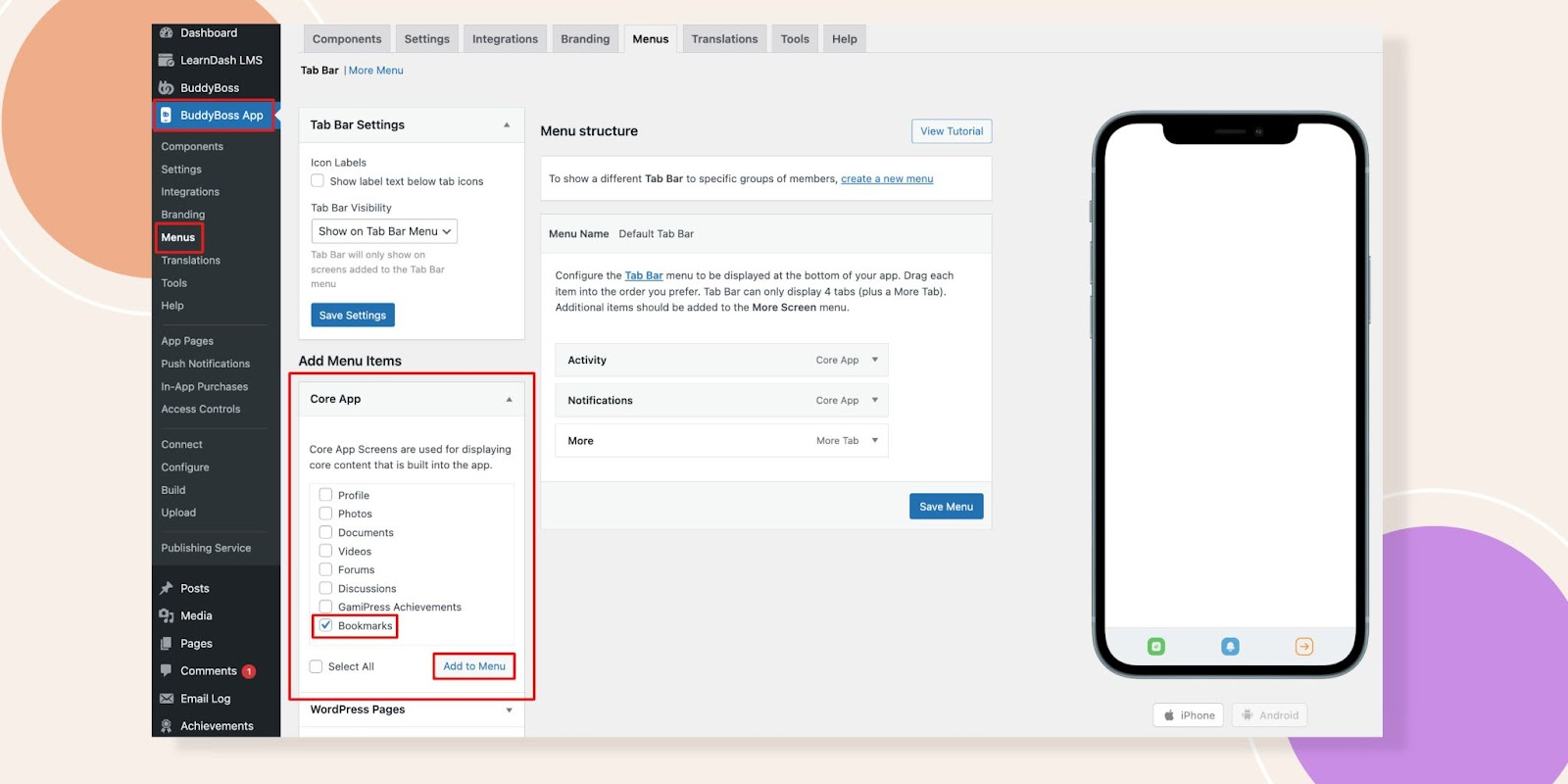
- Navigate to BuddyBoss App > Menus.
- Under Core App, select Bookmarks.
- Click Add to Menu.
Bookmarking Blog Posts
Saving a Post
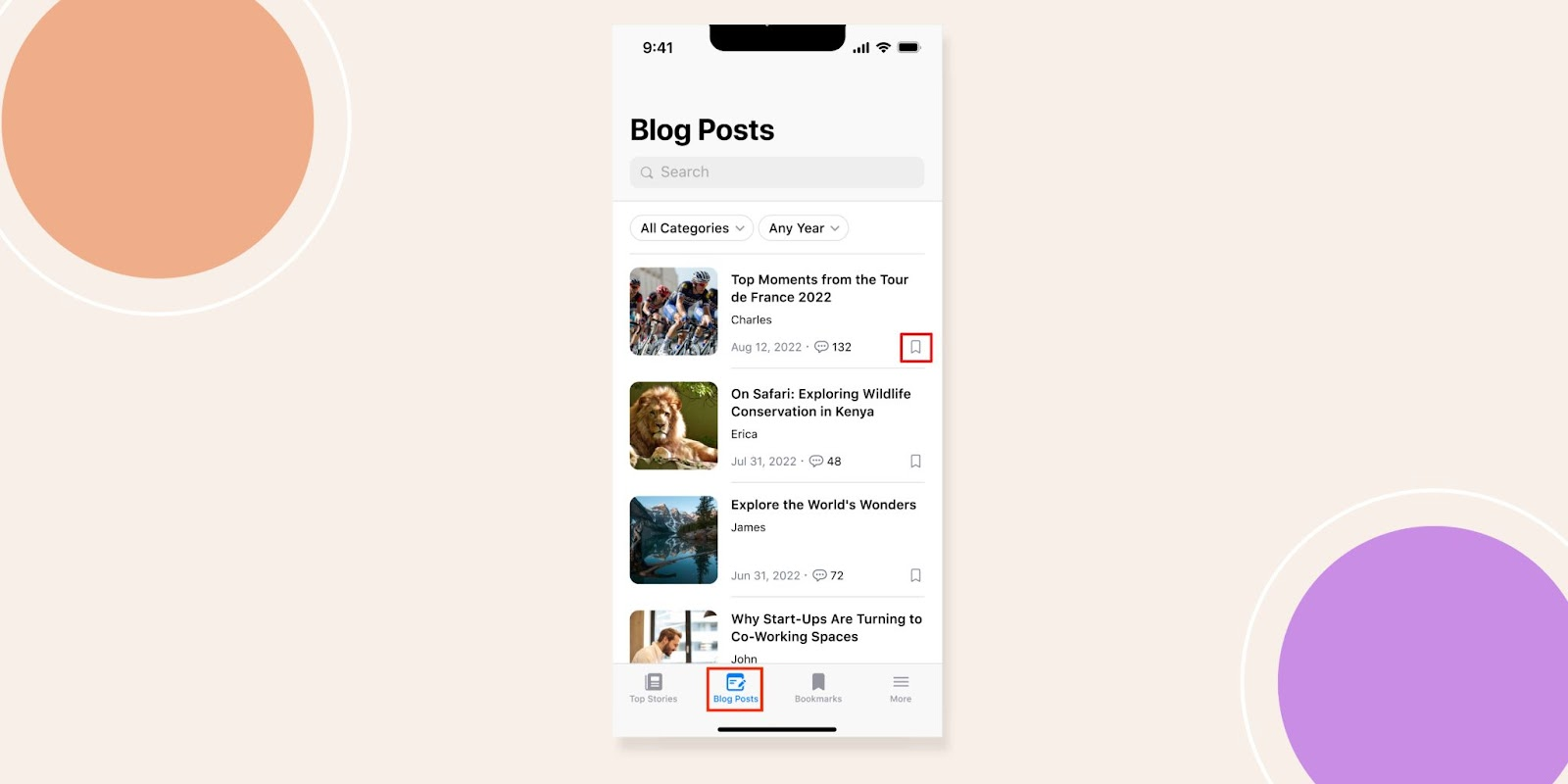
- Open the BuddyBoss App and go to your Blog Posts screen.
- Tap the Bookmark icon next to any post.
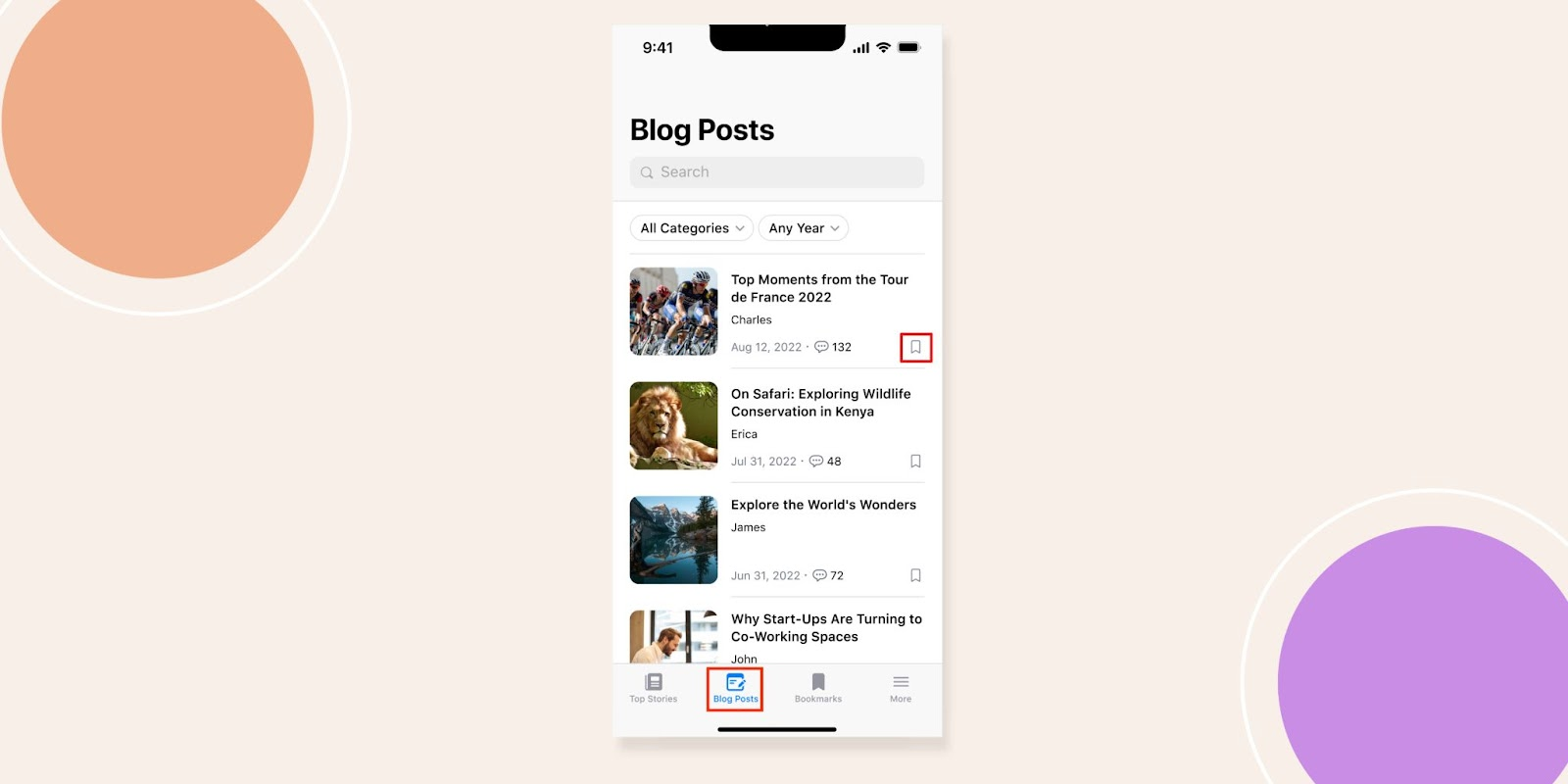
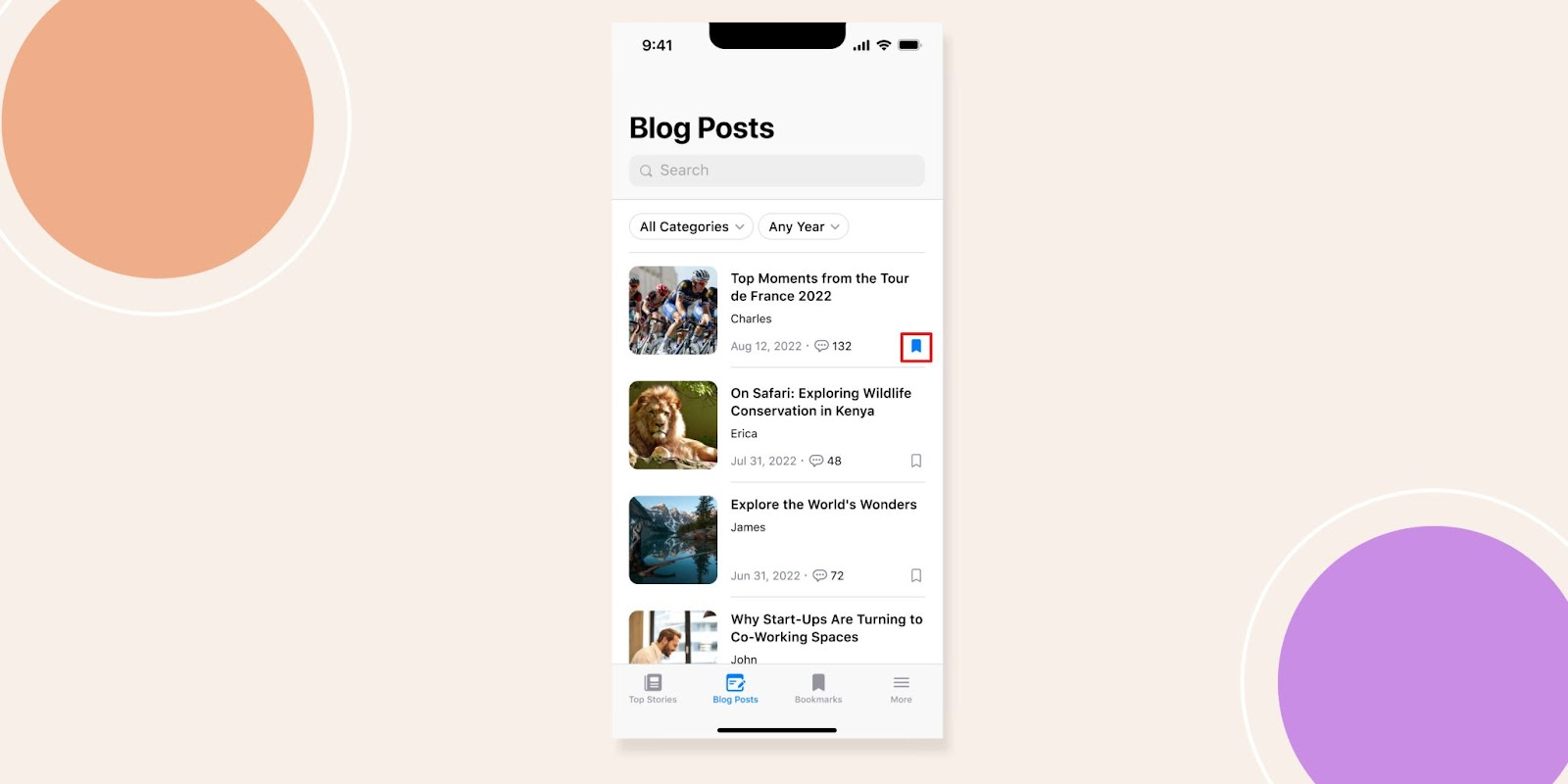
- Confirm the icon changes from an outlined to a filled bookmark.
Viewing Bookmarked Posts
- Go to the Bookmarks screen in your Tab Bar or More menu.
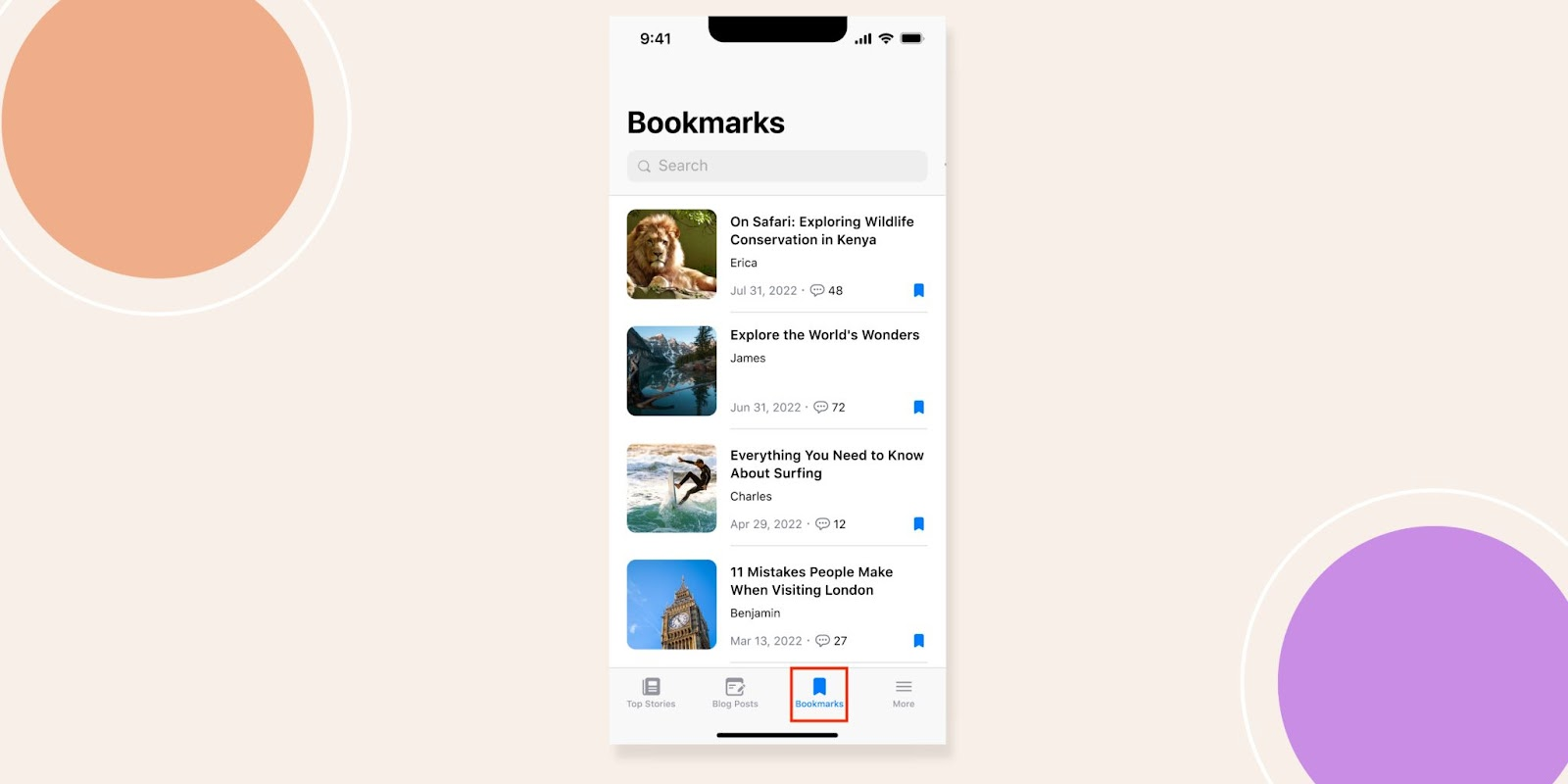
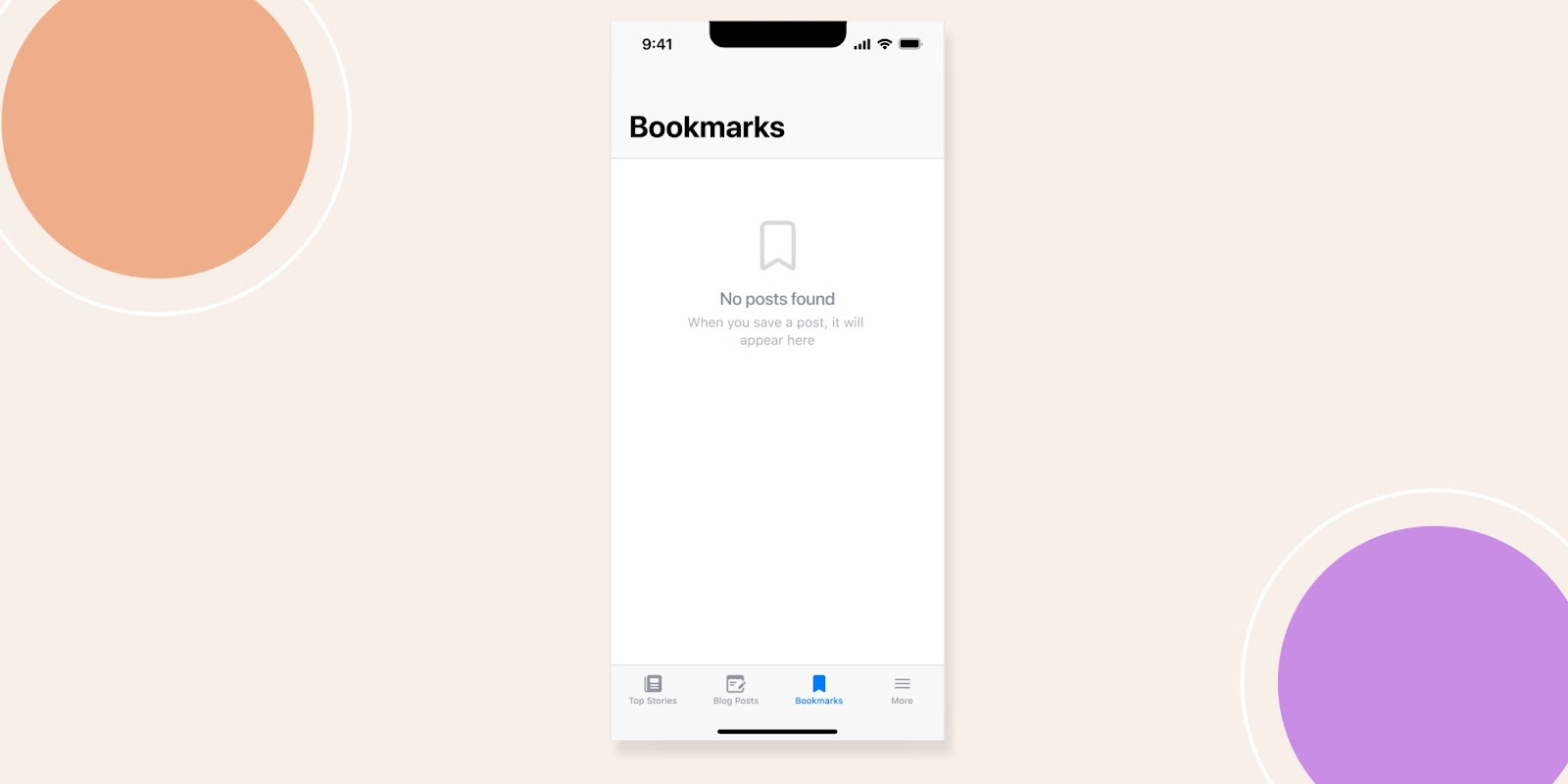
- Browse your saved posts; if none appear, you’ll see No Posts Found.
Removing a Bookmark
- In the Bookmarks list, find the post you want to remove.
- Tap the filled Bookmark icon again.
- Confirm the icon reverts to the outlined state and the post disappears from the list.
Troubleshooting and FAQs
Q: Why don’t I see the Bookmark option next to posts?
A: Ensure Enable Bookmarking is checked under BuddyBoss App > Settings > Blog Posts, then restart the app.
Q: The Bookmarks screen isn’t appearing in my menu.
A: Go to BuddyBoss App > Menus, add Bookmarks under Core App, and click Add to Menu, then refresh the app.
Q: Bookmarked posts disappear unexpectedly.
A: Check for caching plugins on your site that may clear user-specific data; disable or configure caching to preserve bookmarks.
Q: Can I bookmark custom post types?
A: Not currently. The Bookmark feature only supports standard WordPress posts.