
Introduction
To publish your Android app on the Google Play Store, you need to create Google Developer account. This tutorial walks you through registering as an individual or organization, providing your developer details, specifying your app intentions, and completing the one-time registration fee.
Tutorial Video
Navigate to the Play Console Signup
- Go to https://play.google.com/console/signup.
- Choose your Account Type:
- Yourself (Personal): Uses your personal information and is ideal if you don’t yet have a registered business.
- Organization (Business): Requires your official business details and lets you add other users to manage your apps.
- Yourself (Personal): Uses your personal information and is ideal if you don’t yet have a registered business.

Provide “About You” and Developer Details
- Complete the About You section by briefly describing your developer experience (or state this is your first app).

- Under Other Google Accounts, indicate if you’ve used another Google account for the Play Console.
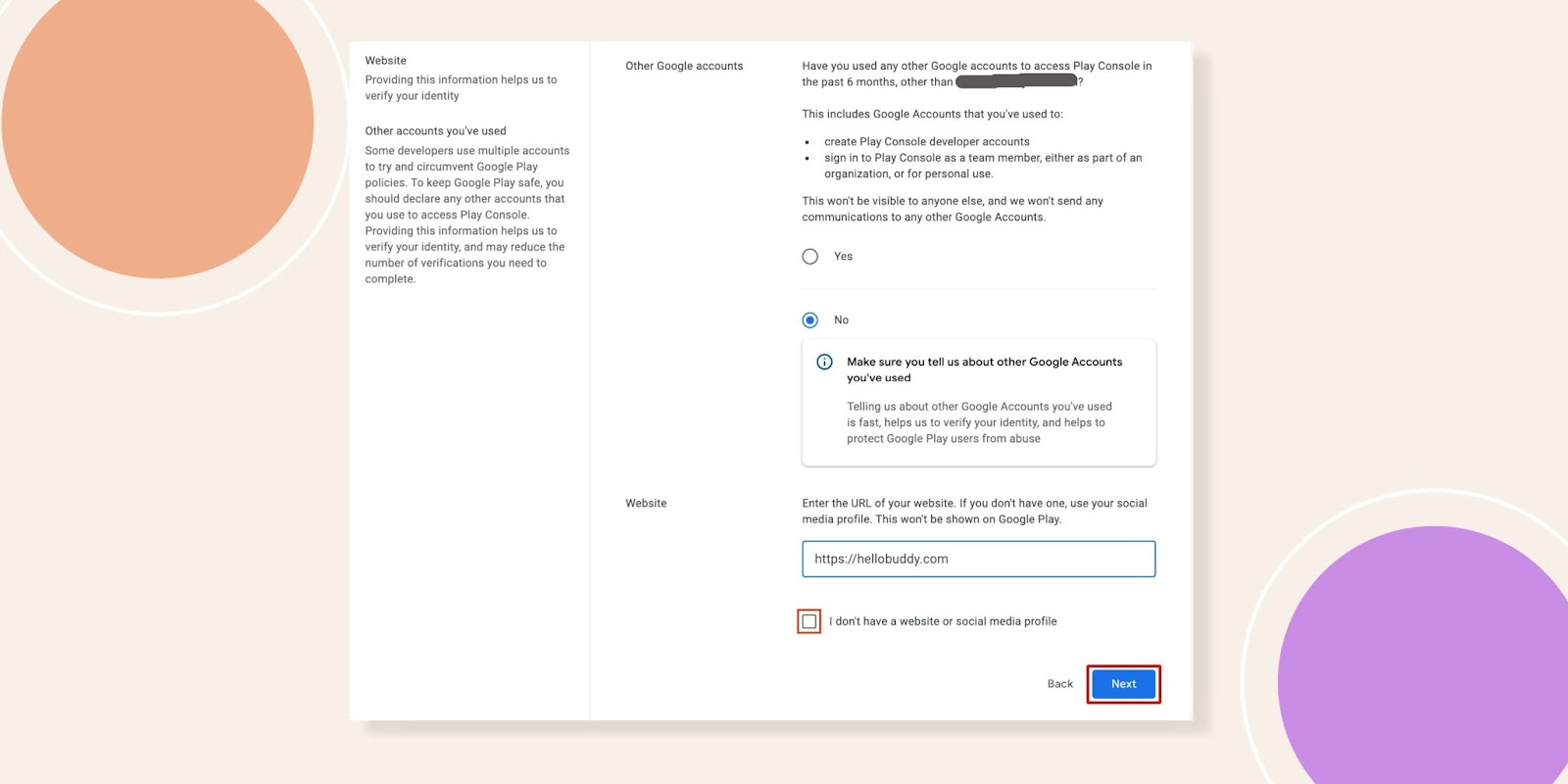
- Enter your site’s domain where your BuddyBoss App is installed.
- Click Next.
Complete Developer Account Information
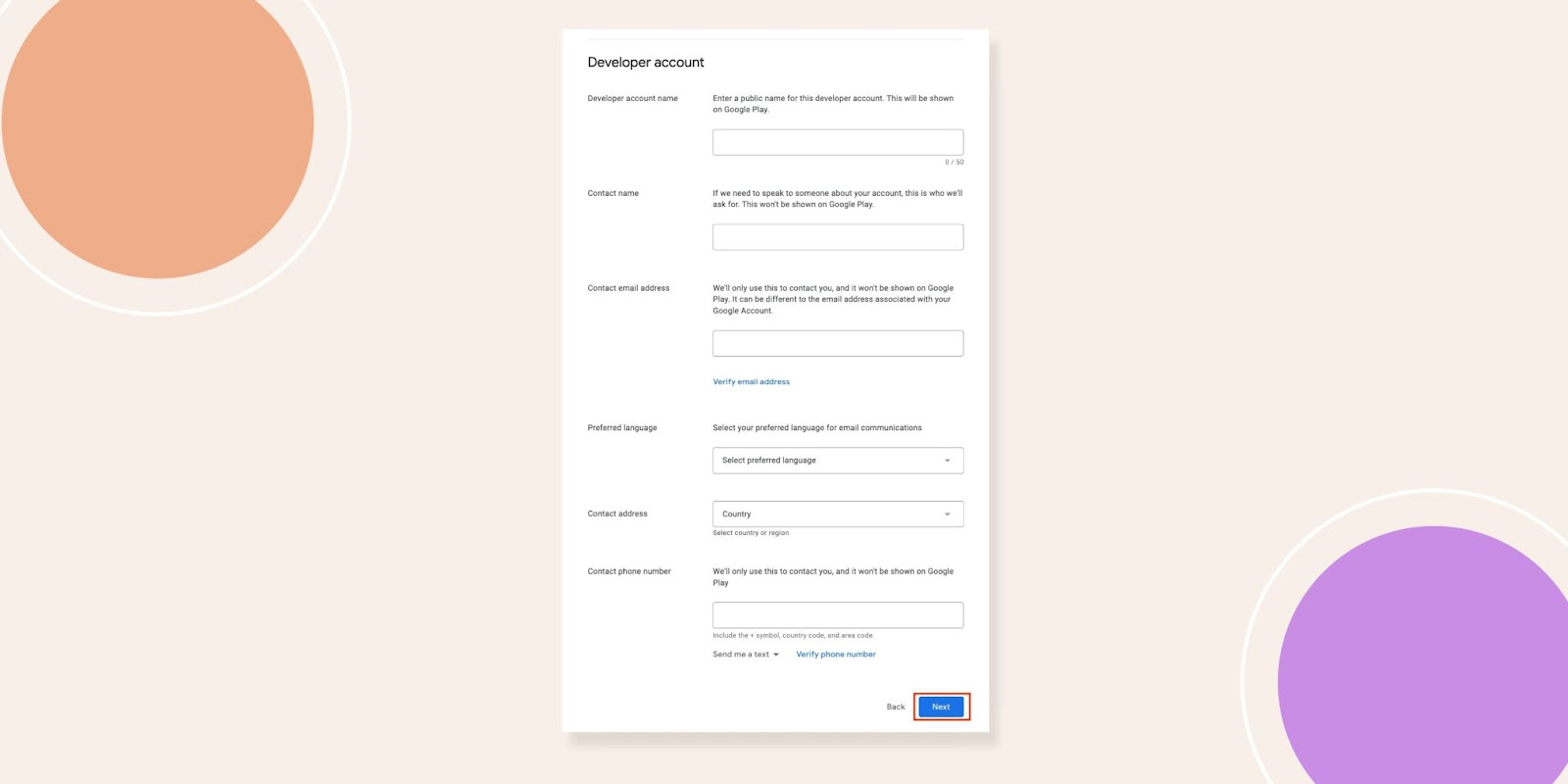
- Fill out all required fields (name, email, phone, address) on the Developer Account page.
- Click Next to proceed.
Specify Your App Details
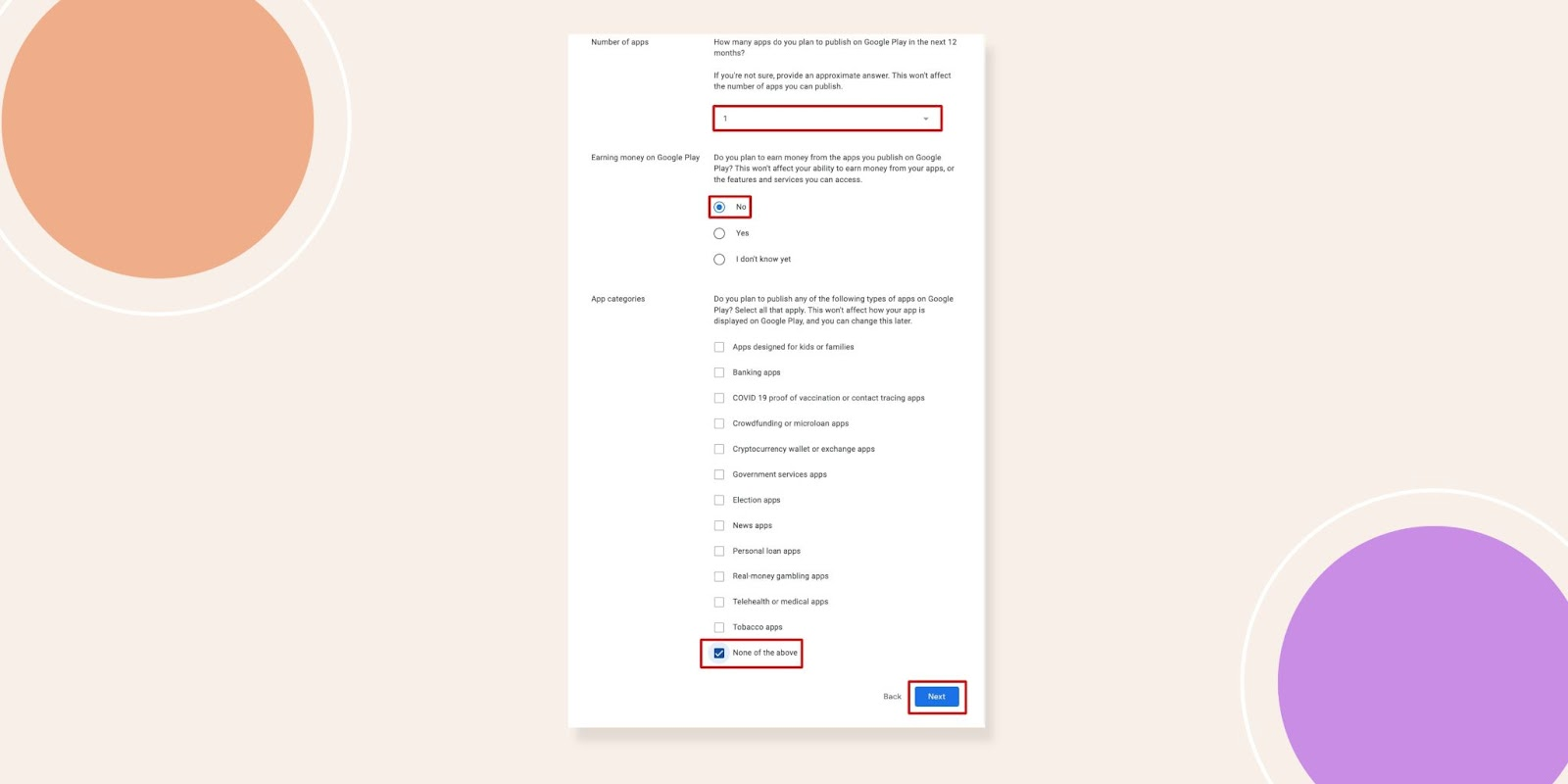
- Under Number of Apps, indicate how many apps you plan to publish (approximate is fine).
- Select No for revenue if you’re not selling the app.
- Choose the App Category that best fits your business model (e.g., Education, Lifestyle).
- Click Next.
Agree to Terms and Pay the Registration Fee
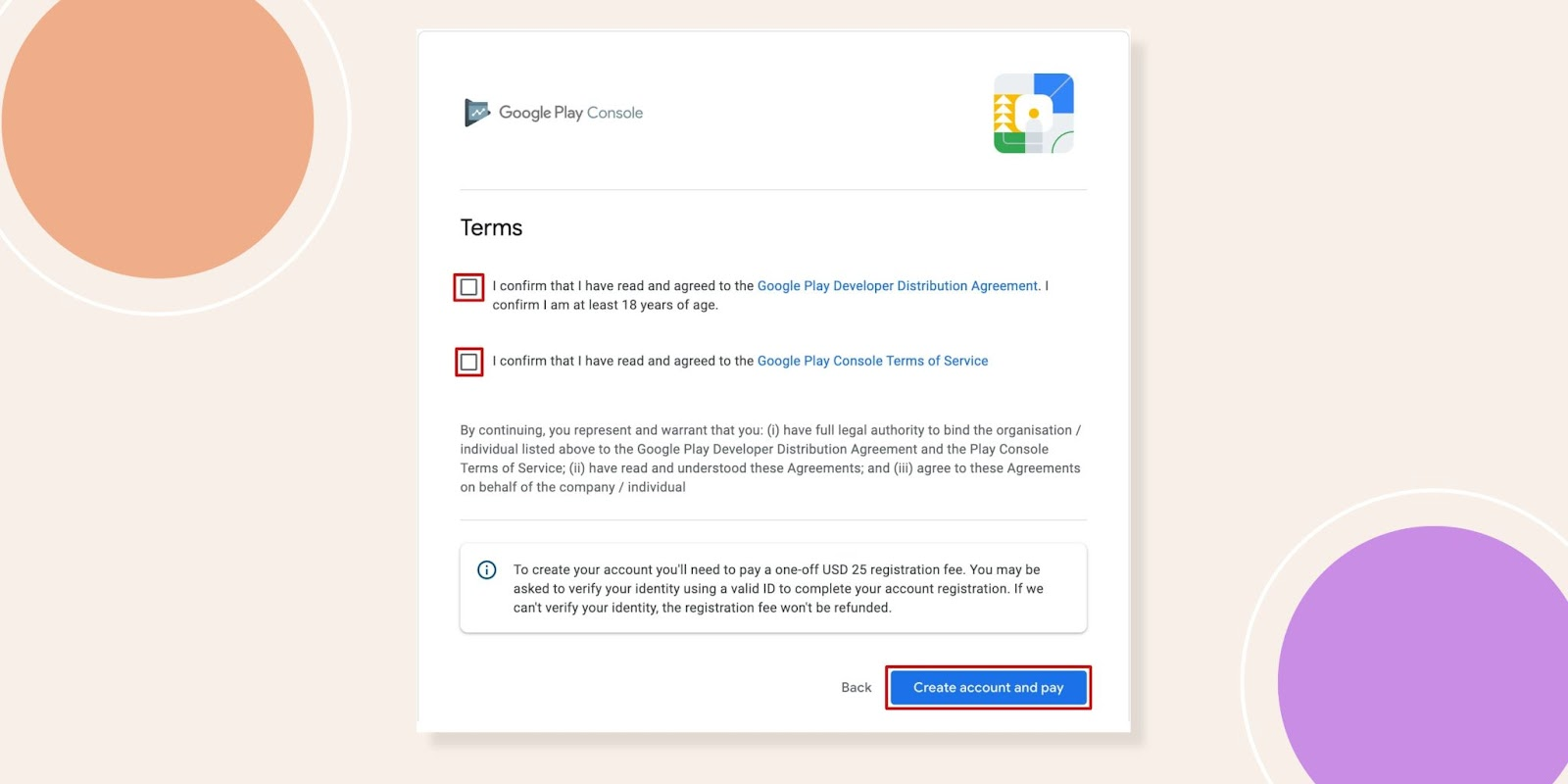
- Review and accept the Google Play Console Terms of Service.
- Click Create Account and Pay.
- Add your Credit or Debit Card by clicking the + icon.
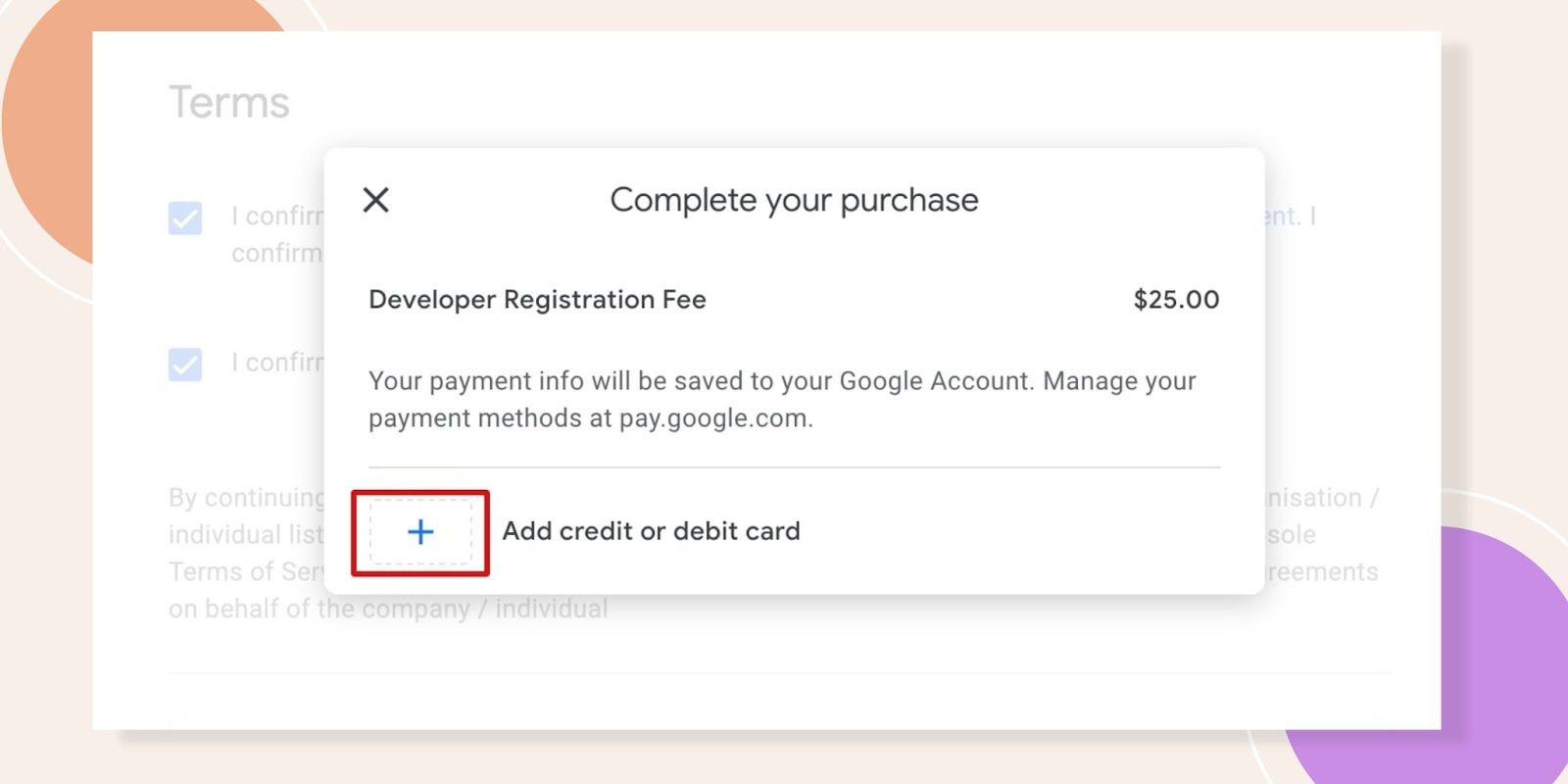
- Complete payment of the one-time US$25 registration fee.

- Upon successful payment, you’ll see a confirmation popup: “Your Google Developer Account is now created!”
Troubleshooting and FAQs
Q: I don’t see the signup page—what should I do?
A: Ensure you’re signed into the correct Google account and visit https://play.google.com/console/signup directly.
Q: Which account type should I choose?
A: Use Yourself if you’re an individual without a registered business; choose Organization if you have an official business entity and want multi-user access.
Q: My payment failed, how can I retry?
A: Verify your card details, ensure it supports international payments, then revisit the payment step in the signup process.
Q: Can I change from Personal to Business later?
A: Yes. After registration, update your account type in the Play Console settings or contact Google support for assistance.