
Introduction
Google Firebase Cloud Messaging powers push notifications on Android and iOS. By integrating Firebase V1 with your BuddyBoss App, you’ll enable real-time notifications for your members’ devices. This guide walks you through creating a Firebase project, enabling the Cloud Messaging API, generating service keys, registering your iOS and Android apps, and uploading configuration files in WordPress.
Tutorial Video
Creating a Firebase Project
- Log in to the Google Firebase Console.
- Click Create a new Firebase Project on the projects page.
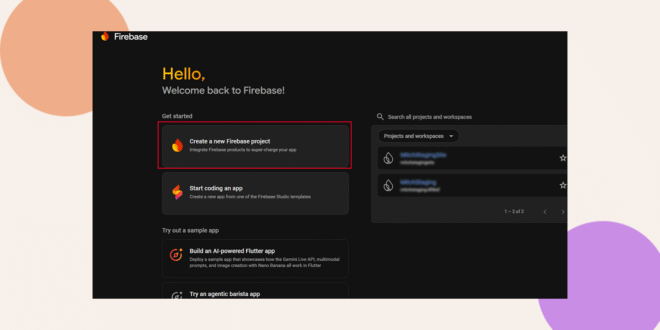
- Enter a Project Name and click Continue.
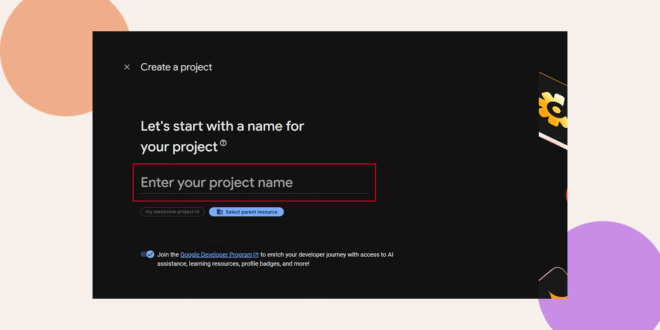
- (Optional) Enable Google Analytics, click Continue, choose or accept the Default Account, then click Create Project.
If you enabled Google Analytics, select your Google Analytics account or select Default Account for Firebase. Click Create Project.
- Wait for the setup to coBuddyBosslete; then click Continue to open your new project.
Enabling Firebase Cloud Messaging API
- Click the Settings gear icon in the Firebase project.
- Select Project settings from the dropdown menu.
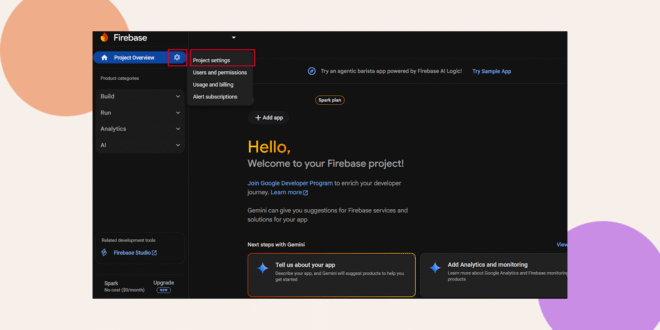
- Go to the Cloud Messaging tab.
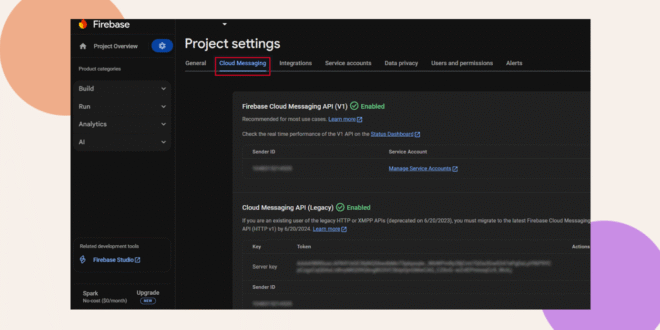
- Confirm the Firebase Cloud Messaging API shows a green Enabled tick.
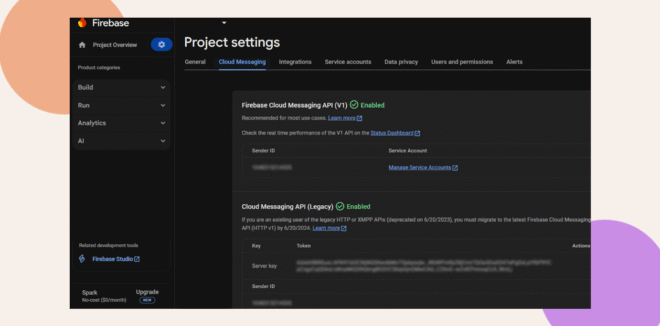
- If it isn’t enabled:
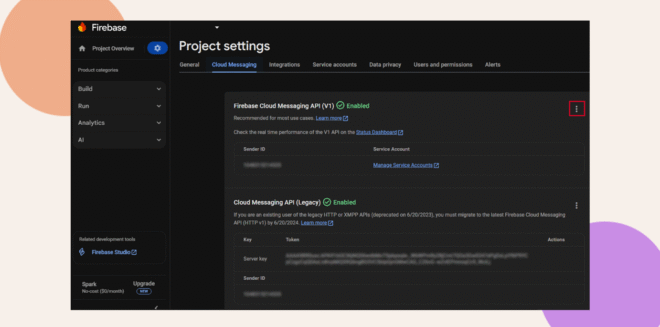
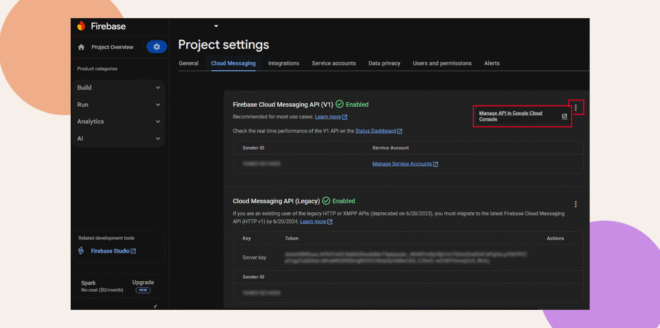
- Click the ⋮ menu next to Firebase Cloud Messaging API and choose Manage API in Google Cloud Console.
- You will then be redirected to the Google Cloud Messaging API product. Select ‘Manage’.
- On the Google Cloud page, click Enable at the top to turn on the API.
- You will then see the option to either enable or disable the API at the top and you will also see the status of your API, make sure it says ‘Enabled’.
Generating a Firebase Service Account Key
- In Project settings, open the Service accounts tab.
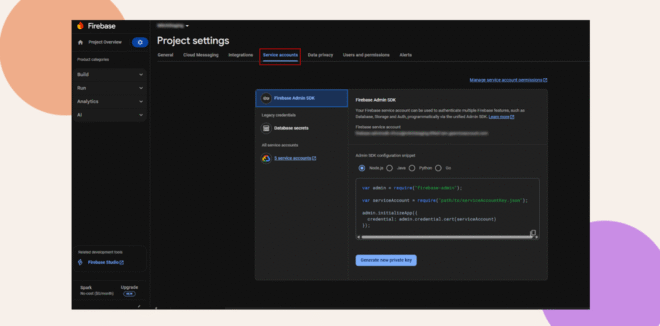
- Scroll to Firebase Admin SDK and click Generate new private key.
- In the popup, click Generate Key.
- Save the downloaded .json file securely—it can only be downloaded once.
Creating Firebase iOS App
iOS app registration connects the BuddyBoss App to Firebase for iOS push notifications.
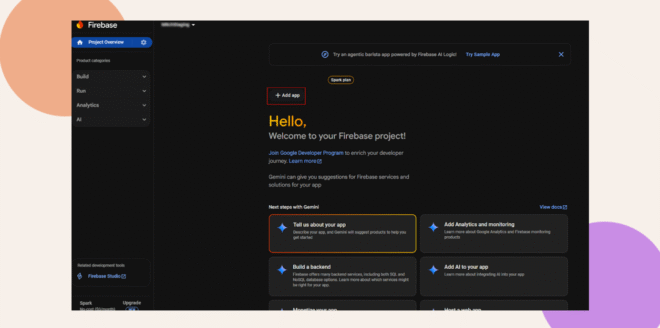
- Click the + Add App on the Firebase project dashboard.
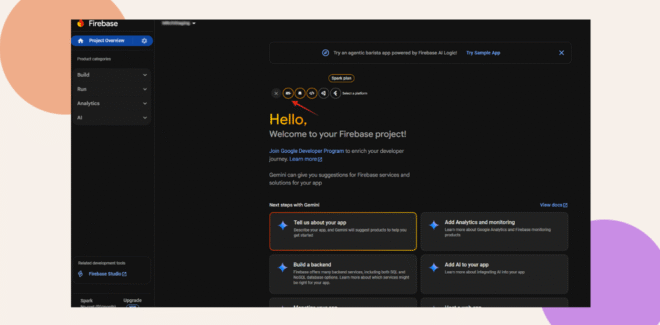
- Click the iOS icon to begin iOS app registration.
- Navigate to Dashboard > BuddyBoss App > Configure > iOS Settings in WordPress.
- Copy the Bundle ID from the iOS Settings page.
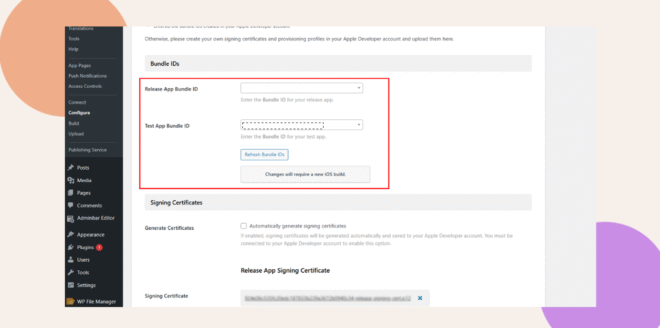
- Return to Firebase Console and paste the Bundle ID.
- (Optional) Add your app nickname, and App Store ID.
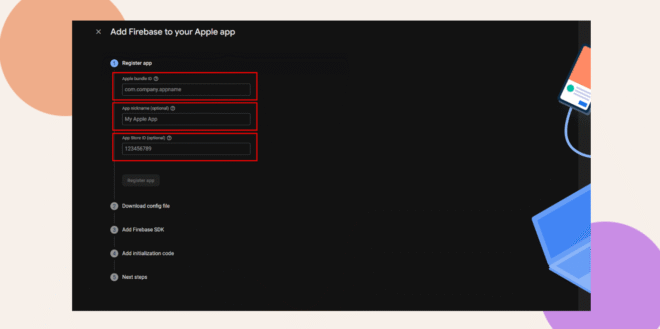
- Click Register App to create the iOS app.
- Download the GoogleService-Info.plist file.
- Click Next through the remaining setup steps.
- Click Continue to console to finish iOS app registration.
Creating Firebase Android App
Android app registration connects the BuddyBoss App to Firebase for Android push notifications.
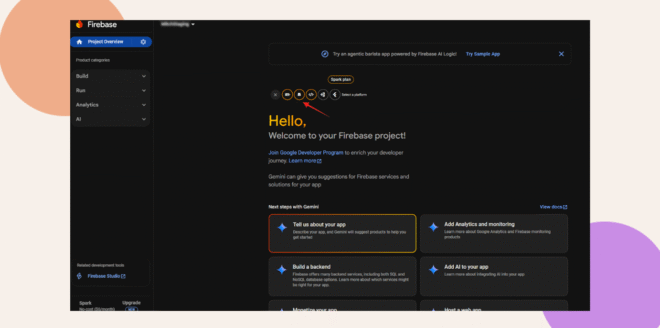
- Click + Add App on the Firebase project dashboard if not already open.
- Click the Android icon to begin Android app registration.
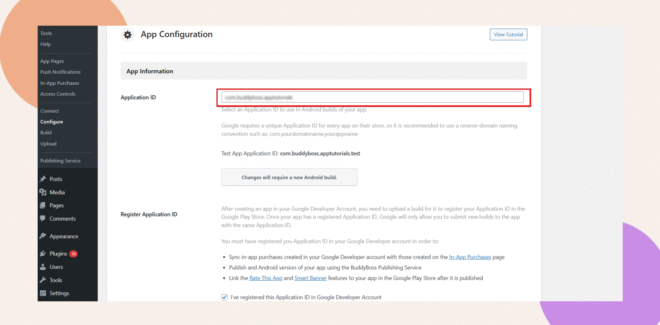
- Navigate to Dashboard > BuddyBoss App > Configure > Android Settings in WordPress.
- Copy the Application ID from the Android Settings page.
- Return to Firebase Console and paste the Application ID.
- (Optional) Add your app nickname.
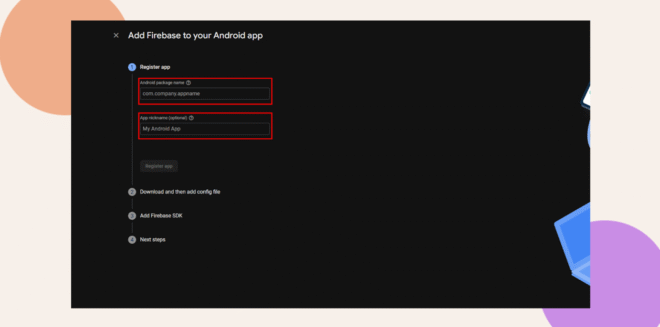
- Click Register App to create the Android app.
- Download the google-services.json file.
- Click Next through steps 2-4 of the setup wizard.
- Click Done to finish Android app registration.
Connecting Firebase to BuddyBoss App
Firebase configuration files must be uploaded to WordPress for push notification functionality.
- Navigate to Dashboard > BuddyBoss App > Configure > Google Firebase.
- Locate the Firebase Cloud Messaging API V1 section.
- Click Upload next to the service account key field.
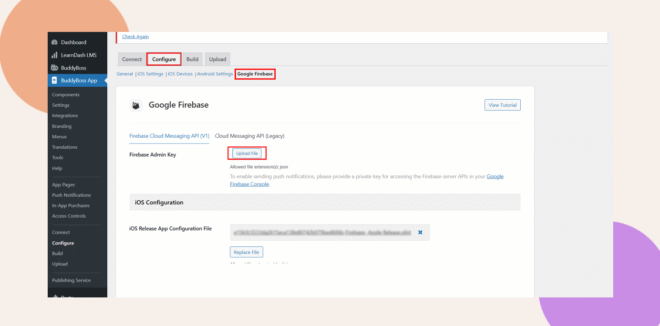
- Select the downloaded JSON service account file.
- Click Upload next to the iOS Configuration File field.
- Select the GoogleService-Info.plist file for iOS.
- Click Upload next to the Android Configuration File field.
- Select the google-services.json file for Android.
- Optionally upload test app configuration files in the test sections.
- Click Save Settings to finalize Firebase configuration.
Firebase V1 API configuration replaces Legacy Cloud Messaging API for push notification delivery.
Verifying Firebase Configuration
Firebase configuration verification ensures proper setup for push notification functionality.
- Navigate to Dashboard > BuddyBoss App > Configure > Google Firebase.
- Verify service account key file uploaded successfully.
- Confirm iOS configuration file displays in the iOS section.
- Confirm Android configuration file displays in the Android section.
- Check that Save Settings was clicked after uploads.
- Navigate to Firebase Console and verify both iOS and Android apps appear.
- Confirm Firebase Cloud Messaging API shows Enabled status.
Proper Firebase configuration enables push notification testing and delivery to member devices.
Troubleshooting and FAQs
Q: Why don’t my push notifications arrive after setup?
A: Verify you uploaded the correct service account JSON and platform config files.
Q: I get a “Missing API key” error in Firebase tab.
A: Confirm you enabled the Firebase Cloud Messaging API (V1) in Google Cloud Console, or refresh the Firebase page and re-upload the JSON key.
Q: How can I regenerate my service key?
A: In Service accounts, delete the old key, then click Generate new private key. Upload the new key in BuddyBoss App > Configure > Google Firebase.
Q: Do I need to re-upload config files for test builds?
A: Yes. If you generate separate test-app builds, upload their specific config files alongside the release files before saving.