
Introduction
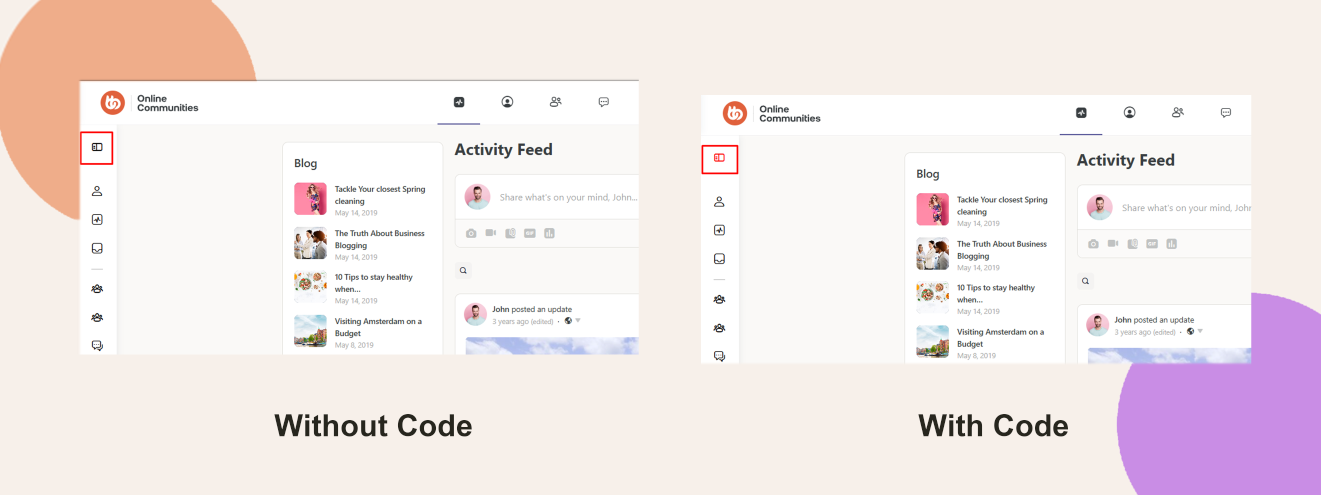
Giving your BuddyPanel expand icon a custom color can enhance your site’s branding and improve visual consistency. With a simple CSS snippet added to your Theme Options, you can adjust the icon’s hue without affecting other text or elements.
Custom Workaround
- Go to BuddyBoss > Theme Options.
- Under Custom Codes, Enable CSS.
Append the following CSS:
.bb-icon-l.bb-icon-sidebar {

  color: #FF0000;

}- Save Changes.
Troubleshooting and FAQs
Q: The icon color didn’t change—what should I check?
A: Clear any caching layers (page cache, CDN, browser cache) and reload your site to ensure the new CSS is applied.
Q: I don’t see .bb-icon-l.bb-icon-sidebar in my markup—what now?
A: Inspect the expand icon with your browser’s developer tools to confirm its class names; adjust the selector accordingly.
Q: Can I use RGB or named colors instead of hex?
A: Yes—any valid CSS color value (e.g., rgb(255,0,0) or red) will work.
Q: Who can I contact for further assistance?
A: Submit a support ticket via your BuddyBoss account dashboard for personalized help.


