
Introduction
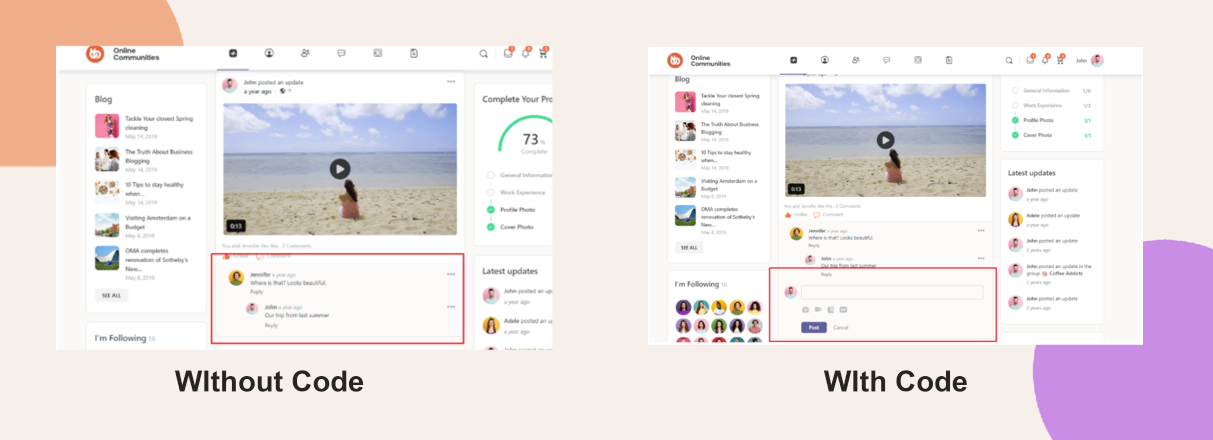
Activity posts typically reveal the comment form only when a user clicks “Comment.” To keep the comment bar visible by default on every activity item, you can apply a small CSS tweak via Theme Options.
Custom Workaround
- Go to BuddyBoss > Theme Options.
- Under Custom Codes, toggle on Enable CSS.
Append the following CSS:
.activity-comments form {

  display: block !important;

}- Save Changes.
Troubleshooting and FAQs
Q: The comment bar still hides—what should I check?
A:
- Confirm the CSS snippet is placed under Theme Options > Custom Codes.
- Clear any caching layers (page-cache, object-cache, CDN) and reload the activity page.
Q: I don’t have a Custom Codes section—how else can I add this?
A: You can add the CSS to your child theme’s style.css file or use a snippet plugin.
Q: Will this force every activity item to show its entire comment thread?
A: Yes—it makes all comment forms always visible, which may lengthen pages with many comments.
Q: How can I revert this change?
A: Remove the CSS rule from Custom Codes (or your child theme) and save; then purge caches.