
Introduction
Adding the BuddyBoss team as a member of your Cloudways account ensures that our developers have the necessary access to support, configure, and manage your hosting environment.
By following this guide, you’ll securely grant the BuddyBoss team full permissions, streamlining collaboration and making sure your projects run smoothly.
Log in to Cloudways
- Open your web browser and go to the Cloudways Login page.
- Enter your credentials and log in to your account.
Navigate to the Team Section
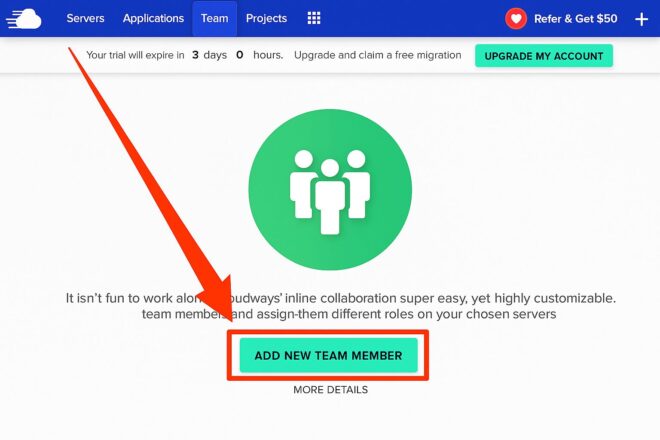
- In the top navigation bar, click Team.
- Select Add New Team Member.
Enter Team Member Details
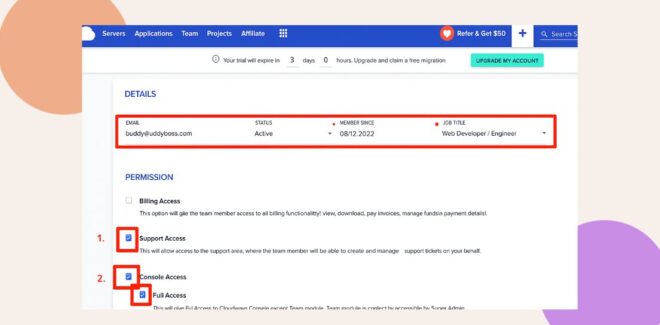
- In the email field, enter: [email protected]
- Ensure the Status is set to Active.
- Provide a recognizable member name, such as bbaccess.
- Under Job Title, select Web Developer / Engineer.
- Enable:
- Support Access
- Console Access
- Full Access
- Support Access
Finalize the Addition
- Click the Add Member button.
- Confirm that a success message appears, indicating the new team member has been added.
Troubleshooting and FAQs
Q: What if I don’t see the Team link or the Add New Team Member option?
|A: Verify that you are logged in with administrative privileges. If the option is still missing, refresh your browser or clear your cache.
Q: What should I do if the confirmation message does not appear?
A: Check that all required fields are filled correctly. If the issue continues, contact Cloudways Support.