Introduction
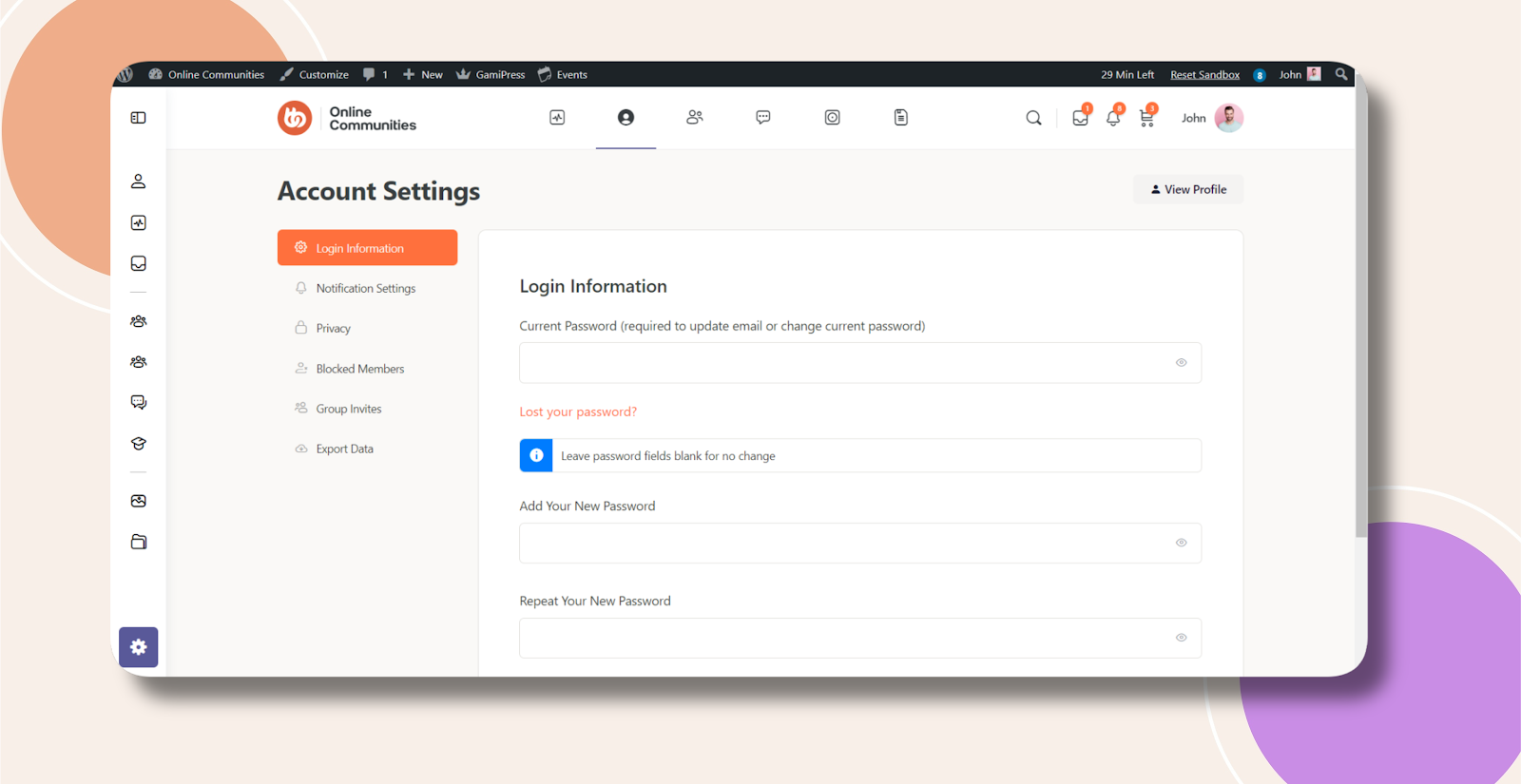
By default, BuddyBoss does not provide an option to hide the Email field under Account Settings in the Login Information section. You can use a simple CSS snippet to hide this field for all users.
Custom Workaround
Follow these steps:
- Go to BuddyBoss > Theme Options
- Under Custom Codes, enable CSS
- Append the following code:
.bb-bp-settings-content label[for="email"],

.bb-bp-settings-content input[type="email"] {

    display: none !important;

}- Save changes
Troubleshooting and FAQs
Q: Will hiding the Email field affect login functionality?
A: No, this only hides the field visually. Users can still log in with their registered email.
Q: Can I hide the Email field for only certain user roles?
A: CSS alone cannot restrict visibility by user role. Custom code or plugin functionality would be required.
Q: The CSS doesn’t seem to work. What should I do?
A: Clear your browser cache and any caching plugins. If the issue persists, submit a ticket to the support team for assistance.
Q: Does this also hide the email field on the registration page?
A: No, this CSS only affects the Account Settings > Login Information section.
Screenshots
Without Code:
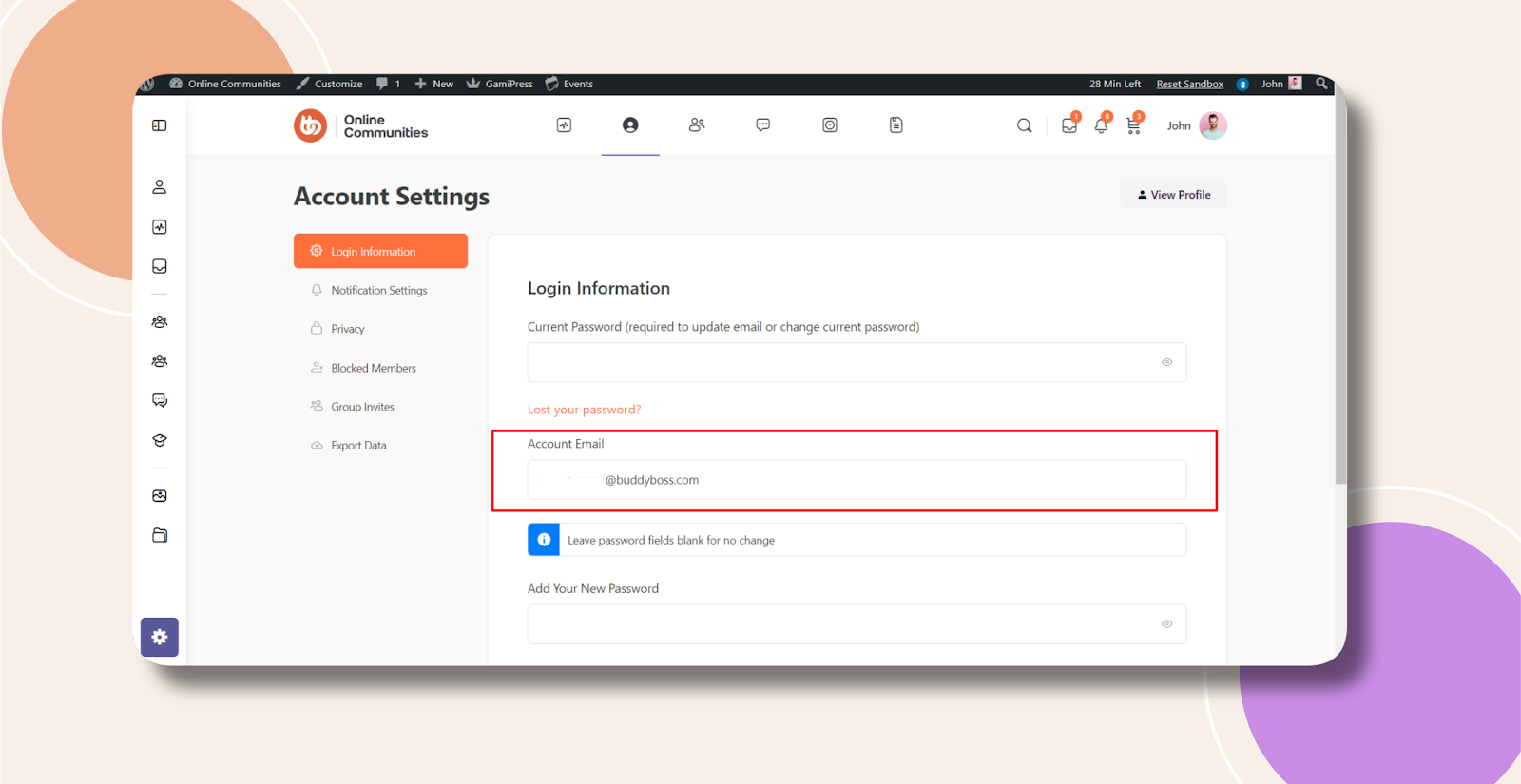
With Code: