
Introduction
This guide shows you how to connect Apple Developer with your BuddyBoss App. Once connected, you’ll be able to sync in-app products, generate provisioning profiles automatically, and publish your iOS app to the App Store more efficiently.
Before getting started, ensure you have enrolled in the Apple Developer Program and created the required API key (Issuer ID and Key ID).
Tutorial Video
Create Your Apple Developer Account API Key
- Login to App Store Connect using the Apple ID you created your Apple Developer account with
- Click on Users and Access
- Click on the Integrations tab
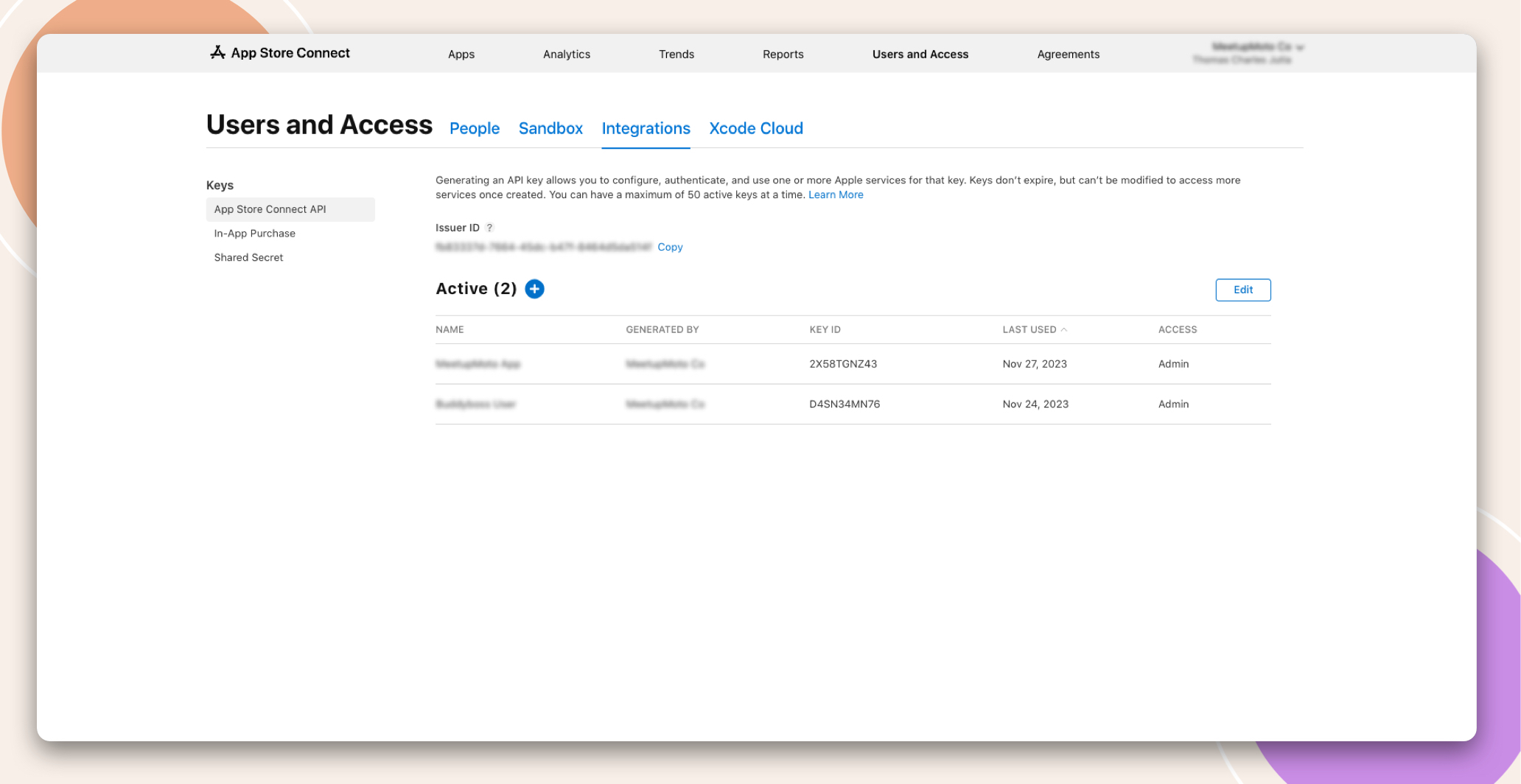
- Click on the + symbol next to Active
- Enter a Name
- This will be used only as a reference inside your Apple Developer account
- Select Admin in the Access dropdown
- The Admin role is recommended so that the BuddyBoss App plugin has sufficient permissions to perform the actions needed to provide all the features available.
- The App Manager role is also supported, but certain features, such as Publishing, will require additional setup steps as the plugin would not have sufficient permission to automate those steps in your Apple Developer account.
- Click on Generate
- Click on the Download API Key link next to the key you just generated
- You’ll only be able to download the key once, so make sure you keep it somewhere safe incase you need to re-enter it again in the future.
- Copy your Issuer ID and the key’s Key ID, ready to enter them in your BuddyBoss App’s settings
Connect Your Apple Developer Account API Key
- In your WordPress admin, go to BuddyBoss App > Configure> iOS Settings
- In the Connect Your Apple Developer Account section:
- Upload the API Key you downloaded
- Paste your Issuer ID
- Paste your Key Id
- Click Connect Account
Your BuddyBoss App will now be connected to your Apple Developer Account.
You can click Disconnect Account to disconnect from this account. For example, if you wanted to change the API key used or switch to a different account.
Now that you’re connected, you can proceed to creating your iOS app in your Apple Developer account and completing the App Configuration steps.